Unlock ultimate browsing speed with these ancient Firefox tweaks and hidden tricks giving gamers a productivity edge in 2026.

As a professional gamer, I treat my browser setup with the same obsessive precision I apply to my gaming rig. Even in 2026, when browsers promise to be faster and smarter out of the box, the real edge comes from deep customization. That's why I still swear by a set of ancient Firefox tweaks—yes, some of them are over a decade old—that continue to slice seconds off my workflow and make the whole internet feel like a well-oiled gaming engine. Think of this as retrofitting a classic muscle car with jet fuel: you keep the soul, but you unlock next-level performance.
🚀 Part 1: Shortcuts & Hidden Tricks That Feel Like Cheat Codes
These aren't your average Ctrl+T or Ctrl+W. These are the kind of moves that turn a regular browser into a precision tool.
Mouse Scroll Button – The Silent Tab Opener
You probably know middle-click opens a link in a new tab. But I’m always surprised how many people never use it. It’s like having a second sword in an action RPG that you forget you have—once you start, you can’t stop. Every link, every post, every image, all opened silently without stealing your focus.
Slash (/) – In‑page Search That Vanishes Like a Thief
Ctrl+F is fine, but pressing / activates a quick‑find bar that disappears automatically after a few seconds. No need to close it, and you can jump through results using F3 (next) and Shift+F3 (previous). It’s like a magical minimap that fades away when you don’t need it.
Apostrophe (') – The Link Sniper
This one is dangerously underrated. The ' key initiates a find‑as‑you‑type search, but only among hyperlinks on the page. Press it, start typing the text of a link, and hit Enter. Boom—you’re teleported across the page like you just activated a fast‑travel point in an open‑world game.
Open Search Results in a New Tab
By default, searching from the address bar replaces your current tab. To change this, type about:config in the URL bar, search for browser.search.openintab, and double‑click to toggle it to true. Every search now launches in a new tab, keeping your current page intact—like striking a conversation without losing your seat at the main table.
Stop Annoying Window Resizing
Some websites still try to resize your window in 2026 (yes, they exist). Fight back by going to Preferences → Content → click ‘Advanced’ next to ‘Enable Javascript’ → uncheck ‘Move or Resize Existing Windows’. Your layout stays as solid as a fortress.
Assign Keywords to Bookmarks – Instant Launch Commands
Right‑click any bookmark, open Properties, and assign a short keyword in the Keyword field. Now typing that keyword in the address bar takes you directly to the page. I use yt for YouTube, map for Google Maps, and inv for my inventory tracker—it’s like binding hotkeys to your most‑used tools.
Bookmark Tab Groups – Your Session Save Slots
Ever wanted to save an entire window of tabs? Firefox lets you bookmark all open tabs into a folder. You can then open that folder as a batch, or even set a group as your homepage. For someone like me who often researches raid strategies or watches five build‑guide videos at once, this is the equivalent of quick‑loading save states in a tough game.
⚙️ Part 2: Speed Tweaks That Turn Firefox Into a Racing Machine
Memory hungry browsers are the lag spikes of the internet. These tweaks are like cleaning out your PC’s dust filters—small effort, huge cooling effect.
1. Dump Firefox to Disk When Minimized
When you minimize Firefox, it normally sits in RAM. A hidden preference (config.trim_on_minimize, which you can create in about:config as a Boolean set to true) tells Firefox to release memory when minimized. Maximize it again and it snaps back instantly. Think of it as an energy‑saving mode that doesn’t stutter when you wake it up.
2. Stop PDFs From Freezing the Browser
Opening a PDF used to lock Firefox for a good minute, like a sudden encounter with a boss that stun‑locks you. The fix: go to Preferences → Applications, find ‘Portable Document Format (PDF)’, and set the action to ‘Use other…’ and select your system’s PDF reader. No more frozen tabs.
3. Tune the Back‑Forward Cache
Firefox has a built‑in bfcache that holds recently visited pages in memory so they load instantly when you go back or forward. The number of pages cached scales with your RAM. But if you skip through history rarely, you can reduce the size to free up memory. In about:config, tweak browser.sessionhistory.max_entries to something lower. It’s like adjusting your game’s texture streaming distance—optimize for what you actually use.
4. Stop Pre‑fetching Links You Never Click
Firefox sometimes pre‑loads pages it thinks you’ll click (e.g. top Google results). That wastes bandwidth and CPU. Disable speculative pre‑connections by setting network.predictor.enabled and network.prefetch-next to false in about:config. Now only the links you actually click get fetched—no more ghost traffic.
5. Hunt Down Memory‑Leaking Extensions
Some add‑ons silently hemorrhage RAM, like a tiny leak in a spacesuit. Even in 2026, poorly designed extensions can cause slowdowns. Use about:performance to monitor extension memory usage, and periodically audit what you’ve installed. If something consistently eats more than 100 MB, replace it with a leaner alternative.
🧩 Part 3: Extensions That Fill the Gaps Like DLC Packs
Extensions are where Firefox truly becomes a custom operating system for the web. Here are some classics that—even if names have changed—solve problems every power user faces.
ColorfulTabs – Color‑Code Your Chaos
This add‑on tints each tab with a distinct hue. When you have 30 tabs open across three projects, color‑coding makes your browser look like a symphony instead of a landfill. It’s the equivalent of assigning different HUD colors to your teammates—instant recognition.
Firefox Extension Backup – Your Cloud‑Save for Add‑ons
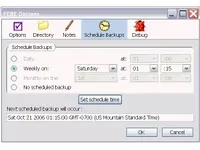
What if you could snapshot your entire Firefox setup—extensions, themes, passwords, cookies—and restore it on a new machine? This extension did exactly that. While the original may be outdated, modern alternatives like FEBE successors or built‑in Firefox Sync serve the same purpose. I treat browser backups like regularly saving my game progress; you never know when a corrupted update might hit.
Amazing Webpage Emailer – Gone but Not Forgotten
There was an extension that let you email any webpage, even locked ones behind logins or framesets. It’s as if you could bypass a level’s collision detection to take a screenshot. Today, you’d use Firefox’s built‑in screenshot tool combined with email services, but the spirit lives on.
HistorySubmenus – Your Time‑Machine Sidebar
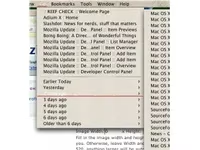
This extension expanded the History sidebar by grouping visits under day headers: Today, Yesterday, 2 days ago… It was like a quest log that journals your entire online adventure. In 2026, Firefox’s history improvements make this less essential, but for those who love granular time‑travel, a similar add‑on still exists on the Mozilla store.
Tab Mix Plus – The Swiss Army Knife of Tabs
Tab Mix Plus added everything tab‑related: duplicate tabs, control focus, protect locked tabs, undo closed windows, crash recovery, and session management. It was the ultimate multitasking tool, like having a secondary character that automatically picks up loot. While Firefox has absorbed many of these features natively, some advanced options (like customizing tab row behavior after the last tab is closed) still require dedicated extensions.
FaviconizeTab – Shrink Tabs to Icons
Right‑click any tab and choose “FaviconizeTab” to collapse it down to just the site’s icon. For pages you keep open permanently (email, music, Twitch chat), this saves immense space. It’s like turning full‑size weapons into sleek pistols on your belt.
Clear Cache Button – One‑Click Performance Flush
A simple toolbar button that clears the cache instantly without digging through menus. Perfect after a long session when the browser starts feeling sluggish, like resetting a level that’s gotten buggy.
Even in the futuristic year of 2026, these elementary‑school Firefox tricks still give me the reflexes of a top‑tier player. Some have evolved, some have been integrated, but the philosophy remains: never accept the default if you can tweak. Your browser is the lobby to every online game, every streaming session, every wiki deep‑dive—make it work for you.
Now if you’ll excuse me, I have a raid to join, and my Firefox just loaded faster than the healer’s PC boots up. ✌️