Discover batch file automation and useful batch files for Windows to effortlessly enhance productivity and automate repetitive tasks.
Before Windows became our favorite GUI, everything was done using commands. Some of our readers may remember using MS-DOS commands to complete the smallest of tasks. These days, you can still use commands to automate tasks and speed up your productivity. If you have a number of repetitive tasks, you can write a batch file to automate the process. Keep reading for several useful batch files you can use to automate your digital life in 2026! 🚀
A batch file is a type of script that contains a series of commands. The batch file can contain any number of commands. So long as the operating system recognizes the script's commands, the batch file will execute the commands from start to finish. You write batch files in plain text. You can use any text editor you like, but the standard Notepad app does the job just fine. If you're creating a complex batch file, the additional features of Notepad++ are handy. But for now, you can stick with Notepad, as each example batch file below has been tested using that program.
Once you finish inputting your batch file commands, head to File > Save As, then give your batch file an appropriate name. After saving, you can change the file extension from .txt to .bat, which changes the file type. To do this, right-click the file and select Rename, then change the file extension as above. Alternatively, highlight the file and press F2, then change the file extension.
Here are six really useful batch files for you to play around with and some short descriptions of what each command syntax and parameter can do. ✨
1. 📂 Launch Multiple Programs at Once
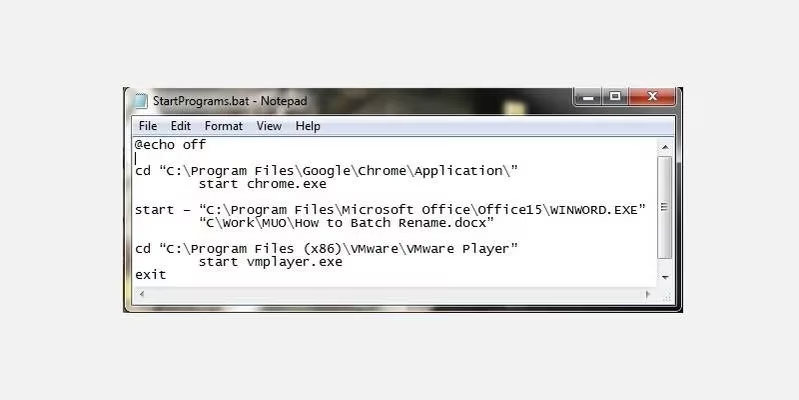
If you have a list of programs you open each time you fire up your computer, you can use a batch file to automate the process. Instead of opening each program manually, you can open them simultaneously. In the example below, I'm opening the Google Chrome browser, a Word document I'm working on, and VMware Player.
Open a new text file and input:
@echo off

cd "C:\Program Files\Google\Chrome\Application\"

start chrome.exe

start – "C:\Program Files\Microsoft Office\Office15\WINWORD.EXE" "C:\Work\MUO\How to Batch Rename.docx"

cd "C:\Program Files (x86)\VMware\VMware Player"

start vmplayer.exe

Exit
You can add as many applications and files as you want to the batch file. The batch file commands in this file are:
-
@echo displays the command currently being executed in a command shell. We turned this off.
-
cd changes the directory.
-
start does the obvious and starts the program.
2. 🗑️ Automatically Delete Old Files
You can use a batch file to scan for and then delete files older than a certain amount of days. You set the maximum age range for the files in the batch file, allowing you to customize the process. Furthermore, you can use the batch file script to delete a specific file type or a group of files in a folder, so long as they meet the criteria expressed in the commands.
The first example deletes files in the specified folder older than three days:
forfiles /p "C:\some\file\name\here" /s /m * /d -3 /c "cmd /c del @path"
The second example only deletes files with the .docx file extension older than three days:
forfiles /p "C:\some\file\name\here" /s /m * .docx /d -3 /c "cmd /c del @path"
The batch file commands and switches in use here are:
| Command | Function |
|---|---|
| forfiles | Allows us to use commands for each file in a location |
| /p | Details the path to start searching (the directory you want to delete files from) |
| /s | Instructs the command to search sub-directories |
| /m | Instructs the command to use the given search mask (wildcard * or specific extension) |
| /d-3 | Time setting (increase or decrease depending on requirements) |
| /c del @path | The delete aspect of the command |
3. 💾 Create Automated Backups
You can use a batch file to backup a specific folder or as part of a more substantial backup setup. You should use system backup and system restore points as part of your regular system maintenance. Sometimes, it pays to make a couple of copies of anything that might make you cry if it were deleted or destroyed. 😅
There are many different batch file backup methods you can use. Below are instructions for a basic backup batch file and another slightly more advanced version.
Basic Backup Method:
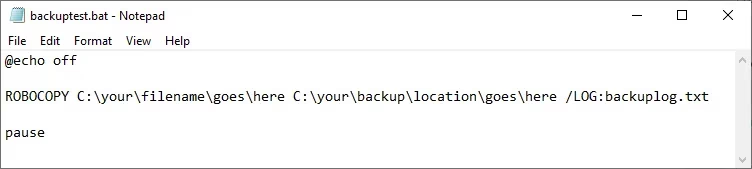
Open Notepad, then input the following commands:
@echo off

ROBOCOPY C:\your\filename\goes\here C:\your\backup\location\goes\here /LOG:backuplog.txt

pause
Now, head to File > Save As, name the file systembackup.bat, and complete the Save. The easy backup method works best for backing up individual folders, but isn't entirely practical for anything more complex.
Advanced Backup Method:
This time you will build a longer string of folders to backup, including your system registry and other important folders.
@echo off

:: variables

set drive=X:\Backup

set backupcmd=xcopy /s /c /d /e /h /i /r /y

echo ### Backing up My Documents...

%backupcmd% "%USERPROFILE%\My Documents" "%drive%\My Documents"

echo ### Backing up Favorites...

%backupcmd% "%USERPROFILE%\Favorites" "%drive%\Favorites"

echo ### Backing up email and address book...

%backupcmd% "%USERPROFILE%\Application Data\Microsoft\Address Book" "%drive%\Address Book"

%backupcmd% "%USERPROFILE%\Local Settings\Application Data\Identities" "%drive%\Outlook Express"

echo ### Backing up email and contacts (MS Outlook)...

%backupcmd% "%USERPROFILE%\Local Settings\Application Data\Microsoft\Outlook" "%drive%\Outlook"

echo ### Backing up the Registry...

if not exist "%drive%\Registry" mkdir "%drive%\Registry"

if exist "%drive%\Registry\regbackup.reg" del "%drive%\Registry\regbackup.reg"

regedit /e "%drive%\Registry\regbackup.reg"

echo Backup Complete!

@pause
Here's what the commands in this batch file mean:
-
First, set the location you want to copy the files to using
set drive=X:\Backup. Change the drive letter to whatever your external backup drive letter is. -
The next command sets the specific backup copy type your batch file will use, in this case, xcopy.
xcopy parameters explained:
-
/s copies system files
-
/c carries out the command specified by the string, then terminates
-
/d enables drive and directory changes
-
/e copies empty directories
-
/h copies hidden files
-
/i if destination doesn't exist, and you're copying more than one file, /i assumes the destination must be a directory
-
/r overwrites read-only files
-
/y suppresses prompts confirming you want to overwrite read only files
4. ⚡ Switch Between IP Addresses
Most of the time, your computer uses a dynamic IP address to connect to the internet. Sometimes, you might use a static IP address instead, for instance, in your workplace, school, or otherwise. Sure, you could change between a dynamic and static IP address manually. But if it is somewhere you visit regularly, why not make a batch file to do the work for you?
Here's how you make a batch file to switch to a static IP address:
netsh interface ip set address "LAN" static "xxx.xxx.xxx.xxx" "xxx.xxx.xxx.x" "xxx.xxx.xxx.x"
Where the first series of "x's" is your required static IP, the second is the network/subnet mask, and the third is your default gateway.
When you want to switch back to a dynamic IP address, you can use this batch file:
netsh int ip set address name = "LAN" source = dhcp
If you have more than one network you connect to regularly, duplicate the first file, and edit the details accordingly.
5. 👶 Parental Control Timer
My kids aren't old enough to be playing video games in the middle of the night, but I remember my tactics against my parents so I could play Championship Manager 2 into the small hours of the morning. Luckily, my parents didn't know about using commands to control my actions.
You can use the following batch file to set a warning and begin a countdown timer on your kid's machine:
@echo off

:W

If %time%==23:30:00.00 goto :X

:X

shutdown.exe /s /f/ t/ 120 /c "GO TO BED RIGHT NOW!!!"
Here, the computer continually checks to see if the time is half-past eleven. When the time correlates, the message "GO TO BED RIGHT NOW!!!" will display, along with the 120s countdown timer. The 120s should be enough time to save whatever game they are playing, or their work, before the computer shuts down.
💡 Pro Tip: To stop the countdown, press Windows Key + R. (Of course, don't tell the kids this!)
6. 🎮 Text-Based Pokémon Game
This batch file has nothing to do with productivity. In fact, it's the absolute opposite. If you're susceptible to Pokémon-related gaming addictions, you should give this one a miss because it's essentially Pokémon Red in text form.
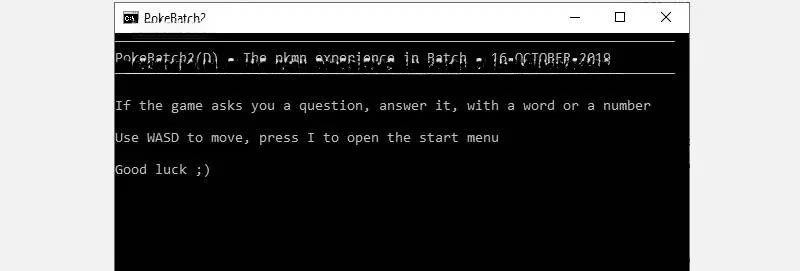
If you don't want to miss out, you can grab PokéBatch and start playing. Download the text file, then switch the file extension from .txt to .bat, and you're good to go. If you like a challenge, why not check out the most fun Pokémon challenges to prove your mastery of the series?
🎯 Bonus: File Management Automation
I've written a more extensive article dealing with batch file renaming and deletion, so I won't explore this one too much, but you can use batch files to automate these sometimes tedious tasks. Check out the article for some extended batch commands, and get bulk deleting straight away.
These are just six batch files you can create to automate tasks on your system in 2026. With more practice, you'll be able to accomplish unheralded amounts of activities on your system between batch files and the Command Prompt. Remember that batch files are powerful tools - use them wisely and always test them in a safe environment first! 🛡️
Quick Reference Table for Common Batch Commands:
| Command | Purpose | Example |
|---|---|---|
| @echo | Controls command display | @echo off (hides commands) |
| cd | Change directory | cd C:\Users |
| start | Launch programs | start notepad.exe |
| forfiles | Process files by criteria | forfiles /p C:\temp /m *.txt /d -7 /c "cmd /c del @path" |
| robocopy | Robust file copying | robocopy source destination /MIR |
| shutdown | Control system power | shutdown /s /t 60 (shutdown in 60s) |
| xcopy | Extended file copying | xcopy source destination /s /e /h |
| netsh | Network configuration | netsh interface ip set address... |
Happy automating! Remember, the key to effective batch file creation is starting simple and gradually building complexity as you become more comfortable with the commands and syntax. 🚀