AutoKey, a free Linux automation tool, revolutionizes desktop productivity in 2026 by eliminating repetitive tasks with text expansion and Python scripts. This versatile application streamlines workflows for both novices and experts, saving countless hours.
In the ever-evolving landscape of Linux desktop environments, automation remains a cornerstone of productivity. AutoKey stands tall as a free, open-source scripting application that empowers users to eliminate repetitive tasks through intelligent automation. As we navigate 2026, this versatile tool continues to evolve, offering both novice and experienced Linux users powerful ways to streamline their workflows. From simple text expansion to complex system operations triggered by hotkeys or phrases, AutoKey transforms how users interact with their systems, saving countless hours that would otherwise be spent on mundane operations.

🌟 Understanding AutoKey's Core Functionality
AutoKey serves as a desktop automation utility that operates through two primary mechanisms: phrases and scripts. Phrases function as intelligent text expanders—type a brief abbreviation, and AutoKey replaces it with predefined text, perfect for email signatures, code snippets, or frequently used responses. Scripts, written in Python, enable more sophisticated automation, allowing users to launch applications, manipulate windows, control mouse events, and execute complex system operations. The beauty of AutoKey lies in its dual-interface approach, with both GTK and Qt versions available to match different desktop environments.
Key Applications in 2026:
-
Text Expansion & Auto-Correction: Perfect for developers, writers, and support professionals
-
Application Launching: Instant access to frequently used programs
-
Boilerplate Text Insertion: Legal documents, email templates, and code blocks
-
System Automation: File management, window control, and process automation
-
Custom Python Script Execution: Advanced users can create complex workflows
🛠️ Installation Guide for Modern Linux Distributions
Installing AutoKey remains straightforward in 2026, with package managers offering the most reliable method. The choice between autokey-gtk and autokey-qt depends on your desktop environment—GTK for GNOME-based systems and Qt for KDE Plasma environments.
Installation Commands:
| Distribution | Command | Notes |
|---|---|---|
| Debian/Ubuntu | sudo apt install autokey-gtk or sudo apt install autokey-qt |
Standard repository availability |
| Fedora | sudo dnf install autokey-gtk |
Recent versions include Qt support |
| Arch Linux | yay -Syy autokey-gtk |
Available via AUR with excellent community support |
| openSUSE | sudo zypper install autokey |
Comprehensive package management |
For users seeking the absolute latest features, pip installation remains an option (pip install autokey), though package managers generally provide better integration with system updates and dependencies.
🔧 Initial Setup and Configuration
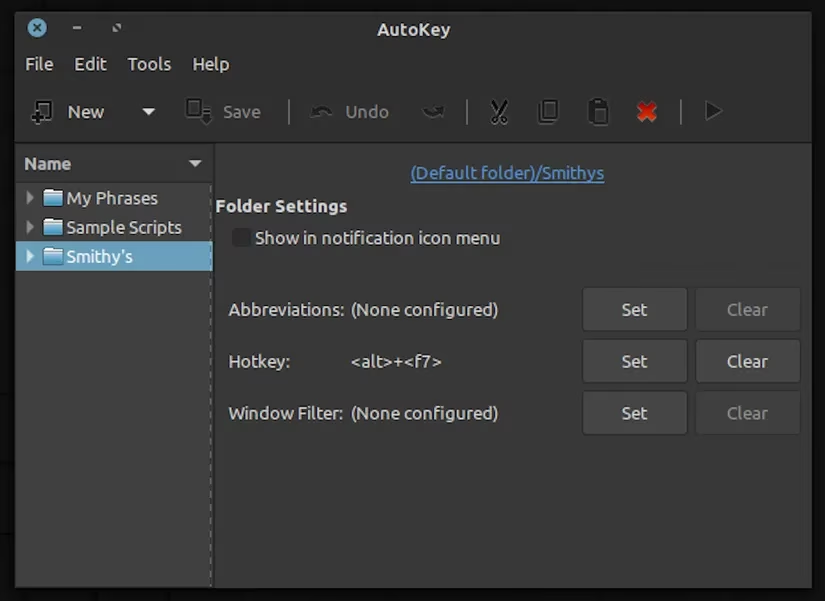
Upon launching AutoKey, users encounter a thoughtfully organized interface divided into navigation and configuration panes. The left section manages phrases and scripts, while the right panel displays and edits selected items. A critical first step involves configuring AutoKey to launch automatically at login—ensuring automation is always available without manual intervention.
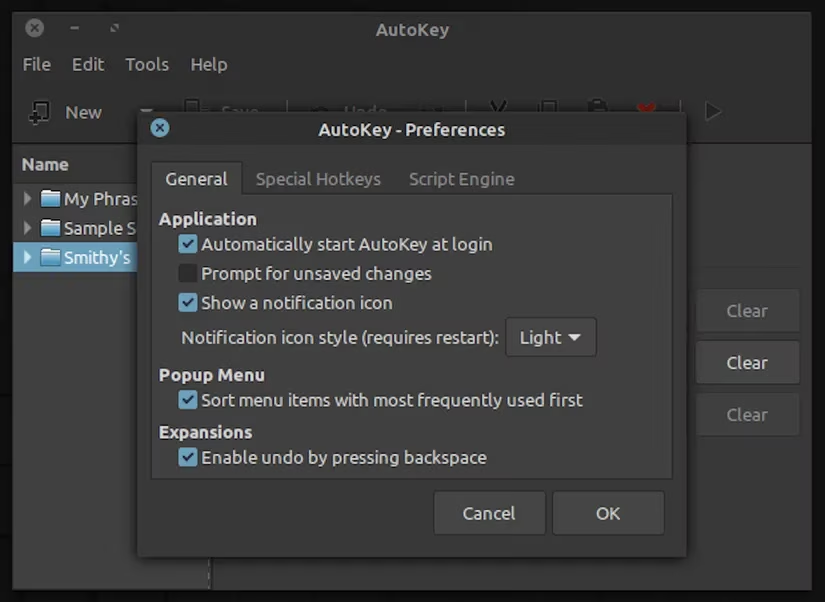
Essential Startup Configuration:
-
Navigate to Edit > Preferences
-
Select the General tab
-
Check Automatically start AutoKey at Login
-
Click OK to save
📝 Mastering AutoKey Phrases
Phrases represent AutoKey's most accessible feature, transforming brief abbreviations into complete text blocks. This functionality proves invaluable for professionals across industries—developers inserting common code patterns, customer service representatives using standardized responses, or students inserting frequently cited references.
Creating a Text Expansion Phrase:
-
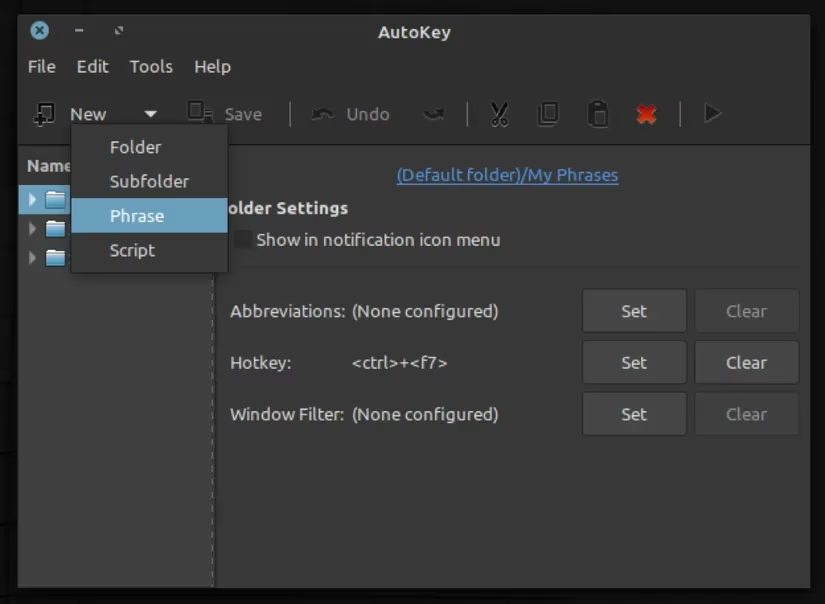
Right-click in the Phrases section and select New > Phrase
-
Name your phrase descriptively
-
In the right panel, enter the full text you want expanded
-
Click Set beside Abbreviations
-
Add your preferred abbreviation (e.g.,
sigfor signature) -
Set Trigger on to All non-word characters
-
Save your configuration
Advanced Phrase Management:
-
Case Insensitivity: Enable Ignore case of typed abbreviation for flexible triggering
-
Immediate Triggering: Activate Trigger immediately to eliminate trigger characters
-
Hotkey Grouping: Organize related phrases into folders with single hotkey access
For power users managing numerous phrases, folder organization with hotkey access proves essential. Create a folder for related phrases (e.g., "Python Libraries"), assign a hotkey (Ctrl+Shift+P), and access all contained phrases through a convenient pop-up menu.
🐍 Unleashing Python Scripts
AutoKey's true power emerges through Python scripting, enabling automation far beyond text replacement. With basic Python knowledge, users can automate virtually any system interaction—from launching applications to manipulating windows and processing data.
Creating a Script to Launch Applications:
-
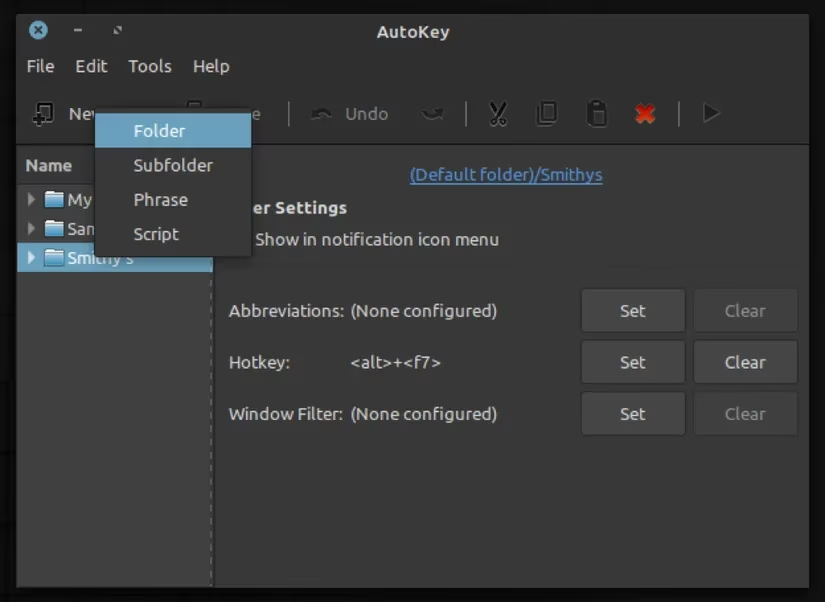
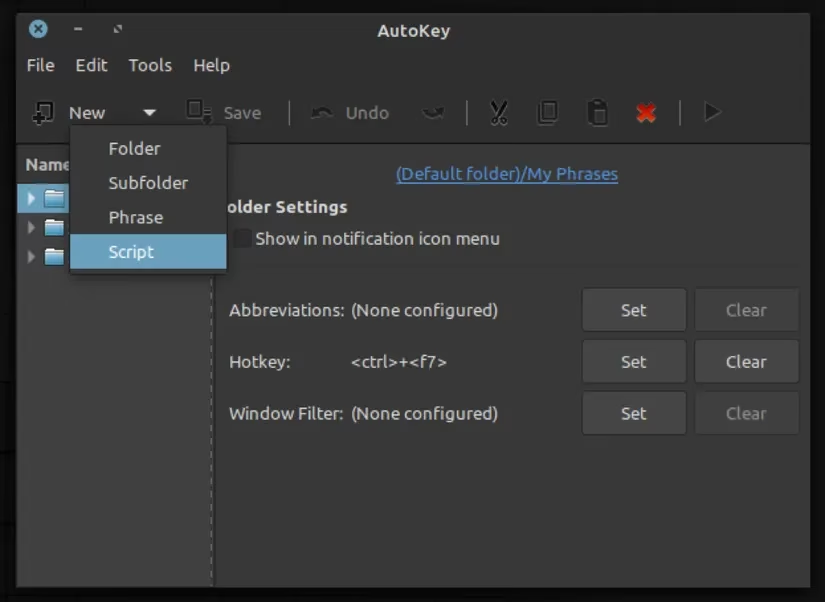
Right-click in the Scripts section and select New > Script
-
Name your script appropriately (e.g., "Launch Chrome")
-
Replace the default code with:
import subprocess

subprocess.Popen(["/usr/bin/google-chrome"])
-
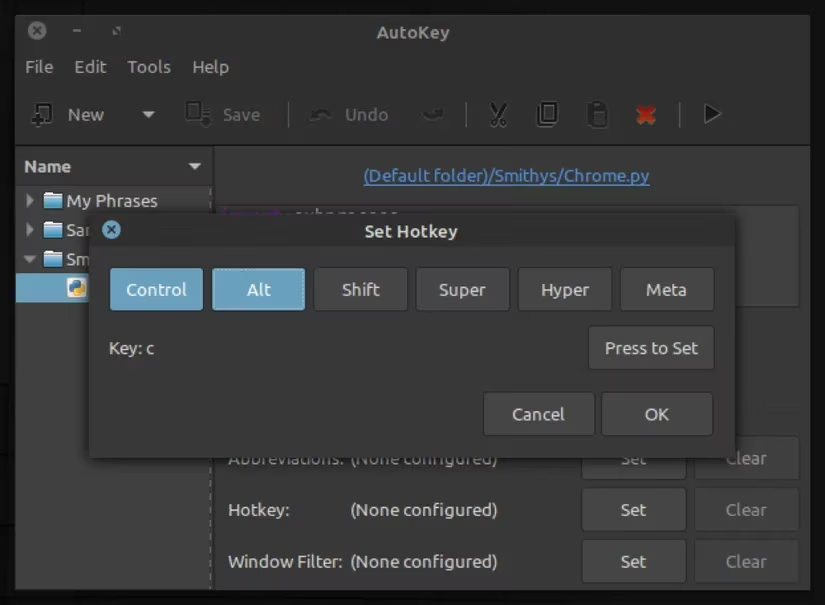
Click Set beside Hotkey and assign your preferred combination
-
Save and test your script
Python Modules for Common Tasks:
-
subprocess: Launching applications and system commands -
os: File system operations and environment variables -
time: Adding delays and scheduling actions -
pyautogui: Mouse and keyboard control (requires installation) -
tkinter: Creating simple dialog boxes and interfaces
🚀 Advanced Automation Strategies for 2026
As automation needs grow more sophisticated, AutoKey adapts through community-developed scripts and integrations. Modern implementations often combine multiple scripts into cohesive workflows, creating intelligent automation chains that respond to system events or user patterns.
Pro Tips for Power Users:
-
Script Chaining: Combine multiple scripts using Python's control structures
-
Conditional Execution: Use system monitoring to trigger scripts based on conditions
-
External Integration: Connect AutoKey with web APIs and local services
-
Error Handling: Implement robust try-except blocks for reliable automation
-
Modular Design: Create reusable script components for different projects
Sample Advanced Script Structure:
import subprocess

import os

from datetime import datetime

def launch_ide():

    # Check if IDE is already running

    if not is_process_running("code"):

        subprocess.Popen(["code", "--new-window"])

        log_activity("IDE launched at " + str(datetime.now()))

    else:

        # Focus existing window

        subprocess.Popen(["wmctrl", "-a", "Visual Studio Code"])

def is_process_running(process_name):

    # Process checking logic

    return False  # Simplified for example

def log_activity(message):

    with open("/tmp/autokey_log.txt", "a") as f:

        f.write(message + "\n")

# Execute

launch_ide()
📊 Comparing AutoKey with Modern Alternatives
While AutoKey remains a top choice for Linux automation in 2026, several alternatives offer different approaches:
| Tool | Primary Focus | Learning Curve | Best For |
|---|---|---|---|
| AutoKey | Text expansion & Python scripting | Moderate | General desktop automation |
| KRunner | Application launching & calculations | Low | KDE Plasma users |
| Albert | Universal search & quick actions | Low | Keyboard-centric workflows |
| xdotool | Window manipulation & input simulation | High | Headless automation & testing |
| Node-RED | Visual workflow programming | Moderate | IoT & complex automation chains |
🔮 Future Developments and Community Resources
The AutoKey community continues to thrive in 2026, with regular updates addressing compatibility with newer desktop environments and Python versions. Recent developments include:
-
Enhanced Wayland support for modern display servers
-
Cloud synchronization of phrases and scripts across devices
-
AI-assisted script generation through community plugins
-
Improved accessibility features for diverse user needs
-
Containerized execution for secure script isolation
Getting Help and Sharing Knowledge:
-
Official Documentation: Comprehensive guides and API references
-
GitHub Repository: Source code, issues, and contributions
-
Community Forums: User discussions and solution sharing
-
YouTube Tutorials: Visual guides for complex automation scenarios
-
Reddit Communities: Real-time help and script sharing
🎯 Practical Implementation Examples
For Software Developers:
-
Code snippet expansion (type
defm→def main():) -
Import statement insertion (type
imnp→import numpy as np) -
Git command shortcuts (type
gcm→git commit -m ") -
Environment setup scripts that configure development tools
For Content Creators:
-
Markdown formatting shortcuts (type
h1→#) -
Social media template expansion
-
Image metadata insertion
-
Publication checklist automation
For System Administrators:
-
Common command shortcuts
-
Log file analysis scripts
-
System monitoring automation
-
Backup procedure triggers
💡 Maximizing Your AutoKey Experience
To truly harness AutoKey's potential in 2026, consider these optimization strategies:
-
Start Simple: Begin with basic text expansion before advancing to scripts
-
Document Your Setup: Maintain notes on abbreviations and hotkeys
-
Regular Backups: Export your phrases and scripts periodically
-
Community Engagement: Share useful scripts and learn from others
-
Progressive Complexity: Gradually increase automation sophistication as comfort grows
-
Security Awareness: Audit scripts from untrusted sources before execution
🏁 Conclusion
AutoKey remains an indispensable tool in the Linux automation toolkit as we progress through 2026. Its elegant combination of simple text expansion and powerful Python scripting creates a versatile platform suitable for users at all skill levels. Whether you're saving seconds with quick abbreviations or reclaiming hours through complex automation workflows, AutoKey delivers tangible productivity gains. The learning investment pays exponential dividends as automated routines become second nature, freeing mental bandwidth for creative and strategic work. As Linux desktop environments continue evolving, AutoKey's open-source foundation and active community ensure it will adapt to meet future automation challenges, maintaining its position as a cornerstone of efficient computing for years to come.