Automate file transfers on Windows and macOS to boost productivity and keep your digital space organized with these powerful, easy-to-use strategies.
Picture this, fellow gamers: you're in the middle of an intense raid, and your teammate urgently needs that strategy guide you downloaded last week. You alt-tab, frantically search through a chaotic Downloads folder littered with old memes, random game mods, and three different versions of the same patch note. Meanwhile, your raid party wipes. Oof. Talk about an unnecessary debuff. In the fast-paced world of 2026, whether you're managing game clips, mods, or essential guides, letting your digital space become a loot drop mess is a surefire way to tank your productivity. Luckily, automating file transfers on both Windows and macOS is still a pro-level strat for staying organized without lifting a finger once it's set up. Let's dive into how you can automate your file management and keep your focus where it belongs: on the game.
This isn't just about neatness; it's about efficiency. Imagine your Downloads folder as your inventory. After a few gaming sessions, it gets cluttered with loot you don't immediately need—screenshots, driver updates, voice chat recordings. Setting up an automated system is like having a loyal NPC that sorts all that loot into the correct chests (folders) for you. Similarly, you might have a "Work-in-Progress" folder for game footage you're editing. Once a project is done, why not have those files automatically teleported to an archive? It clears mental RAM and physical disk space, a win-win.
Automating File Moves on Windows: The Batch Script & Task Scheduler Combo
On Windows, the dynamic duo for this job is a simple batch script and the built-in Task Scheduler. Think of the batch script as your macro—a pre-recorded set of commands. You don't need to be a coding wizard; you can literally copy, paste, and tweak. Here's the 2026 lowdown:
-
Craft Your Script (The Macro): Open Notepad (yes, the classic still rocks). This is your command center.
-
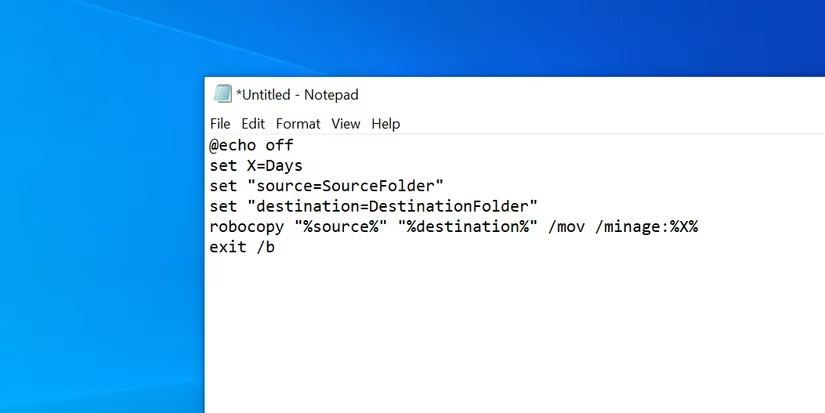
Paste the Magic Code: Copy and paste the following script template:
```batch
@echo off
set X=7
set "source=C:\Users\Gamer\Downloads"
set "destination=D:\Archive\Old_Downloads"
robocopy "%source%" "%destination%" /mov /minage:%X%
exit /b
```
-
Customize Your Variables: This is where you make it yours.
-
set X=7: Change7to the number of days old a file should be before moving it.30for monthly cleanups? You got it. -
set "source=...": Replace the path with your cluttered source folder's full path. -
set "destination=...": Replace this with the full path of your tidy destination folder.
-
-
Save as a .BAT File: Click File > Save As. Crucial step: In the "Save as type" dropdown, select All Files. Name your file something cool like
AutoFileMover.batand save it. Bam, you've created an executable script.
Now, double-clicking that .bat file will run your cleanup once. But we want automation. That's where Task Scheduler, your in-game quest tracker, comes in.
-
Schedule the Quest: Open Task Scheduler from the Start menu.
-
Create a New Task: Click Create Task. Give it a clear name like "Weekly Downloads Cleanup."
-
Set the Trigger (When): Go to the Triggers tab, click New. Here you set the frequency—daily, weekly, every Monday at 3 AM? Your call. Set the time and hit OK.
-
Set the Action (What): Go to the Actions tab, click New. Ensure "Start a program" is selected. Click Browse and navigate to your saved
AutoFileMover.batfile. Select it. -
Finalize: Click OK twice. Your task is now live!
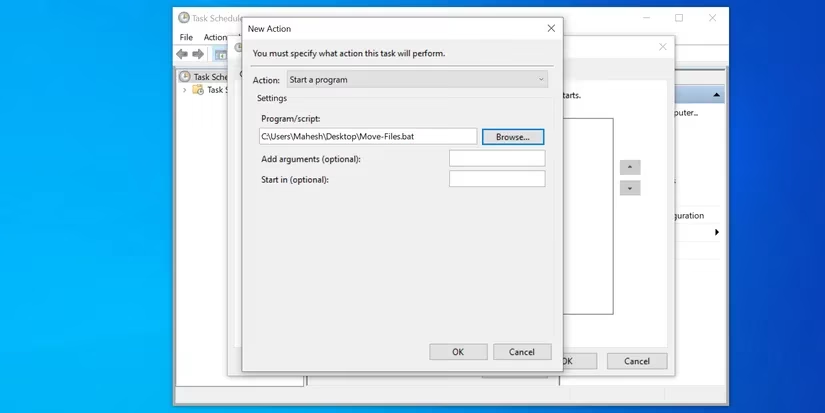
And just like that, Windows will silently execute your script on schedule. If you ever need to disable it, simply open Task Scheduler, find your task, and delete it. Easy peasy.
Automating File Moves on macOS: Automator's Folder Action Magic
For Mac users, the process is even more streamlined, thanks to the powerhouse app Automator. It's like having a built-in mod for your operating system. We'll create a Folder Action—a rule that triggers the moment a file lands in a specific folder. No scheduling needed; it's instant.
-
Launch Automator: Find it in your Applications folder or with Spotlight.
-
Create a New Folder Action: Click File > New, select Folder Action, and click Choose.
-
Choose Your Source Folder: At the top of the workflow, you'll see a dropdown that says "Folder Action receives files and folders added to." Click it and select the folder you want to monitor (e.g., your Downloads folder).
-
Add the Move Action: On the left-hand library, search for Move Finder Items. Drag and drop this action into the workflow area on the right.
-
Set the Destination: In the "Move Finder Items" action, use the To dropdown to select the folder where files should be sent. You can even create a new folder here.
-
Optional: Check Replace existing files if you want new files to overwrite old ones with the same name in the destination.
-
Save Your Workflow: Press Cmd + S, give it a descriptive name like "Clean Up Downloads," and click Save.
-
Close Automator. You're done!
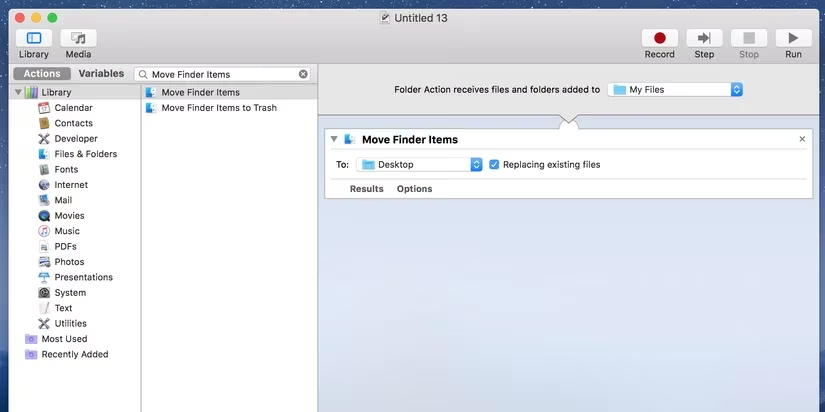
From this moment on, any file added to your chosen source folder will be instantly whisked away to the destination. It's pure magic—or, you know, really smart automation.
Pro Gamer Tips & Caveats for 2026 🎮
-
Beware the Active Downloads Trap: A major gotcha on Mac, especially for gamers. If your browser is set to download to the same folder you're monitoring, Automator might try to move a file that's only partially downloaded (like that 80GB game you're installing). This can corrupt the download. The workaround? Either don't use your primary Downloads folder as the source for instant moves, or change your browser's default download location temporarily.
-
Emoji for Clarity: Consider using emoji in your folder names for super quick visual identification.
📁 Game_Clips→📁 Archived_Clipsmakes the automation path feel more fun. -
Beyond Basic Moves: The principles here are just the beginning. On Windows, you can modify the
robocopycommand with more flags (like/sfor subdirectories) for complex moves. On Mac, you can chain multiple Automator actions—like moving files AND then renaming them based on date. -
Cloud Sync Considerations: In 2026, with many using hybrid cloud-local setups (like OneDrive or iCloud Drive), ensure your source and destination paths are on local drives to avoid sync conflicts or unnecessary uploads/downloads during the move process.
Ultimately, setting up these automated workflows is a one-time investment that pays endless dividends in saved time and reduced clutter. It's about working smarter, not harder—freeing up your mental stack and disk space for what really matters: achieving those in-game victories and managing your digital empire like a true pro. Now go forth and automate! Your future self, mid-raid, will thank you.