Master Google Sheets invoice automation to effortlessly streamline your financial workflow. This powerful guide reveals how to use Google Apps Script for seamless, error-free billing, saving you time and ensuring punctual client payments.
For remote workers, freelancers, and business proprietors, maintaining consistent and punctual invoice distribution can be a persistent administrative challenge. Google Sheets, with its cloud-based architecture and integrated scripting capabilities, provides a robust and accessible solution for automating this critical financial task. This platform offers a distinct advantage over traditional spreadsheet software by being inherently internet-enabled, allowing users to leverage Google Apps Script to create automated workflows without extensive programming knowledge. The process involves preparing a standardized invoice template, implementing a script or macro to handle distribution, and setting up automated triggers to ensure timely delivery, thereby transforming a manual, error-prone process into a seamless, hands-off operation.
Preparing Your Invoice Spreadsheet
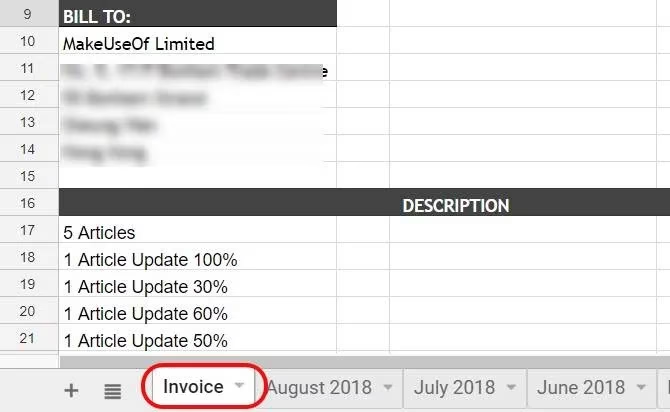
The foundation of this automation lies in a well-organized Google Sheets workbook. The specific visual formatting of the invoice is flexible, but structural consistency is paramount. A key organizational strategy is to maintain a primary working sheet with a constant name, such as "Invoice." Throughout the month, all billable hours, expenses, and client details are logged here. On the first day of the subsequent month, after the automated system dispatches the invoice, this sheet is manually renamed to reflect the period (e.g., "Invoice_October_2026"), and a fresh "Invoice" sheet is created for the new billing cycle. This simple naming convention ensures the automation script always targets the correct, up-to-date data.
Method 1: Automating with Google Apps Script
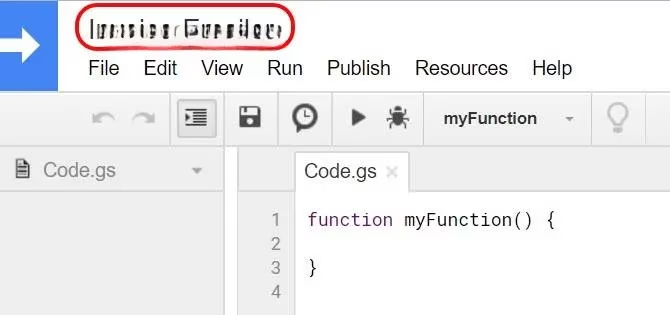
Google Apps Script provides a powerful way to create custom automation. Accessing the script editor is straightforward: within Google Sheets, navigate to Tools > Script editor. It is advisable to immediately rename the project to something descriptive, like "Monthly Invoice Automator," for future reference.
The core functionality is achieved with a concise script. The following code creates a copy of the active spreadsheet, packages it, and emails it as a PDF attachment.
function sendMonthlyInvoice() {

  var ss = SpreadsheetApp.getActiveSpreadsheet();

  var filename = "Invoice_" + ss.getName();

  var invoiceCopy = ss.copy(filename);

  var recipientEmail = "[email protected]";


  MailApp.sendEmail({

    to: recipientEmail,

    subject: 'Invoice for Services Rendered',

    body: 'Dear Client,\n\nPlease find attached the invoice for the previous month. Thank you for your business.\n\nBest regards,\nYour Name',

    attachments: [invoiceCopy.getBlob().setName(filename + ".pdf")]

  });

  // Optional: Delete the temporary copy after sending

  DriveApp.getFileById(invoiceCopy.getId()).setTrashed(true);

}
Key customizations include:
-
Recipient Email: Replace
"[email protected]"with the actual client email address. -
Email Content: Personalize the
subjectandbodyfields. -
Testing: Initially, set the
recipientEmailto your own address to verify the script works correctly.
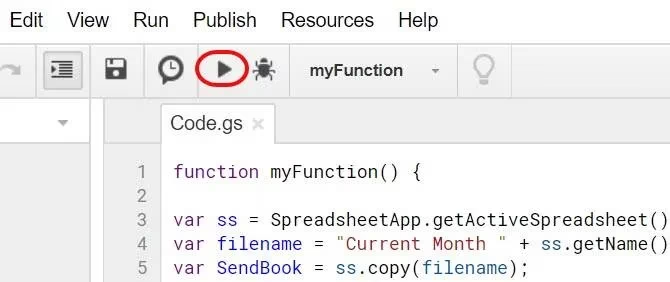
After saving the script, execute it by clicking the play (▶️) icon. The first run will require authorization, granting the script permission to send emails and access Drive files on your behalf. Google may display a security warning for unverified apps; this is standard for custom scripts and can be safely bypassed during testing.
Setting Up Automated Triggers
The true power of automation is realized by setting up a time-driven trigger. This eliminates the need for manual execution each month.
-
In the script editor, go to
Edit>Current project's triggers. -
Click
Add Trigger. -
Configure the trigger settings:
-
Choose which function to run:
sendMonthlyInvoice(or your function's name). -
Choose which deployment should run:
Head. -
Select event source:
Time-driven. -
Select type of time based trigger:
Month timer. -
Select hour of day:
1am - 2am(or a convenient time).
-
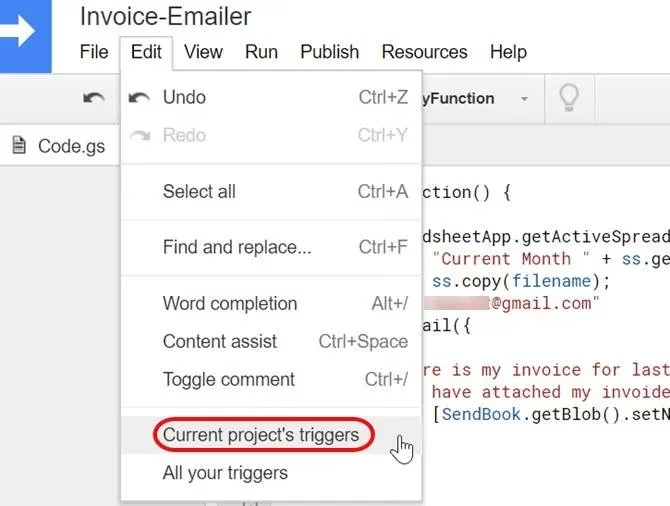
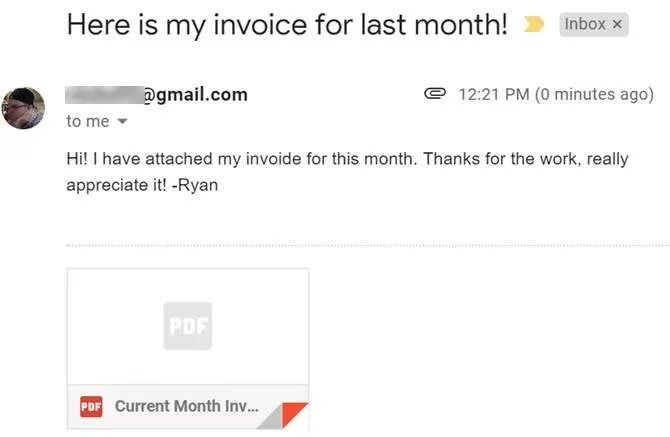
Once saved, the script will automatically execute on the first day of every month, generating a PDF from the "Invoice" sheet and emailing it to the designated recipient. The attached PDF format ensures the client can view it easily, regardless of their software.
Method 2: Utilizing Google Sheets Macros
For users who prefer a non-programming approach, Google Sheets' built-in macro recorder is an excellent alternative. Macros capture a sequence of actions—like emailing a sheet—and allow you to replay them automatically.
Recording the Macro:
-
With your invoice sheet open, go to
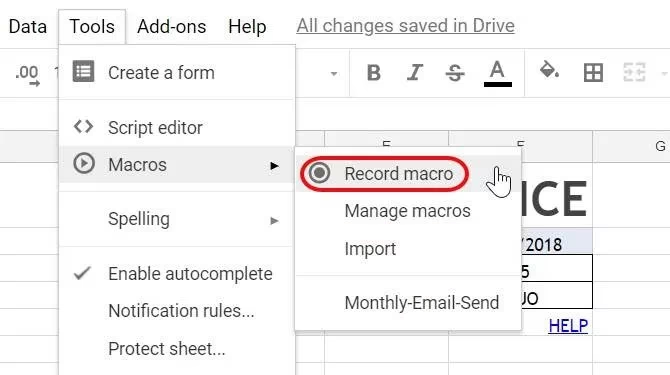
Tools>Macros>Record Macro. -
Manually perform the email action: Navigate to
File>Email>Email as attachment. -
In the dialog box, enter the recipient's email, a subject line (e.g., "Monthly Invoice"), and a message body.
-
Ensure the
Formatis set toPDFand clickSend. -
Stop the macro recording and save it with a recognizable name, such as
sendInvoicePDF.
Automating the Recorded Macro:
Even recorded macros run via Google Apps Script in the background. To automate them:
-
Reopen the
Script editorfromTools. -
Locate the
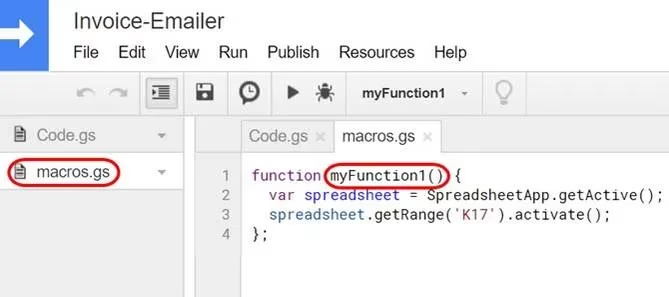
.gsfile containing the macro (often namedmacros.gs). Note the function name generated for your macro (e.g.,sendInvoicePDF). -
Create a new trigger as before (
Edit>Current project's triggers>Add Trigger). -
In the function dropdown, select your macro's function name.
-
Set the trigger to
Time-driven>Month timer>Day 1.
Best Practices and Considerations
-
Data Hygiene: Consistently update the "Invoice" sheet throughout the month to ensure the automated dispatch contains complete and accurate information.
-
Security: The authorization step is crucial; only grant these permissions to scripts you create or fully trust. The warning for an "unverified app" is normal for personal scripts.
-
Testing: Always conduct a test run to your own email address before deploying the automated trigger to a client.
-
Backup: The script creates a copy of the spreadsheet. Consider adding a line to move this copy to a specific "Archived Invoices" folder in Google Drive instead of trashing it, creating a permanent sent record.
-
Multiple Clients: For handling multiple clients, you can modify the script to loop through a list of clients and email addresses stored in a separate sheet within the same workbook.
By 2026, these automation techniques within Google Sheets have become even more refined and integrated. The triggers feature remains the cornerstone, empowering users to automate repetitive tasks efficiently. Whether through writing a simple script or recording a macro, setting up an automated invoice system saves valuable time, reduces the risk of human error, and ensures professional, consistent communication with clients. This allows freelancers and business owners to redirect their focus from administrative duties to core revenue-generating activities and strategic growth.