Discover how Onetastic macros for OneNote can revolutionize your note-taking by automating repetitive tasks and streamlining workflows. Unlock powerful features like instant page sorting and enhanced productivity with this essential add-in.
Microsoft Office applications are powerful tools right out of the box, but did you know you can take your productivity to the next level with some clever tweaks? For serious OneNote users, macros offer a game-changing way to streamline workflows and automate repetitive tasks. While many are familiar with macros in Excel, they might not realize that OneNote can benefit from similar automation through a fantastic add-in called Onetastic. Imagine being able to sort pages instantly, generate tables of contents with a click, or even add missing features like find-and-replace—all without writing a single line of code. Isn't it time you explored how macros can transform your note-taking experience?
Getting Started with Onetastic
Before diving into specific macros, you need to install Onetastic—an essential add-in exclusively available for the desktop version of OneNote. Unfortunately, this means users of the Windows Store version or OneNote for Mac won't be able to enjoy these enhancements. To ensure compatibility, first check your OneNote version by navigating to File > Account > About OneNote. Look for either "32-bit" or "64-bit" at the top of the window, then download the corresponding version from the Onetastic website.
Once installed, a new Onetastic section will appear on the right side of the Home Ribbon tab. For easier access to macros, consider clicking Settings followed by Show in a separate tab to create a dedicated Macros tab. This setup puts powerful automation tools right at your fingertips.

Understanding Onetastic's Pricing Model
Onetastic offers a tiered approach to functionality:
| Feature | Free Version | Pro License ($15/year) |
|---|---|---|
| Basic features (OneCalendar, custom styles) | ✅ Included | ✅ Included |
| Macro downloads | Limited to 20 macros | Unlimited downloads |
| Macro executions | Limited to 500 total | Unlimited executions |
| Macro updates | Not available | 1 year of updates included |
| New macros during subscription | Not available | ✅ Access to all new releases |
The free trial allows you to download up to 20 macros and execute them 500 times—perfect for occasional users. However, frequent macro users will want the Pro license for unlimited access and updates. Remember, if you purchase Pro today, you'll receive all macros available at that time plus any released during your subscription year, though updates stop when your subscription ends.
Top Productivity Macros for OneNote in 2026
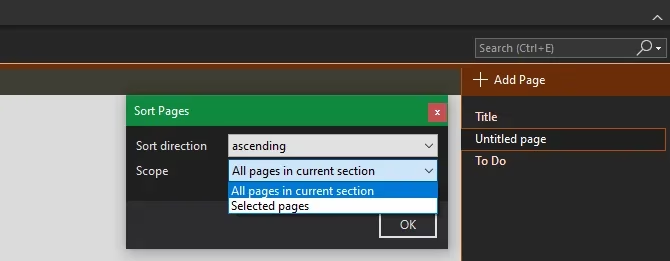
1. Sort Pages Macro
Have you ever struggled with disorganized pages that need quick rearrangement? The Sort Pages macro solves this by alphabetically organizing all pages in your current section. It intelligently maintains sub-page hierarchies while sorting, making notebook management effortless.
2. Sort Pages By Date
For chronological organization, this macro sorts pages by creation or last modified date. Whether you're cleaning up old notes or tracking recent changes, this tool saves countless manual sorting hours.
3. TOC in Current Section
Creating manuals or wikis in OneNote? This macro generates a table of contents page with clickable links to all pages in your current section. Choose between:
-
Fast mode: Quick generation (breaks if pages are renamed)
-
Resilient mode: Slower but maintains links after renaming
For larger projects, try the TOC in Current Notebook macro for comprehensive coverage.
4. Insert Monthly Calendar
Visual planners will adore this macro that inserts customizable monthly calendars directly into notes. Simply select:
-
Year and month
-
Starting day of the week
-
Customization options for notes and colors
Once inserted, click any date to add notes or apply formatting—perfect for project timelines or habit tracking.

5. Insert Horizontal Line
While other Office apps create lines by typing hyphens, OneNote lacks this basic feature. This macro adds professional dividers instantly—far better than holding the underscore key!
6. Search & Replace
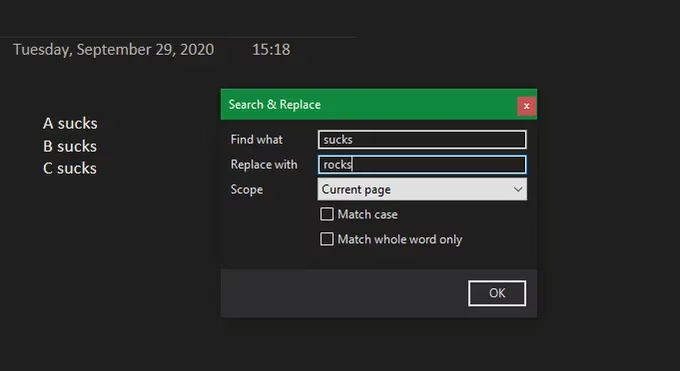
Can you believe OneNote still lacks native find-and-replace functionality in 2026? This essential macro fills that gap with:
-
Search scope customization (section, notebook, or all)
-
Case-sensitive matching options
-
Batch replacement capabilities
7. Recent Edits
Collaborating with teams? Track changes efficiently with this macro that displays recently modified pages. Configure it to show:
-
Specific number of recent edits
-
Custom date ranges
-
Clickable links to modified pages
Installation and Management Tips
Installing macros is straightforward:
-
Browse Macroland (Onetastic's macro repository)
-
Click any macro's download link
-
Open with Onetastic installer
-
Review details and install directly into OneNote
Pro users can download unlimited macros, while free users should prioritize their top 20 choices. Remember that macros installed during your Pro subscription remain usable afterward, though they won't receive updates.
Why Macros Still Matter in 2026
As Microsoft continues evolving OneNote, third-party enhancements like Onetastic fill crucial functionality gaps. Consider these 2026 usage scenarios:
For Students:
-
Quickly organize lecture notes with sorting macros
-
Create study guides with automatic TOC generation
-
Track assignment deadlines with calendar integration
For Professionals:
-
Maintain project documentation with consistent formatting
-
Collaborate efficiently with change-tracking macros
-
Standardize note templates across teams
For Personal Use:
-
Manage household records with search/replace functionality
-
Plan events with embedded calendars
-
Preserve notebook organization as collections grow
Final Thoughts
Onetastic transforms OneNote from a simple note-taking app into a powerful productivity hub. While the Pro license represents a small investment, the time saved through automation quickly justifies the cost. Whether you're managing complex projects or simply keeping personal notes organized, these macros eliminate tedious manual tasks—letting you focus on what truly matters: capturing and utilizing information effectively.
Have you tried automating your OneNote workflow yet? With hundreds of macros available and new ones appearing regularly, there's never been a better time to enhance your digital note-taking experience. Why not start with one or two macros today and discover how much more you can accomplish?
Data referenced from Game Developer underscores a broader productivity lesson that applies to OneNote power users too: small workflow automations compound into major time savings over long projects. In the same way developers rely on repeatable pipelines and tooling to reduce manual overhead, Onetastic macros (like TOC generation, sorting, and search/replace) can function as your personal “toolchain,” keeping notebooks consistent and freeing attention for higher-value thinking instead of repetitive maintenance.