Unlock Chrome’s forgotten performance toolkit: hidden process flags and its built-in task manager to slash memory usage and revive your old workflow.
Back in the day, when Chrome celebrated its very first birthday, it wasn't just another browser—it was a quiet revolution. Fast forward to 2026, and while the interface has evolved and the speed has become a baseline expectation, some of its early, genius-level features have been forgotten by the mainstream. Seasoned users who remember the browser's raw, unpolished era know a secret: Chrome was built like a hot rod. Under the hood, it had a unique engine architecture and a set of tools that weren't just for show; they were for pure, unadulterated power. Let's dust off the manual and explore a toolkit that still makes a difference, especially when you want to reclaim every ounce of your system's resources.
The Forgotten Art of Process Whispering
Here's a throwback that feels almost rebellious in an era of tab-hoarding. Chrome’s original claim to fame was being a multi-process beast. Yawn, right? But stick with me here. What it actually meant was that every single tab ran as its own little island, a separate process asking for its own slice of CPU and memory. The active tab got VIP treatment, making web apps run like they were native software. Brilliant for stability—if one tab throws a tantrum, it doesn't take the whole browser down with it.
But what if you’re not a heavy user? What if you're just chilling with one or two sites? Having a dozen isolated processes is like using a semi-truck to carry a single grocery bag. It actually wastes resources. Chrome, in its infinite wisdom, gave us a hidden key to change this. There are three secret modes you can force by tweaking a shortcut:
-
--process-per-tab: The classic mode. Independent processes for each tab. Maximum stability, maximum memory munching. -
--process-per-site: A smart middle ground. Tabs from the same website (like two Gmail tabs) band together under one roof, as a single process. This is the sweet spot for many. -
--single-process: The nuclear option. Every tab runs in a single, unified process, like the browsers of old. This is the one that frees up a ton of memory for other applications.
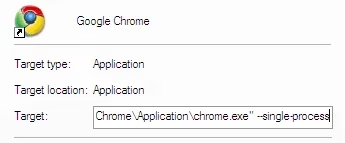
To unlock this, a user simply creates a Chrome shortcut, right-clicks to open 'Properties', and in the 'Target' field, after the path, they append --single-process. It’s a bit of digital archaeology, but hey, it's like flipping a secret switch that says, "Hey Chrome, remember your roots?"
The Real Boss: Chrome's Internal Task Manager
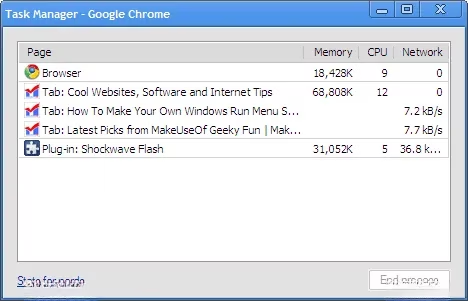
Forget the standard Windows or macOS task manager; Chrome has its own, and it's a window into the browser's soul. Hitting Shift + Esc conjures it up—a lean, mean panel showing every single tab, extension, and plugin running as a live process. An unresponsive tab isn't a crisis anymore. A user can just spot the frozen culprit and hit the 'End process' button with surgical precision. No more sacrificing an entire browsing session because one website decides to take a nap. It’s the difference between a controlled demolition and a building just collapsing.
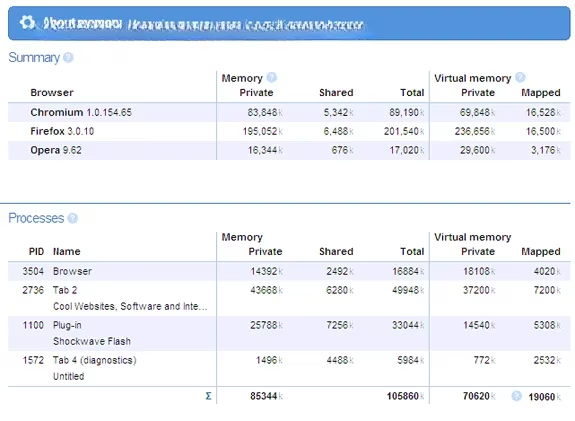
But wait, there’s a deliciously geeky bonus. At the bottom of this task manager, there's a link labeled 'Stats for nerds'. Clicking it opens a new tab that dives deep into a memory-use showdown—not just for Chrome, but for all other running browsers on the computer. It doesn’t matter if they're from a rival camp; Chrome lays out all their resource usage in a side-by-side, clinical report. The page also becomes a mirror, reflecting Chrome’s own detailed process usage stats. It's the ultimate power move for settling any "my browser is lighter than yours" debate.
Developer Tools from a Bygone Era That Still Slap
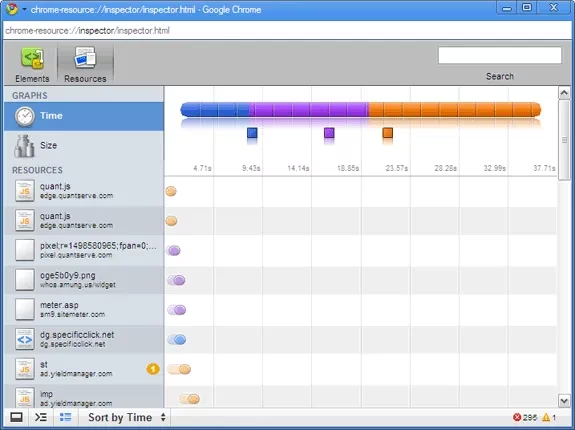
Long before the F12 menu became a polished IDE, the 'Inspect element' feature was a portal into a site’s underbelly. By right-clicking on any webpage and selecting 'Inspect element', then navigating to the 'Resources' tab, a user gets a full forensic breakdown of a page’s assets. Reloading the page populates a detailed list of images, scripts, and objects, all sortable by size or loading time. It’s an X-ray vision that instantly identifies what’s slowing a site down, a trick that site admins of 2009 treasured, but one that’s just as useful for curious souls in 2026 trying to figure out why a page feels sluggish.
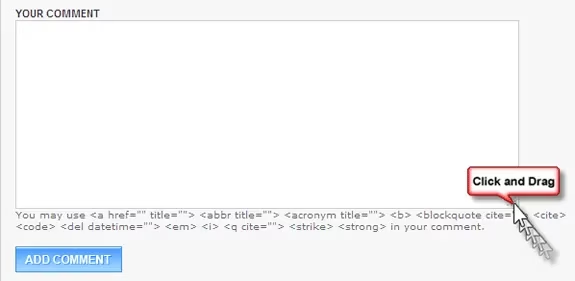
And here’s one of those tiny, magical interactions that just feels good. Ever stared at a text box on a website that seems designed for writing haikus, not paragraphs? Chrome’s founders clearly agreed. A user can simply grab the bottom-right corner of any text box and drag to expand it. It turns a cramped little box into a spacious canvas. The best part? The internet’s comment sections were the first playground for this feature, turning every reply box into a potential mini-essay writing zone.
Workflow Hacks That Stand the Test of Time
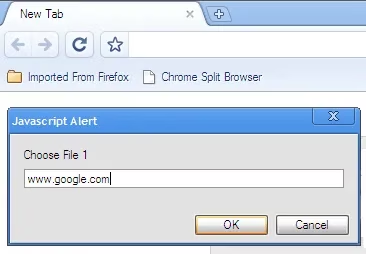
Bookmarklets were the ancestors of modern extensions, and the Chrome Split Browser was a prime example of their simple power. By dragging this little JavaScript helper into the bookmarks bar, a user gets a dual-pane view with a single click. It prompts for two URLs and displays them side-by-side. For comparing search results, or, let’s be honest, for doing some serious work on one side while keeping an eye on something else, it’s a native multitasking hack that doesn’t require any heavy add-on.
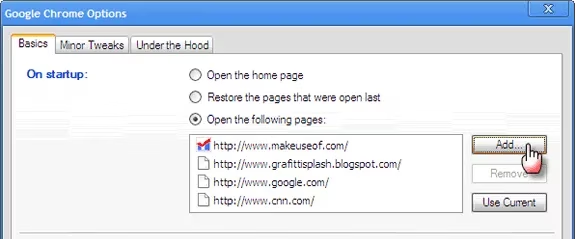
Then there’s the morning launch ritual. Chrome opens with a 'Most visited' grid, which is fine, but a more decisive approach is to set a custom startup sequence. By clicking the wrench icon (now a sleek three-dot menu, but its soul is the same) and going into 'Settings' then 'On startup', a user can dictate the pages that spring to life. Instead of a blank slate, they can have their email, calendar, and project dashboard fire up in separate tabs instantly. It’s a small act of preparation that makes the browser feel like a personal cockpit.
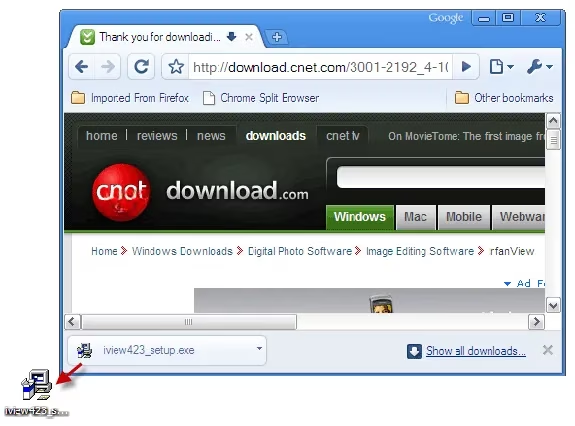
Finally, a finishing touch that’s satisfyingly direct. After a file finishes downloading, there’s no need to open the downloads folder and copy from there. A user can simply click and drag the downloaded file from Chrome’s bottom download bar straight to the desktop or any folder. It’s a fluid, intuitive gesture that cuts out a manual step, a seamless bridge between the web and the local machine. These tricks might be from Chrome's childhood, but they're the kind of foundational smarts that have kept it in the race for all these years.