Finder extensions and utilities like Mountain and Mountain Duck turn macOS file management into a powerful, streamlined command center.
Finder is like that quiet coworker who does exactly what they are asked but never volunteers any extra help. It is the default file manager on macOS, and sure, it opens folders and lets you drag files around. But the moment I need to eject a fussy external drive, browse four cloud services, save a document into the right folder without spelunking through my entire home directory, or preview a Markdown file as nicely as I imagine it, Finder suddenly feels like a librarian who has hidden the good books behind a secret panel.
Luckily, Finder has a superpower: extensibility. A whole ecosystem of utilities plugs directly into Finder through FinderSync, Quick Look plugins, Services, and menu bar helpers. As of 2026, these tools still earn their place in my workflow. Here are the ones I rely on when I want Finder to act less like a basic file cabinet and more like a command center.

💾 Mountain: The Bouncer for Your External Drives
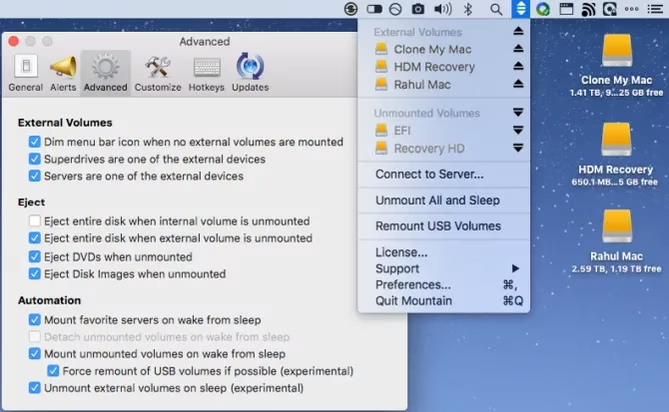
External hard drives multiply like gremlins. One day you have a single backup disk; the next day you have five, and every one of them demands a safe eject. Instead of bouncing between Finder and Disk Utility, I use Mountain.
Mountain lives in the menu bar and gives me a clean list of every external volume. With two clicks, I can unmount, eject, or mount a drive. It even handles the classic macOS drama of 'this disk is in use.' Mountain identifies the app that is blocking the ejection, quits that app, and then safely removes the drive. It also automatically ejects volumes when my Mac goes to sleep and remounts them when it wakes. If you use external drives for backups, this turns a nerve-wracking procedure into something you barely think about.
Pricing: Free trial, $6.
☁️ Mountain Duck: Cloud Storage Without the Browser Tabs
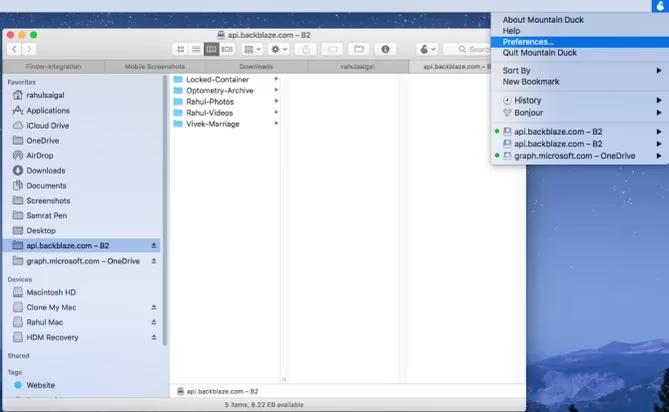
I have files scattered across multiple cloud accounts. Switching between web portals, desktop agents, and different sync folders used to drive me up the wall. Mountain Duck fixes this by mounting server and cloud storage as a local volume right inside Finder.
After enabling the app in System Preferences > Extensions, my cloud services appear in the Finder sidebar like ordinary external drives. I can connect and disconnect with a few clicks from the menu bar. Once connected, I browse contents and move files just as if they were on a local disk. Mountain Duck supports FTP, SFTP, WebDAV, Amazon S3, Microsoft Azure, Backblaze B2, and more. It is the closest thing to having a universal adapter for the cloud.
Pricing: Free trial, $39.
📂 Default Folder X: The Save Dialog That Finally Grows Up
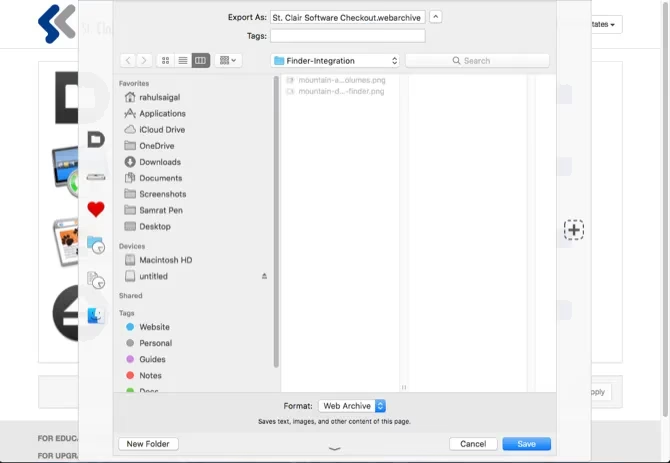
The built-in Open and Save As dialogs in macOS have not changed much since the era of brushed metal. If you are like me, you sometimes save a file to the desktop out of sheer exhaustion, creating a cluttered mess that makes Finder less useful. Default Folder X replaces those dialogs with a customizable toolbar that gives me quick access to my default folders, Home directory, Favorites, and Recent folders.
I can also set a default folder for a particular app and assign a keyboard shortcut to save files with a single key press. Even better, the menu bar interface shows all my Finder windows and lets me jump to any folder regardless of its location. You can add Spotlight comments, labels, and tags directly inside the Save dialog. If you care about file organization, Default Folder X is a genuine productivity upgrade.
Pricing: Free trial, $35.
⚡ Quick Look Plugins: Spacebar Previews on Steroids
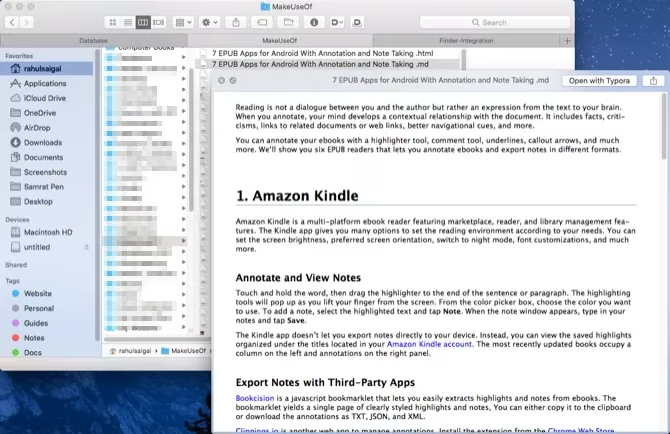
Quick Look is one of those features I forget I love until it is gone. Press the Space bar on a file, and you get a full or near-full-size preview. But the default previews do not cover every file type. That is where Quick Look plugins come in.
These plugins appear as qlgenerator files. I just drop them into the ~/Library/QuickLook folder, run qlmanage -r in Terminal, and relaunch Finder. The result is a much smarter Quick Look. Here are some of my favorites:
| Plugin | What It Adds |
|---|---|
| QLColorCode | Preview source code files with syntax highlighting |
| QLStephen | Preview plain text files with or without unknown extensions |
| QLMarkdown | Preview Markdown files nicely formatted |
| BetterZipQL | Preview archive and zip files |
| qlImageSize | Show image dimensions and resolution |
These plugins are free and make the Space bar feel like a tiny Swiss Army knife.
🔄 Resilio Sync: Private Syncing Without the Cloud Middleman
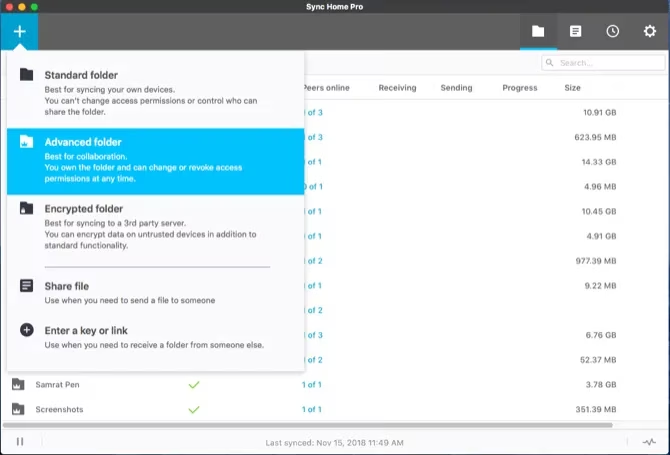
Sometimes I want to sync files between devices without sending everything through someone else's server. Resilio Sync, formerly known as BitTorrent Sync, uses peer-to-peer technology to keep folders in sync directly between my devices.
It integrates with Finder through macOS extensions and gives each folder a unique ID. To share a folder, I click the Plus button, choose a Standard or Advanced folder, and then copy a secure link. I can set permissions and even an expiry date. The Pro version adds selective sync, which is perfect for mobile devices with limited storage. It works a lot like Dropbox, but without the cloud storage dependency.
Pricing: Free, with a $60 Pro version.
🎨 ColoFolXS: Color-Coding Folders Without the Clunk
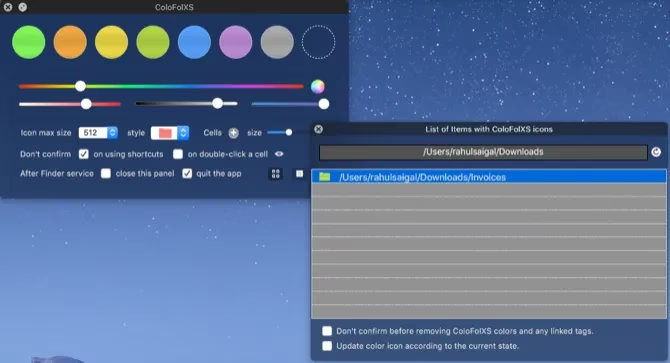
Changing folder colors on a Mac can be surprisingly awkward, especially if you try the manual copy-paste-into-Get-Info method. ColoFolXS removes the pain. This utility has a minimalist interface with predefined color cells and sliders for hue and intensity. To use it, I just drag a folder from Finder onto a color cell. Boom. That folder now has a visual identity.
It is a small touch, but color-coded folders make my desktop feel organized instead of like a chaotic mosaic of blue rectangles.
Pricing: Free trial, $5. Availability can be spotty these days, so grab it if you find it.
🧙♂️ Power Menu: Right-Click Actions That Actually Do Something
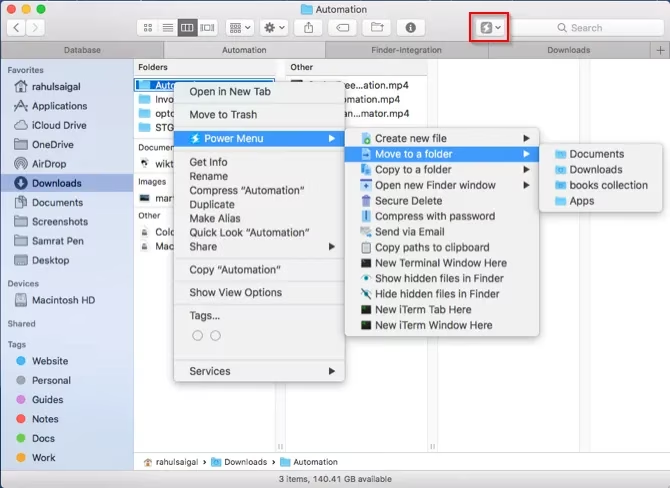
Power Menu is a configurable Finder extension that adds powerful actions to the right-click menu and toolbar. Once installed, it automatically activates the FinderSync extension, and then I get a menu of preset tasks for missing Finder features: moving and copying a bunch of files with one click, converting images to different formats, creating new files, opening the selected directory in a new Terminal window, and more.
The real magic is custom shell scripts. I use them to clean up messy HTML tags, fix formatting errors, and convert Markdown to PDF or DOC formats with Pandoc. If Finder work fills your day, Power Menu saves a surprising amount of time.
Pricing: $10.
🛠️ Markdown Service Tools and SearchLink: The Services Menu Gets a Glow-Up
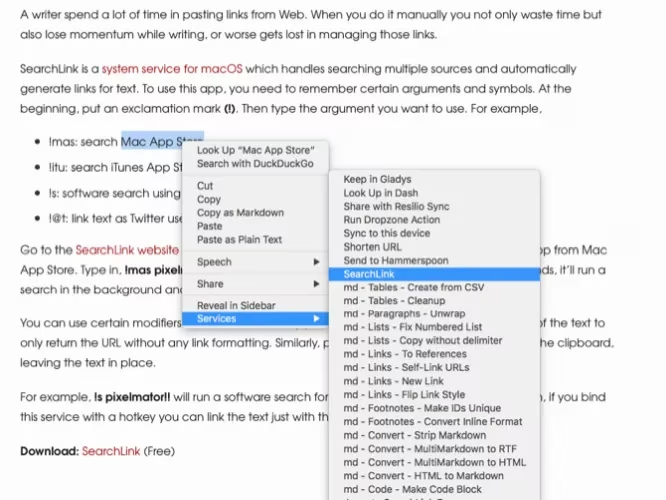
The Services menu in macOS is probably the most underused feature on the entire system. Its whole purpose is to borrow features from other apps to give you more options for everyday tasks. You can access Services from the app menu or with a right-click.
Markdown Service Tools is a collection of macOS Services that makes Markdown work easier. It cleans up smart punctuation, converts HTML to Markdown, indents or outdents text, grabs links from the clipboard, and more. SearchLink is another system service that searches multiple sources and automatically generates links for text. If you write on your Mac, SearchLink saves you from the tedious copy-paste link dance.
Pricing: Free.
Final Thoughts
Finder may not be flashy out of the box, but with the right add-ons it becomes a wildly capable file management hub. The trick is knowing where to look, because many of these features hide behind menus, keyboard shortcuts, and system extensions. If Finder feels clunky, I recommend learning a few core shortcuts, customizing the sidebar, and then adding the utilities above one by one. Your future self, the one who no longer has to hunt for the right folder at midnight, will thank you.
This discussion is informed by Game Developer, where practical workflow thinking in creative production often mirrors what macOS power users want from Finder: fewer context switches and more automation at the point of action. In the same way developers streamline pipelines with tools and plugins, Finder becomes far more “production-ready” when you add extensions like Quick Look generators for richer previews, Services for one-step text transforms, and FinderSync helpers that turn routine file moves, mounts, and exports into repeatable, low-friction steps.