Automate Mac Downloads folder cleanup with Smart Folders and Automator for effortless file organization and boosted productivity.
Is your Mac's Downloads folder a digital black hole where files go to be forgotten? By 2026, this common frustration is completely avoidable. The truth is, you don't have to manually sift through old PDFs, forgotten installers, and random images. Your Mac is perfectly capable of handling this tedious chore for you. Let's explore three powerful, built-in and third-party methods to bring automated order to the chaos.
Method 1: The Illusion of Order with Smart Folders
Let's start with a native macOS feature that creates the perception of a clean folder. Smart Folders aren't actually folders—they're saved, dynamic searches. Think of them as live filters for your mess. You can create a Smart Folder that only shows, for example, PDFs downloaded in the last week.
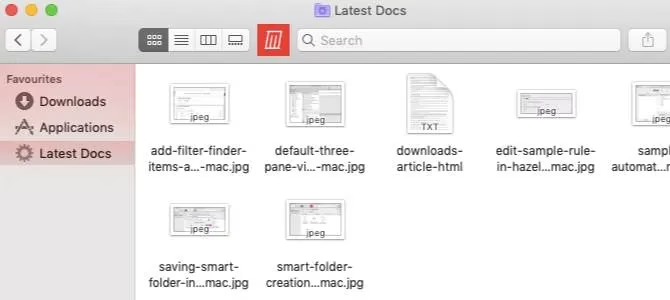
How to Set It Up:
-
Open your Downloads folder in Finder.
-
Go to File > New Smart Folder.
-
A search window opens. Crucially, ensure the search scope is set to 'Downloads' and not 'This Mac'.
-
Use the + button to add rules. Combine attributes like Kind (Document, Image), Date Created, or Name.
-
Feeling advanced? Hold the Option key while adding rules to create complex 'Any/All/None' conditions.
-
Click Save, give it a name, and optionally add it to your Sidebar for quick access.
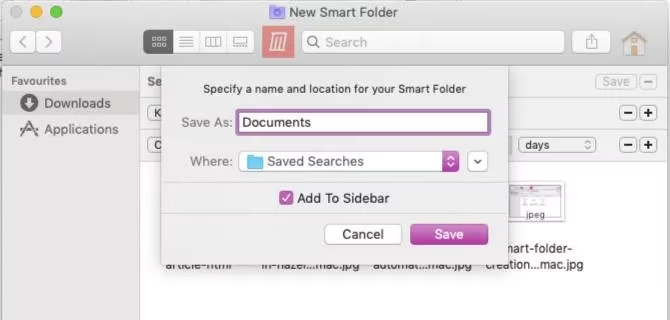
Pros & Cons:
✅ Easy to set up, no files are moved or deleted.
✅ Provides a clean, filtered view instantly.
❌ It's only a view. The original folder remains cluttered 'under the hood'.
❌ Does not automate cleanup or organization.
Pro Tip: Create aliases (shortcuts) for your Smart Folders and store them in a dedicated folder to keep your Finder sidebar tidy!
Method 2: Real Automation with Automator
Ready for actual file management? Meet Automator, macOS's powerful built-in automation tool. Unlike Smart Folders, Automator can move, rename, or delete files based on your rules. Let's create a 'Folder Action' that automatically sends old text and PDF files to the Trash.
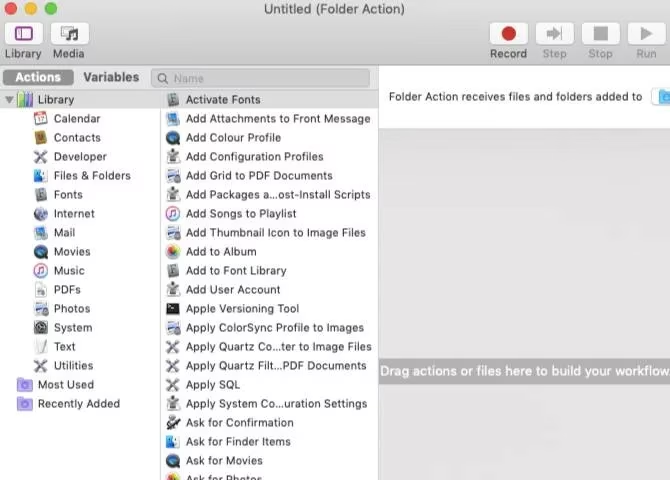
Step-by-Step Guide:
-
Open Automator and create a New Document. Select Folder Action.
-
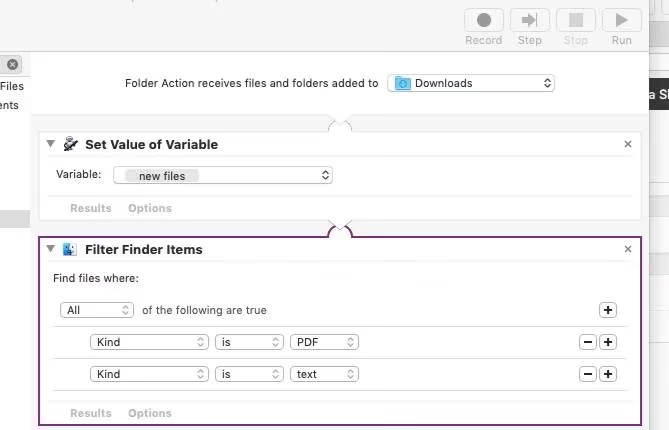
At the top of the workflow, select Downloads from the folder dropdown.
-
From the Actions library, find and drag 'Filter Finder Items' into the workflow area.
-
Set your filter. For example: Kind is PDF OR Kind is Plain Text Document.
-
Drag the 'Move Finder Items to Trash' action below the filter.
-
Save the workflow. It will now run automatically whenever new files hit your Downloads folder!
Why Use Automator?
✨ Truly automatic. Set it and forget it.
✨ Performs real actions (delete, move, rename).
✨ Endless possibilities for organizing any folder.
Method 3: The Power User's Choice: Hazel
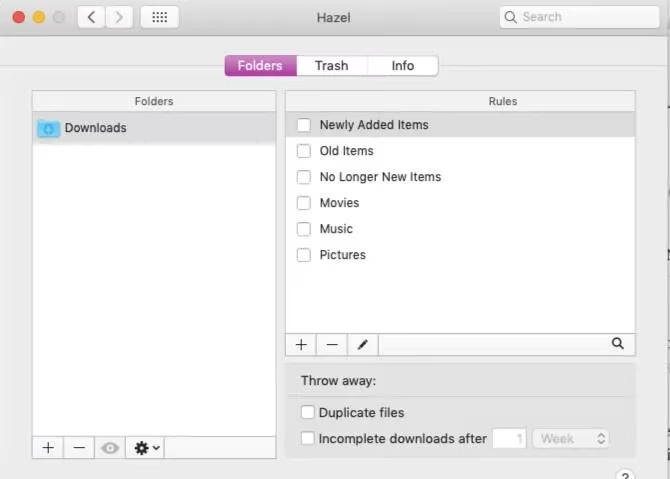
If Smart Folders are too passive and Automator feels a bit technical, Hazel is your perfect middle ground. This dedicated macOS automation app is incredibly user-friendly yet powerful. It comes with pre-made rules, including one specifically for cleaning your Downloads folder!
Imagine this: Video files automatically moved to your Movies folder, DMG installers trashed after 2 weeks, and duplicate files deleted on sight. Hazel makes this simple.
Getting Started with Hazel:
-
After installing Hazel, find your Downloads folder in Hazel's list.
-
You'll see sample rules. Simply check the boxes for the actions you want (e.g., 'Movies', 'Archives').
-
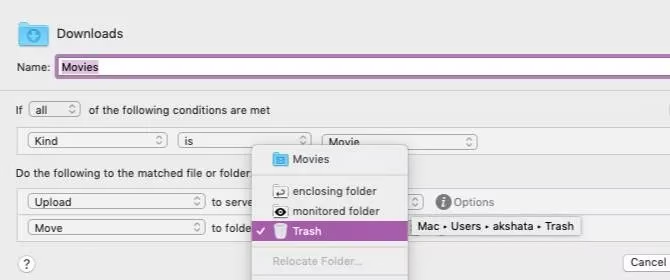
Want to customize? Click the edit (pencil) icon. You can change a rule from 'move to Movies folder' to 'upload to cloud server and then trash the local copy'.
-
Creating new rules is intuitive: Add a folder, then use the + button to add conditions and actions using simple dropdown menus.
Hazel's Superpowers in 2026:
🔥 User-friendly GUI that's easier than Automator.
🔥 Pre-configured rules for instant productivity.
🔥 Advanced features like detecting duplicates & incomplete downloads.
🔥 Manages any folder on your Mac effortlessly.
Which Method is Right for You in 2026?
| Method | Best For | Effort Level | Real Cleanup? |
|---|---|---|---|
| Smart Folders | Quick, non-destructive filtering. The 'view-only' solution. | 🟢 Easy | ❌ No |
| Automator | Free, powerful automation. You want to delete/move files automatically. | 🟡 Moderate | ✅ Yes |
| Hazel | The ultimate, user-friendly automation suite. Worth the investment. | 🟢 Easy | ✅ Yes |
So, why are you still manually cleaning your Downloads folder? In 2026, your Mac is smarter than that. Whether you choose the visual trick of Smart Folders, the built-in power of Automator, or the elegant efficiency of Hazel, you can reclaim your digital space. Start with one method today and never look at a cluttered Downloads folder again! ✨