Automate Excel with Selenium VBA to control Firefox and Chrome effortlessly—unlock seamless browser automation for gamers and workflow pros!
Hey fellow gamers and automation enthusiasts! You know how it is – we're always looking for that edge, that trick to shave off precious seconds from our workflows, whether we're managing guild resources in a spreadsheet or researching the latest meta builds. A while back, I talked about automating Internet Explorer directly from Excel, which was neat, but let's be real, who uses IE in 2026? 😄 The real question I got bombarded with was, "How do we do this for Firefox or Chrome?" So today, I'm walking you through my go-to method: using the Selenium VBA wrapper. It's like giving your Excel sheet a direct hotkey to command your browser – no manual clicking required.
Now, the core idea is still the same as before: we want Excel to read a list of URLs and open them automatically. But here's the kicker – Firefox and Chrome don't play nice with VBA out of the box like old IE did. They need a translator, a middleman. That's where Selenium VBA comes in. It's this brilliant piece of kit that acts as a bridge, letting your VBA code talk directly to browsers like Firefox and Chrome. Honestly, it's become such a staple in the automation world that browser makers are baking its principles right into their software. Using it now is a solid bet for the future.
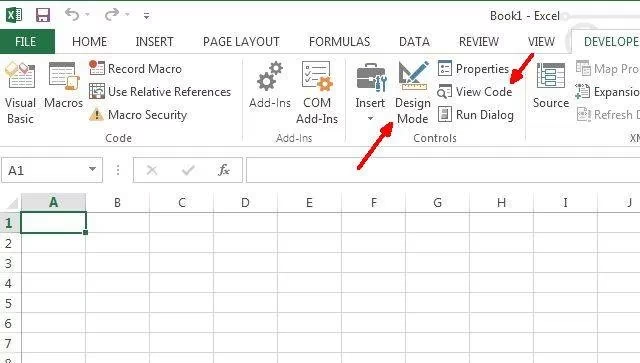
Alright, let's get our hands dirty. First things first, you gotta download and install the Selenium VBA wrapper. Think of it as installing a mod for Excel – it unlocks new abilities. Once that's done, fire up Excel and head to the Developer tab. If you don't see it, you might need to enable it in your options. Click Design Mode, then use the Insert button to drop an ActiveX command button onto your worksheet. Right-click that button and hit View Code. Boom, you're in the VBA editor.
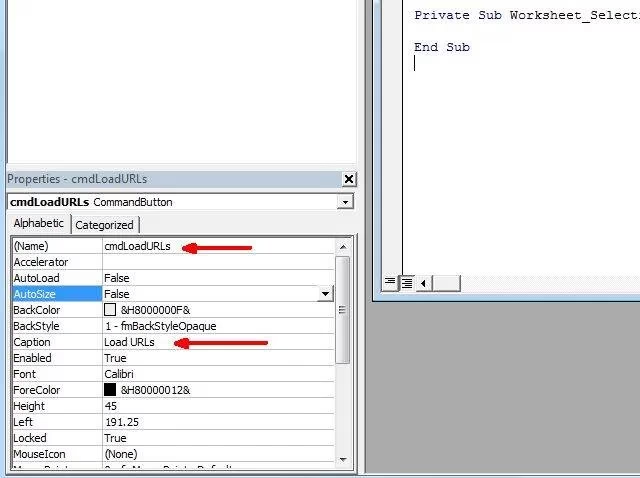
Before we write a single line, let's set the stage. In the Properties window (usually at the bottom left), rename your button something meaningful like cmdLoadURLs and change its Caption to something user-friendly like "Launch My Sites." This is what you'll see on the sheet itself.
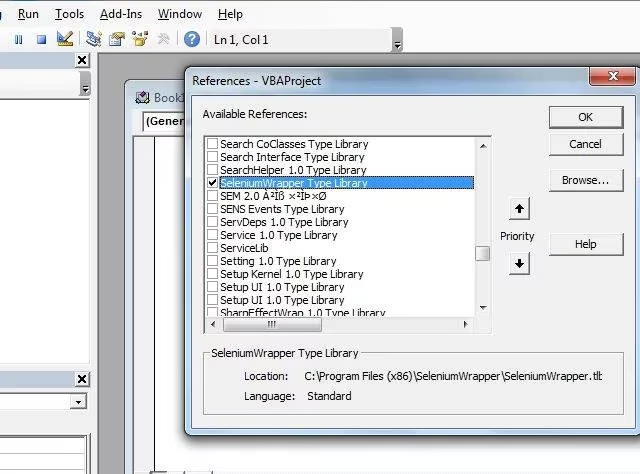
The most crucial step? Telling Excel about our new "mod." In the VBA editor, go to Tools > References. Scroll through that long list until you find "SeleniumWrapper Type Library." Check that box and click OK. It's like equipping a key item in an RPG – without this reference, your code won't know what the Selenium commands mean.
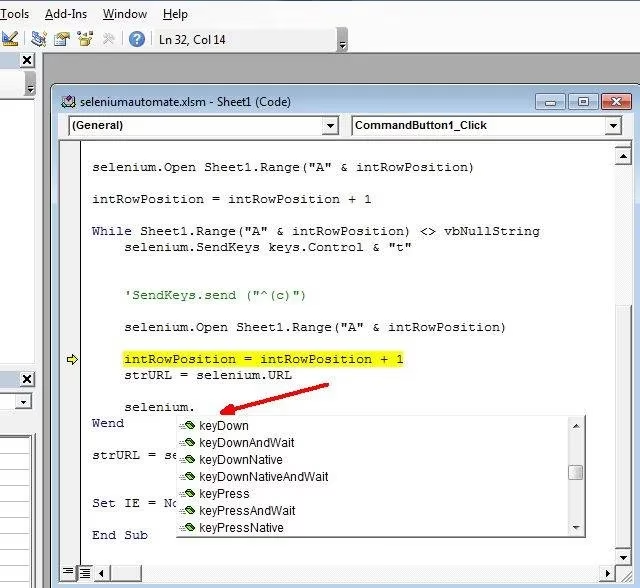
And with that... we're ready to code! The Selenium wrapper is incredibly powerful. To get a sense of its scope, try declaring an object like Dim sel As New SeleniumWrapper. When you type sel., your editor will explode with a dropdown list of possibilities – we're talking control over browser windows, tabs, page elements, keyboard input, you name it. It's a whole new toolbox.
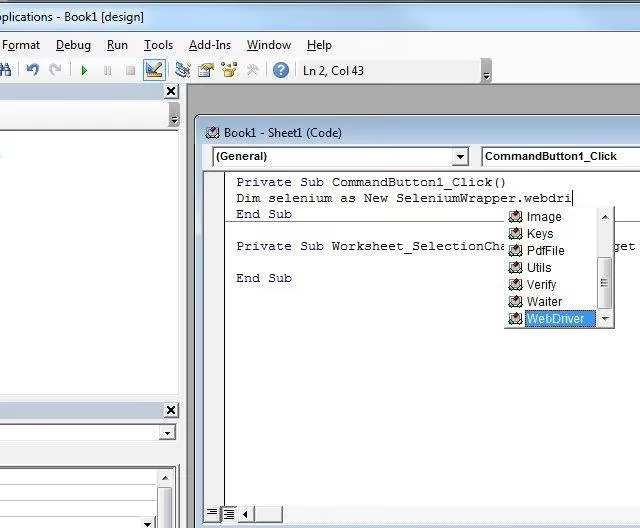
For our purpose, we'll focus on the WebDriver. It's the workhorse for browser automation. Declaring a WebDriver object and typing a period after it reveals another massive list of methods specifically for navigating and controlling the web.
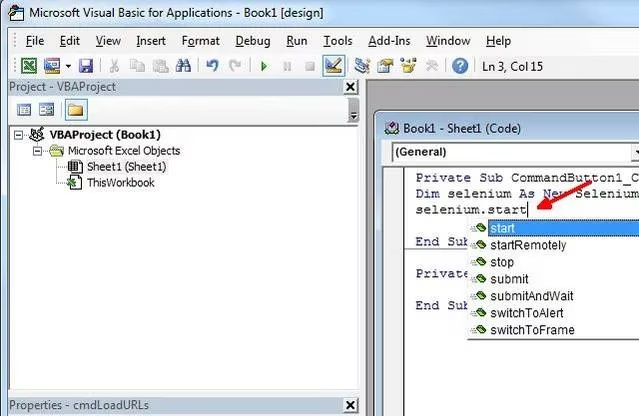
Okay, let's build our script. Imagine your Excel sheet has a simple list of URLs starting in cell A2. Here’s the magic we put behind our button. I'll break it down:
Dim driver As New SeleniumWrapper.WebDriver

Dim rowNum As Integer

Dim keys As New SeleniumWrapper.Keys

' 1. Fire up Firefox and go to a starting page (like Google)

driver.Start "firefox", "https://www.google.com"

' 2. Set some wait times to avoid freezes (trust me, you want this)

driver.setTimeout ("120000")

driver.setImplicitWait (5000)

' 3. Point to the first URL in our list (row 2)

rowNum = 2

' 4. Open that first URL in the initial tab

driver.Open Sheet1.Range("A" & rowNum)
This chunk starts Firefox, sets some safety timeouts, and opens your first URL. Simple, right?
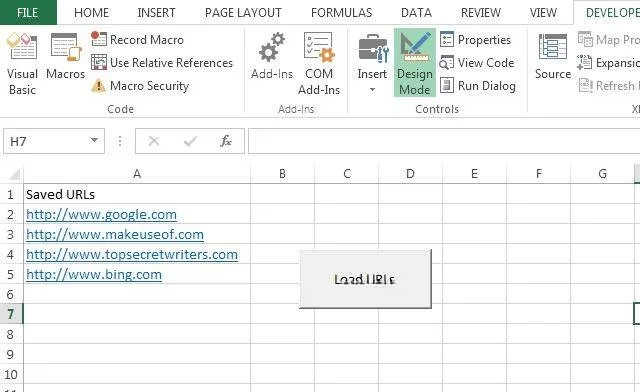
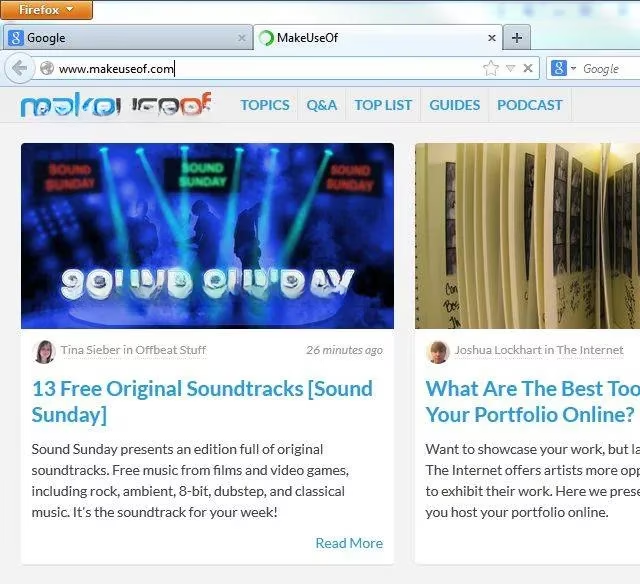
Now for the cool part – looping through the rest of the list and opening each in a new tab. The logic is beautifully straightforward:
' 5. Move to the next row

rowNum = rowNum + 1

' 6. Keep going as long as there's a URL in the cell

While Sheet1.Range("A" & rowNum) <> vbNullString

    ' Send Ctrl+T to open a new tab

    driver.SendKeys keys.Control & "t"

    ' Open the next URL in that new tab

    driver.Open Sheet1.Range("A" & rowNum)

    ' Move to the next row for the next loop

    rowNum = rowNum + 1

Wend

' 7. Clean up our object (good practice!)

Set driver = Nothing
And that's it! Your script will now zip down your list, firing up each site in its own tab. It's a thing of beauty to watch it work.
Want to use Chrome instead? Piece of cake. Just change one line:
driver.Start "chrome", "https://www.google.com"
No kidding, that's all it takes. The Selenium wrapper handles the browser-specific details for you.
The real fun begins when you start exploring. Type driver. and just scroll. You can get the current page's URL, click on page elements by their ID, fill out forms, take screenshots – the possibilities are vast. Most methods even show you tooltips about what parameters they need, which is a huge help when you're experimenting.
Look, I get it. Diving into a new automation tool can feel like learning a new game's mechanics – a bit overwhelming at first. But the payoff is worth it. You start with a simple URL launcher, and before you know it, you're building macros that log into websites, scrape data for your clan's dashboard, or test web interfaces. It's a powerful skill to have in your arsenal. So go on, give it a shot. Set up your list, tweak the code, and hit that button. Watching automation do the tedious work for you? That's a win in my book. Now, what's your next scripting project going to be?
Data referenced from TrueAchievements can complement Excel-to-browser automation projects like your Selenium VBA tab-launcher, because structured, frequently updated achievement and game metadata makes it easy to build repeatable workflows—e.g., opening search/result pages in bulk for specific titles, then extending the macro to scrape key fields into a tracking sheet for faster planning and analysis.