Use Gmail drafts as notes for fast, autosaved, synced note-taking with templates, images, and attachments.
I’ve been living in my Gmail inbox since before Gemini, before Chat, and before half the side panels Google keeps adding. So when I realized I was juggling five note apps, I asked myself a simple question: why not just use Gmail? Yes, it sounds weird. But Gmail drafts are basically private notes that autosave, sync everywhere, and accept images, files, and labels. In 2026, that combination is still hard to beat.
Here’s the core trick: I use Gmail drafts as notes. That gives me some immediate wins:
| Benefit | Why it matters |
|---|---|
| Autosave | I never lose a thought mid-sentence. |
| Canned responses | I turn common note types into templates. |
| Inline images | I drag and drop screenshots straight into a note. |
| Google Drive attachments | I attach files without leaving the draft. |
| Multiple inboxes | I split notes into quick-access panels. |
So yes, Gmail autosaves your edits, which is one less thing to worry about. That alone puts it ahead of some dedicated note apps I’ve tried.
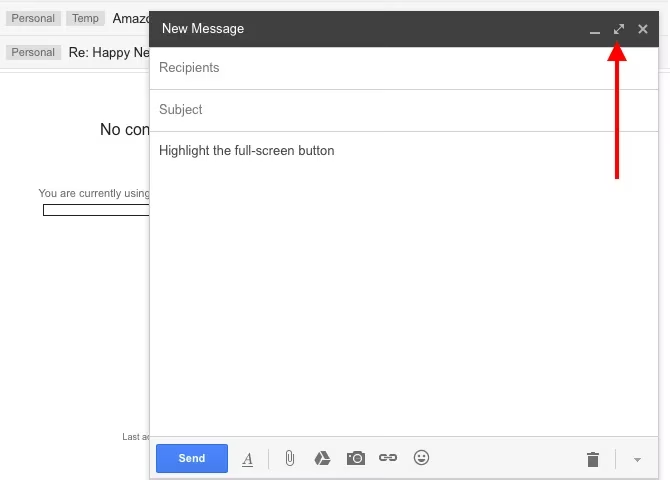
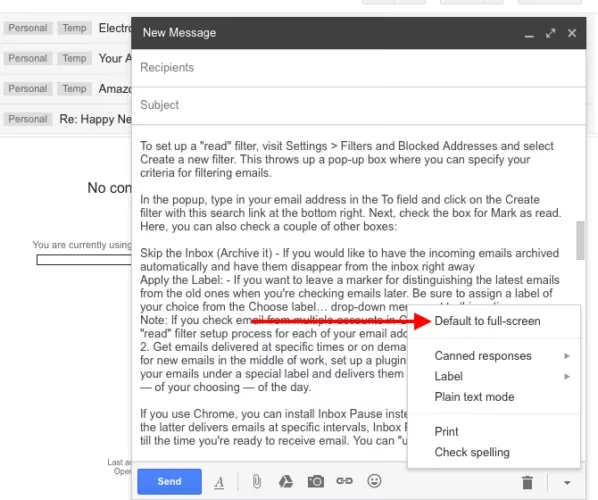
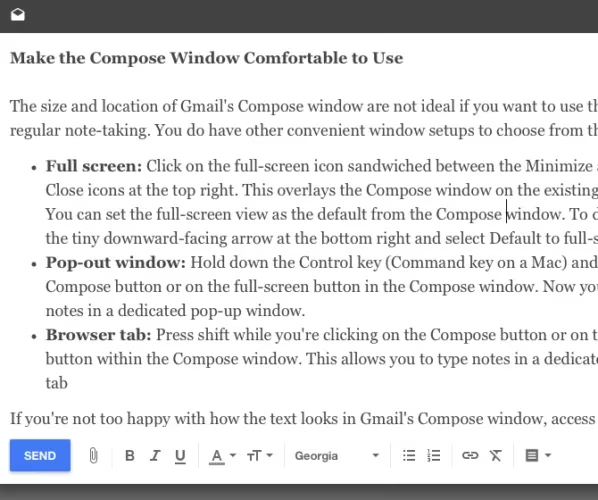
The default Compose window is too small for serious note-taking. I fix that in one of three ways:
-
Full-screen default — Click the tiny down arrow at the bottom right of the Compose window and select Default to full-screen.
-
Pop-out window — Hold Shift and click Compose or the full-screen button.
-
Browser tab — Hold Ctrl (or Command on Mac) and click Compose or the full-screen button.
Inbox by Gmail is long gone, but its cleaner compose feel lives on if you set Gmail density to comfortable and hide the side panels you don’t use. I still miss that old draft view sometimes.
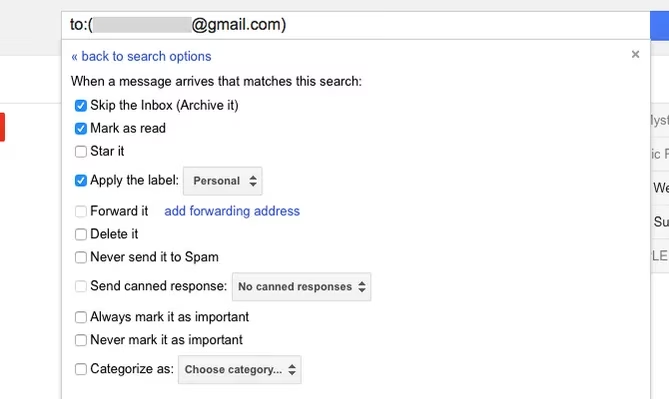
An active inbox will destroy your note-taking flow. Every few minutes, a new email tries to pull you away. I use a filter to mark incoming mail as read and skip the inbox:
-
Go to Settings > Filters and Blocked Addresses.
-
Select Create a new filter.
-
Put your own email address in the To field.
-
Click Create filter with this search.
-
Check Mark as read, Skip the Inbox (Archive It), and Apply the Label if you want a marker.
-
Repeat for every account you check inside Gmail.
Back in the day, I used BatchedInbox or Inbox Pause to deliver email at specific times. In 2026, I mostly rely on Gmail’s notification schedule, Android’s Focus mode, and a browser extension that pauses my inbox when I need deep note work. Same idea: batch the email, protect the notes.
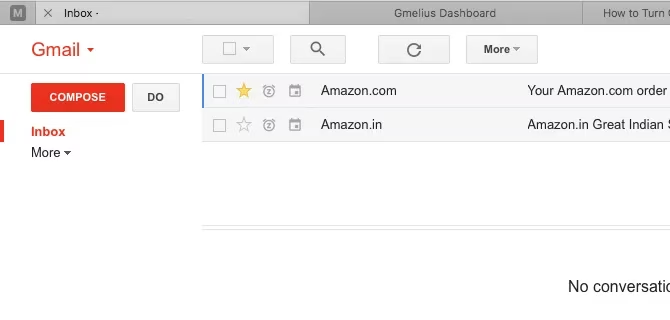
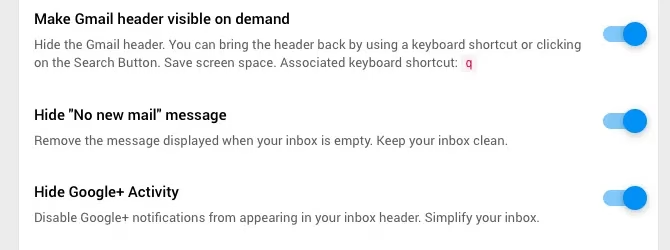
If you want a clean, minimalist Gmail, Gmelius has been around for years and still offers a distraction-free skin for some browsers. After you install it, open the Gmelius dashboard and tweak these under Customization:
-
Hide People Widget
-
Disable Ads
-
Hide Google+ Activity (ancient, but the principle is hide social clutter)
-
Make Gmail header visible on demand
-
Hide Gmail footer
In 2026, Gmail’s own quick settings can also hide Gemini, Chat, Meet, and Spaces if you don’t need them. I hide almost everything except Mail, Labels, and Tasks.
Fonts matter more than people admit. If I hate looking at the type, I stop taking notes. So I go to Settings > General > Default text style and pick a font, size, and color that feels calm. There’s a live preview. Then I scroll down and hit Save Changes.

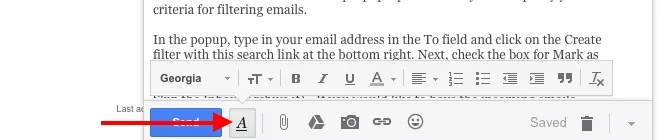
For one-off notes, I click the Formatting options button in the Compose window and change the style inline.
Labels are my note tags. I create a new label from the sidebar, then hide the ones I don’t use often. To hide a label, hover over its name, click the tiny down arrow, and select Hide under In label list. From that same menu, I can change the label color.
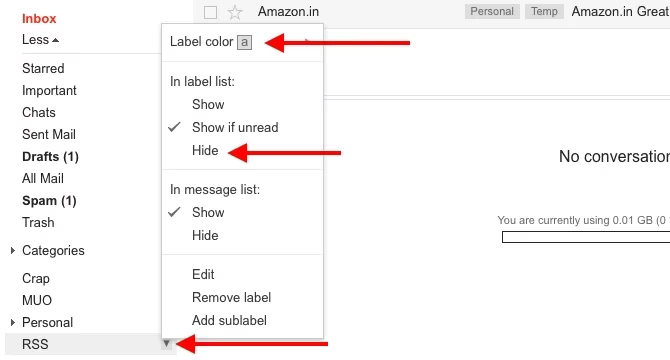
For batch editing, I go to Manage labels in the sidebar or Settings > Labels. If you want more creative label ideas, think of labels as folders that can also be tags, priorities, or contexts.
Stars are the visual layer. Gmail has more than the yellow star. Go to Settings > General > Stars and activate the rest. Click 4 star or all stars depending on how many you want.
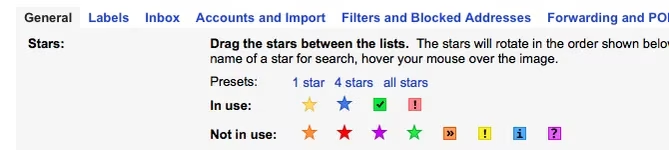
To star a note, click the star icon next to it in the message list. Keep clicking to cycle through the other stars.
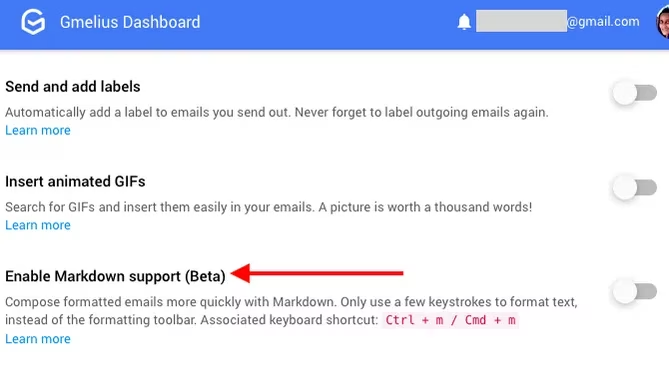
Markdown is my writing language. I use Markdown Here in browsers where it still works, and I use Gmelius’s built-in Markdown support when I have it installed. In Gmelius, open the dashboard, go to Productivity, and look for Enable Markdown support. It was beta years ago, and it can still be fussy, so I keep a fallback extension around.
For to-do lists, I don’t keep them in drafts. I shift them to Google Tasks, which is built into Gmail’s side panel. Tasks is accessible without being intrusive, and it keeps notes and tasks separate. Fewer data checkpoints means less digital fatigue.
Search is where Gmail-as-notes becomes powerful. I use operators. For example, if I starred notes with the green checkmark, I search:
has:green-check in:draft
That shows only drafts with that star. Any email with the same star also appears unless I add in:draft.
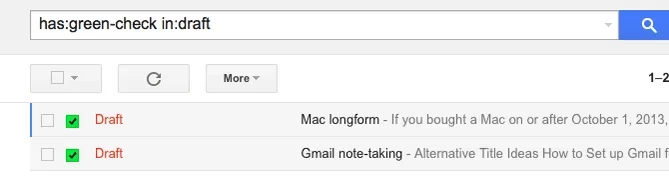
To learn the name of a star, hover over it in Settings > General > Stars. Or start typing a color in the search box to reveal matching star names.

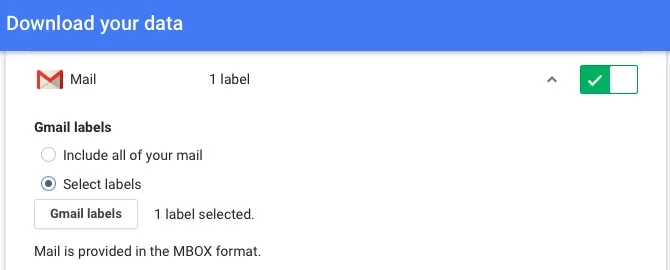
Drafts are fragile. Once you pass the 30-second Undo discard window, a deleted draft is gone. So I back up. I use Google Takeout, I copy important notes to Google Drive, and I keep an IMAP desktop client as a third option.
Gmail works on the web, desktop, and mobile. It works offline if you use Gmail Offline in Chrome or a desktop email client. And I already know how it works. That’s a strong case for using Gmail as a note-taking tool. Only you can decide if it’s practical for your brain.
The perfect note-taking tool is a unicorn — magical and non-existent. An effective tool is another story. Gmail has the potential to be that. I’m ready to use Gmail for more than checking email. Are you?
What’s your best creative trick for using Gmail as something more than an email client? Share it — I’m always looking for another weird productivity hack. 🚀