iPad drag and drop boosts productivity, offering seamless app interaction and efficient file management for modern workflows.
In 2026, the iPad continues to feel less like a tablet and more like a genuine computing platform. The shift began years ago with iOS 11, when Apple introduced a deceptively simple addition: drag and drop between apps. What once required awkward share sheets or repeated copy-and-paste routines became a fluid, multi-touch workflow. Rather than relying on a single desktop cursor, an iPad user holds an item with one finger while navigating elsewhere with another—an experience that still defines modern iPadOS.

The core interaction can be divided into three stages: lifting content, moving it across interfaces, and dropping it precisely where needed. If a file can be dragged from one panel to another, why switch contexts at all? This foundational concept remains one of the most important productivity refinements on the iPad.
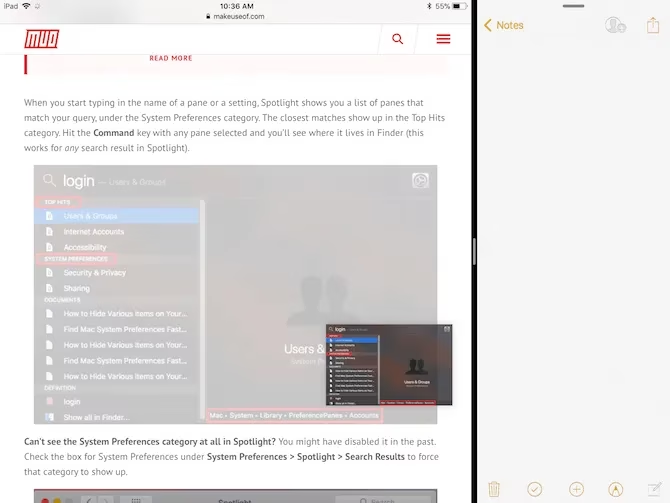
📂 Create a Floating Shelf With Gladys
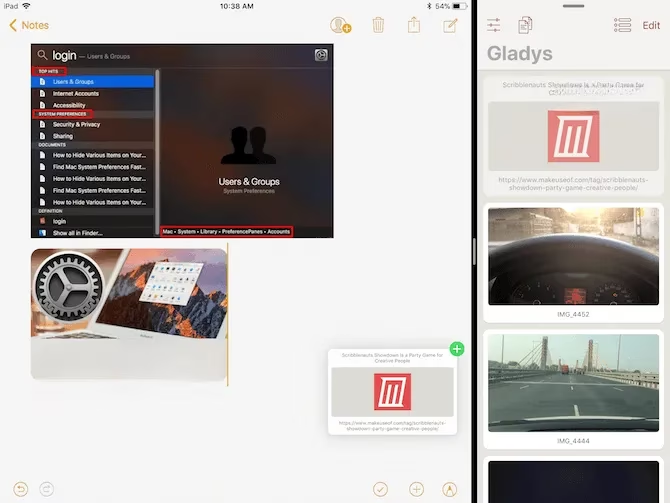
One of the most useful ideas to emerge from early iPad concepts was the always-there shelf. Although a system-wide shelf never arrived in exactly that form, the Slide Over feature made a third-party version possible. For many users, Gladys remains the best starting point.
To use it, Gladys can be placed in Slide Over mode. A user opens an app, swipes up to reveal the Dock, and drags Gladys over the active interface. Once the floating window appears, a tap and hold selects content, and the selected items are dropped onto Gladys. Later, swiping in from the right edge brings the shelf back, allowing those saved files to be moved into another app. Does this floating shelf replace the need to switch apps constantly? For anyone working with mixed media, the answer is often yes.
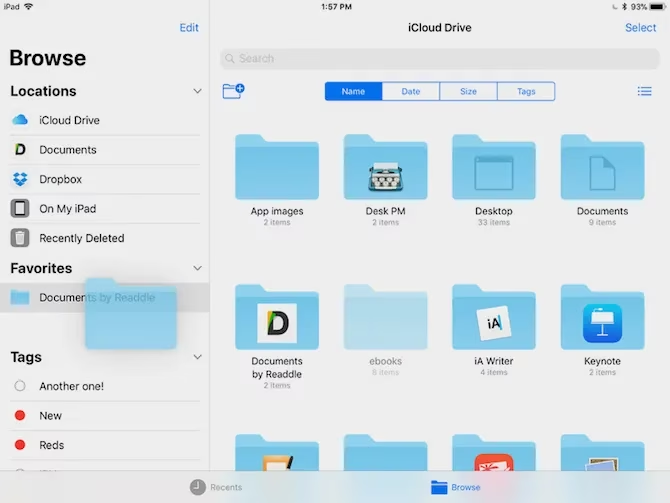
🗂️ Organize Files Without Menu Hopping
The Files app transformed file management on iPad into a drag-and-drop playground. Entire folders can be lifted, multiple documents selected with a tap, and files dropped into sidebar shortcuts or tagged categories without opening endless menus. Favorite locations and color-coded tags accept dragged content naturally, which makes staying organized much faster than before.
📝 Build Rich Notes With Bear
Apple Notes works well, but Bear is frequently described as the stronger alternative for serious note-taking. Its minimal writing environment supports Markdown and rich previews, making it especially friendly to a drag-and-drop routine. Text, images, and links can be pulled into a note effortlessly. More impressively, selecting one or more notes summons a Bear Bar at the bottom, where dropped notes reveal quick actions such as delete, move, pin, or export.
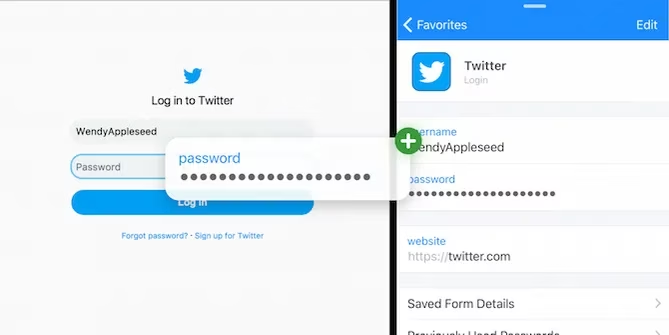
🔐 Move Passwords Securely
Password entry can also benefit from multitouch. Because 1Password supports Slide Over and drag and drop on iPad, a login can be retrieved in a floating window and its username and password fields moved directly into Safari or another app. Why type a password when a secure field can receive it through a simple drag? The interaction works across the system wherever text fields accept input, reducing typing and clipboard-related risk.
🤐 Zip and Unzip With a Drag
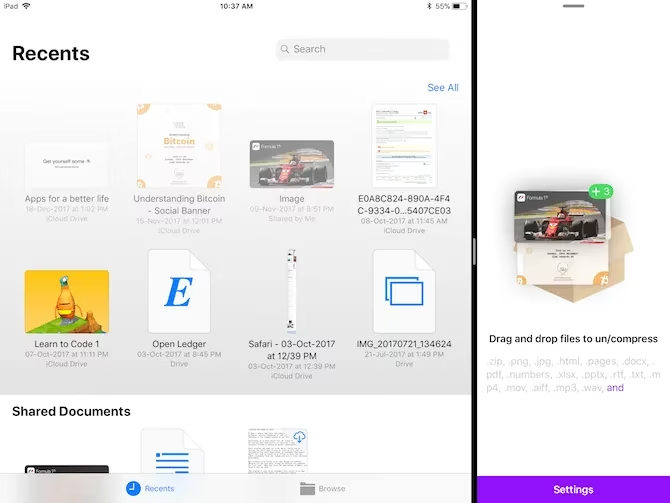
Archiving was once a gap in the Files experience. Zipped fills that gap as an interface-free utility that relies almost entirely on drag and drop. When opened in Split View next to the Files app, selected files can be dropped onto Zipped, which then asks where the resulting archive should be saved. Unzipping works in the reverse direction with a single drag, making the whole process feel immediate.
📎 Attach and Send From Mail
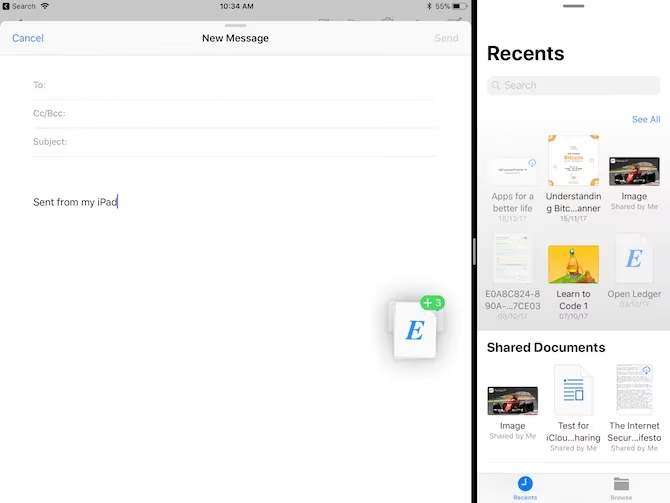
Email attachments have become less tedious as well. Spark and the built-in Mail app both support importing and exporting files through drag and drop. In Mail, dragging multiple files into a compose window automatically compresses them into a zip attachment—a small touch that saves several manual steps.
🏢 Work Across Any Office Suite
No matter whether a user prefers Apple, Google, or Microsoft, the major productivity suites support drag and drop on iPad. Apple's iWork apps—Numbers, Pages, and Keynote—along with Microsoft Office for iPad and Google Docs, Sheets, and Slides allow images, objects, and text blocks to be repositioned without interrupting the flow of work.
✨ More Apps That Embrace Drag and Drop
A long list of additional apps has also adopted the behavior, even if their implementations are less specialized. Users of popular image editors, task managers, and utilities can treat drag and drop as expected rather than exceptional. The following apps, many of which have since evolved into newer versions, were among the first wave to support the feature:
-
Affinity Photo
-
Pixelmator
-
Annotable
-
GoodNotes 4
-
PCalc
-
Google Chrome
-
Evernote
-
Todoist
-
Things 3
What are the favorite productivity apps on iPad in 2026? Most likely they support drag and drop, because the expectation has become so universal that its absence would feel like a missing keyboard shortcut. The foundation laid by iOS 11 has not disappeared; it has simply become the way iPad work gets done.