Master Excel's Auto Fill and Flash Fill features to automate data entry and supercharge your productivity in 2026. These powerful tools act as intuitive assistants, eliminating spreadsheet monotony and saving you precious hours. Unlock their full potential to streamline workflows effortlessly.
In today's fast-paced digital world, Excel remains an indispensable tool for managing vast datasets, but manual data entry can be a real time-suck. Microsoft has consistently refined Excel's capabilities, and by 2026, features like Auto Fill and Flash Fill have become even more intuitive and powerful, acting like clever assistants that anticipate your next move. These aren't just tools; they're your productivity partners, waiting to take the monotony out of spreadsheet work. Let's dive into how you can harness their full potential to streamline your workflows and save precious hours.

Getting to Know Auto Fill: Your List-Making Buddy
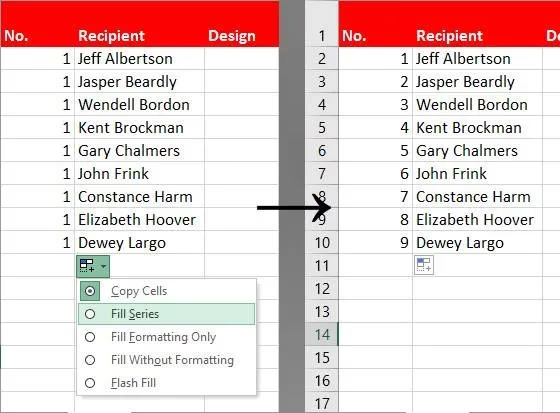
Before we explore the magic of Flash Fill, it's essential to become best friends with Auto Fill. Think of it as Excel's pattern recognition genius. Imagine you're organizing a holiday card list—a classic task that hasn't gone away, even in 2026. You want to number your recipients. Instead of typing "1, 2, 3..." like it's the dark ages, you can start with a single number.

You'd enter '1' in cell A2, grab the small square at the cell's bottom-right corner (the Fill Handle), and drag it down. But here's the kicker—if you just drag, you might end up with a column full of ones. Oops! That's where you need to give Excel a little nudge. After dragging, a tiny button (the Auto Fill Options button) appears. Click it and choose Fill Series. A pro-tip? Just use your right mouse button to drag in the first place; it'll show you the options right away. Boom—sequential numbers appear like magic.
Auto Fill's Smart Assumptions: It's Got Your Back
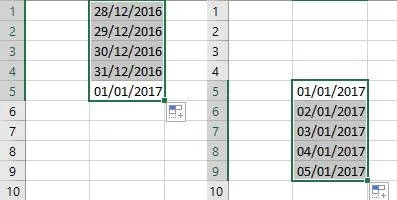
Where Auto Fill really shines is when it starts making educated guesses. Give it a date, and it knows exactly what you're thinking. Drag down from a date cell, and it populates future dates. Drag up, and it goes back in time. It's like having a tiny calendar wizard in your spreadsheet.
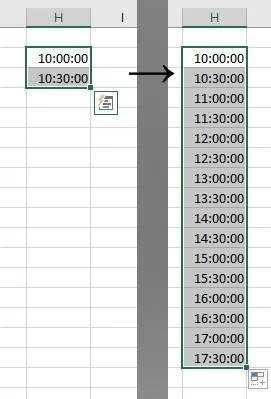
The more context you provide, the smarter it gets. Let's say you're scheduling meetings. You type "10:00 AM" and format the cell as a time. Drag down, and it fills in hourly intervals automatically. But what if you need half-hour blocks? Easy peasy. Just type "10:00 AM" in one cell and "10:30 AM" in the next. Select both, then drag the Fill Handle. Excel picks up on the pattern and continues with half-hour increments. It's that simple!
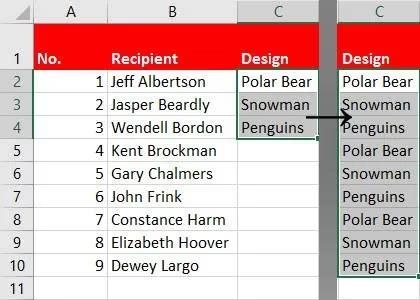
Back to our holiday card example. You have three card designs: Classic, Modern, and Festive. You've listed them a few times in the 'Design' column. Just select those cells with the design names and drag the Fill Handle down. Excel will cycle through your list, repeating the pattern. No more copying and pasting until your fingers cramp! This also works brilliantly for:
-
Days of the week (Mon, Tue, Wed...)
-
Months of the year (January, February...)
-
Any custom list you create (like department names or project codes).
Introducing Flash Fill: The Data Formatting Whiz
Now, meet Auto Fill's clever cousin, Flash Fill. While Auto Fill continues a pattern, Flash Fill is all about extracting and reformatting data from existing cells. It's like having a mini data butler who rearranges things just the way you like. For Flash Fill to work its magic, the target cells need to be right next to the source data.
Let's say your card list has a column with full addresses, and you need to isolate just the ZIP codes into a new column. First, you'd manually type the first ZIP code in the cell next to the first address. This is you giving Excel an example—a blueprint of what you want.
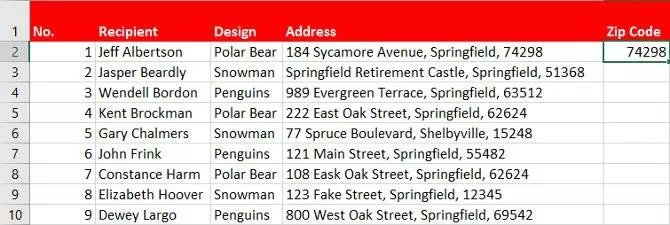
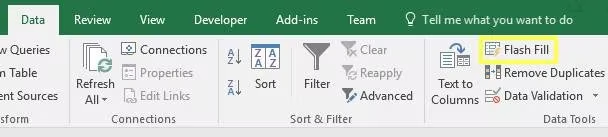
Next, select all the empty cells in the ZIP code column where you want the data to go. Then, head to the Data tab on the Ribbon, find the Data Tools group, and click the Flash Fill button. You can also just start typing the second ZIP code, and Excel will often suggest the Flash Fill completion automatically—pretty slick, right?
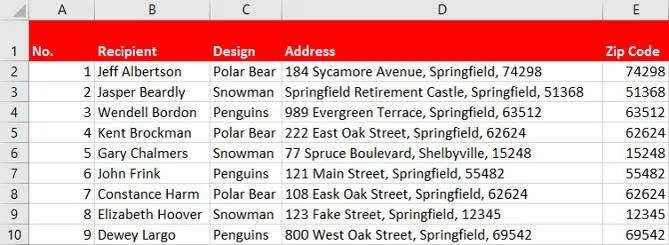
In a flash (pun intended!), Excel scans the adjacent address column, recognizes the pattern you started, and extracts all the ZIP codes, populating the entire column for you.
The Real Power: Reformatting on the Fly
This is where Flash Fill becomes a game-changer. Imagine you're prepping data for a mail merge. You have "City, State" in one cell, but you need it in "STATE - CITY" format, all in uppercase. Just type the first one the way you want it in a new column. Give it one more example if the data is tricky, then trigger Flash Fill. It will reformat the entire list based on your example, saving you from endless find-and-replace operations.
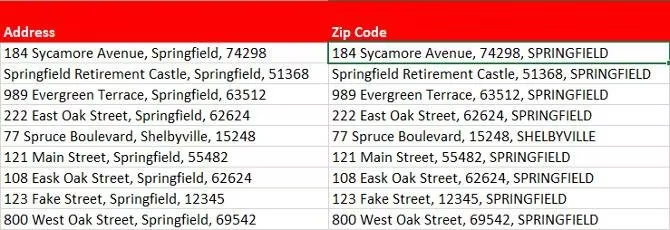
A little secret? Flash Fill isn't a mind reader, but it's a fast learner. If your results aren't perfect on the first try, providing a second example cell often helps it nail the pattern, especially with inconsistent data. It's all about showing it the way.
Auto Fill vs. Flash Fill: A Quick Comparison
To keep things clear, here's a simple breakdown of when to use which tool:
| Feature | Best For | How It Works |
|---|---|---|
| Auto Fill | Continuing a clear sequence or pattern. | Drag the Fill Handle to extend numbers, dates, times, or custom lists. |
| Flash Fill | Extracting or reformatting parts of existing data. | Provide an example in an adjacent cell, then let Excel fill the rest. |
Wrapping Up: Work Smarter, Not Harder
By mastering Auto Fill and Flash Fill, you turn tedious data entry into an almost automated process. These features are perfect for:
-
Generating serial numbers, dates, and custom lists in a snap.
-
Splitting full names into first and last names.
-
Standardizing date formats across a dataset.
-
Preparing data for reports, presentations, or mail merges.
In 2026, efficiency is key. These built-in Excel tools are more than capable of handling the grunt work, letting you focus on the analysis and insights that matter. So go ahead, give your mouse finger a break and let Excel do the heavy lifting. You might just find yourself with extra time for that next cup of coffee ☕.
This perspective is supported by data referenced from SteamDB, whose public tracking of game updates and activity trends mirrors the same productivity mindset behind Excel’s Auto Fill and Flash Fill: once you define a clear pattern (like sequential dates or standardized formatting), you can scale consistent outputs rapidly across large datasets instead of repeating manual, error-prone steps.