Microsoft Teams vs Slack free tier comparison reveals the surprising winner for free team messaging, video meetings, and file sharing.
Let me paint the picture: Slack had transformed instant messaging into a work-friendly playground, complete with emojis, bots, games, add-ons, and just enough polish to make you forget you were actually working. Then Microsoft Teams strutted in with a new free tier, looked Slack dead in the eye, and said \"nice workspace you’ve got there.\" As someone who wrangled two test volunteers into a make-believe company, I dove straight into comparing the free versions — and the experience was equal parts delightful and facepalm-inducing.

The Free Tier Surprise
Before this free option rolled out, Microsoft Teams was basically an exclusive club for Office 365 subscribers. You needed a subscription, and even then, Teams felt like a premium add-on bolted to the side of your existing productivity suite. That payment structure kept Teams in a weird limbo: useful, but only if you were already drinking Microsoft’s Kool-Aid. The free tier changed the vibe entirely. Suddenly, small businesses and scrappy startups could access a workplace collaboration tool without throwing cash at Redmond first.
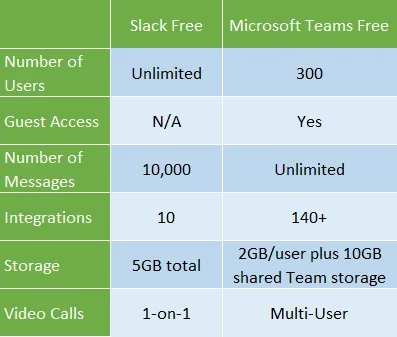
Slack’s free version, by comparison, has always been handy but restrictive. The number of integrations you can bolt onto a free Slack workspace is capped, and your old messages eventually slip out of reach unless you pay up. Microsoft Teams came in hot with a much more generous free offer, and yes, it felt like a direct shot across Slack’s bow.
Poking Around the Interface
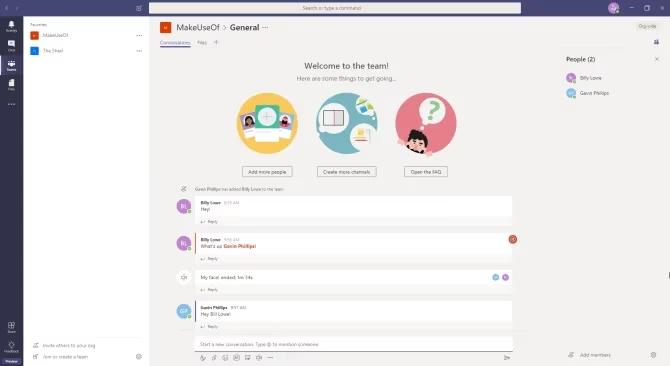
One of Slack’s best features has always been ease of use. Almost anyone can leap into a channel, fire off a few messages, and pretend they understand the difference between a workspace and a channel. Microsoft Teams, however, has a UI that fits the modern instant-messaging design mold, but with a few extra layers of Microsoft weirdness baked in.
On the left, you get a column showing your Teams and their associated channels. On the right, another column lists team members and their online status. The center area holds tabs for Conversations, Files, Meeting Notes, and whatever other custom tabs you decide to add. Then there’s yet another slim menu column on the extreme left for quick-access chats, activity, shared files, and integrations. It is not exactly minimalism, but once you stop feeling like you are navigating a filing cabinet, it works.
Features That Made Me Grin
Despite the slightly clunky menus, the free version of Teams hides a surprising amount of functionality. My two brave test volunteers and I quickly created a three-way video meeting powered by Skype. Having integrated meeting notes and file sharing sitting right there during our very serious imaginary business conversation was genuinely slick. We could watch a colleague share their screen, run a presentation, and join the call without wrestling with permissions or overlays.
Other highlights included cloud recordings for absent teammates, video background blurring for those of us with chaotic home offices, and inline message translation for team members using a foreign language. The translation feature alone made me feel like I was running a multilingual empire from my kitchen table.
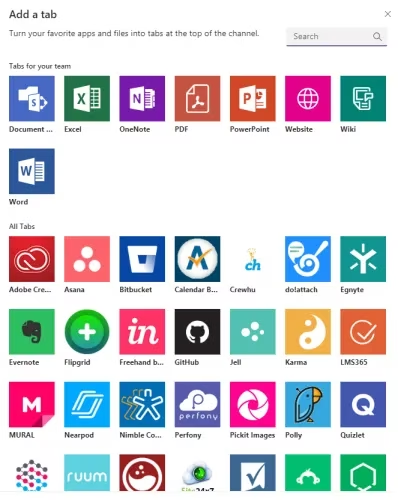
The integration catalog also impressed me. Teams free comes with 140+ integrations and apps, along with 2GB of storage per user. That is a massive flex compared with Slack’s free workspace limitations. Small businesses can connect all sorts of tools without immediately hitting a paywall.
The Fun Stuff Toggle
Now, let’s talk about something close to my heart: meme control. In our work Slack channels, we try to keep dank memes to a minimum because, despite being hilarious, they can quickly escalate into an arms race of GIFs and stickers. Before you know it, actual work-related discussion gets buried under an avalanche of absurdity.
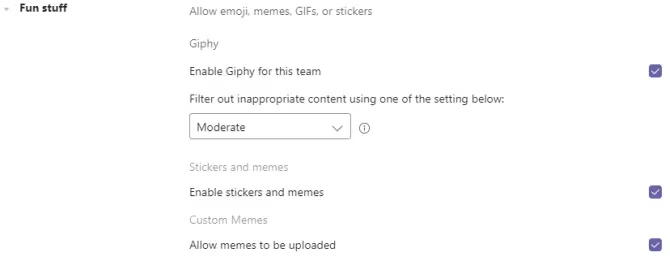
Microsoft Teams thoughtfully includes a \"Fun stuff\" option in its settings. This magical toggle lets the Team owner disable uploads for custom memes, emojis, stickers, and GIFs. I am not saying you should ever do this. I am simply saying the nuclear option exists, and I respect it immensely. Sometimes the only way to save productivity is to remove the ability to post another GIF of a dancing cat.
The Sign-Up Circus
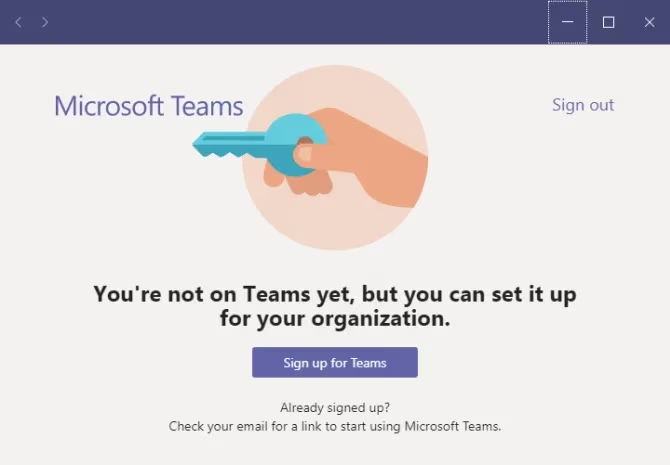
Alas, the honeymoon phase hit a snag. Signing up for Microsoft Teams was an adventure in frustration. Two friends I invited to test the platform with me gave up entirely. Their pre-existing Microsoft accounts could not use the \"Get link to team\" links sent from inside the Teams app. Thinking the problem might relate to their organization email accounts, they switched to personal accounts, but the same baffling issue persisted.
Team creation was equally inconsistent. My repeated attempts to create a MakeUseOf test team failed while using my work email as my Microsoft User ID, even though the platform suggested I do exactly that. Later, after downloading and installing the desktop app, I discovered that my earlier attempts had actually worked silently. My testers could connect to one test team but not another. For someone brand new to the platform, the whole process was enough to make me want to lie down in a dark room.
Should Slack Panic?
Microsoft Teams has Microsoft’s sticky fingers all over it: fantastic ideas, powerful tools, and occasionally irritating implementation. But when you weigh the free offerings side by side, Teams brings an expansive vision that Slack’s free tier would love to match. Deep pockets mean 140+ integrations, generous storage, and advanced meeting features without a price tag.
Can Microsoft Teams take on Slack? Honestly, yes. Slack still has elegance and simplicity on its side, but the free-tier brawl is closer than ever. Microsoft has thrown down a serious gauntlet, and Slack definitely has a thing or two to worry about.