The Mouseless Browsing extension for Firefox enables pure keyboard navigation by assigning clickable numbers to links, boosting efficiency for power users.
In the fast-paced digital world of 2026, where efficiency is king, the quest for the ultimate browsing experience continues. For those who have long dreamed of ditching their mouse entirely and navigating the web with pure keyboard prowess, the journey might have felt incomplete. How many times have you found your hand darting away from the home row keys to grab the mouse, just to click a simple link? It breaks the flow, doesn't it? Well, for Firefox users, a solution has existed for nearly two decades, and its core principle remains remarkably relevant today. That solution is the 'Mouseless Browsing' extension. While its interface might seem a bit dated by 2026's sleek standards, its functionality offers a glimpse into a truly keyboard-centric workflow that can save precious seconds with every click.
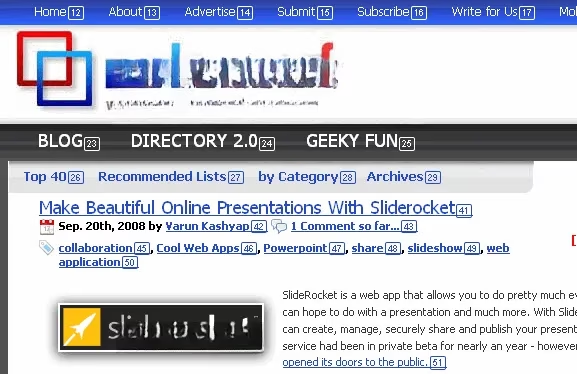
How Does Mouseless Browsing Work?
The concept is brilliantly simple, almost like a secret code for the web. Upon activation, the extension assigns a unique number to every single clickable link, button, or form field on a webpage. Think of it as giving every interactive element its own digital address. You, the user, have the power to summon these numbers at will. The extension's options let you decide: do you want these numeric labels visible all the time, or would you prefer to toggle them on only when needed? Most veterans opt for the toggle method to avoid visual clutter.
Once the numbers are displayed, the process is straightforward:
-
Activate: Press your chosen key combination (like
Ctrl+Alt) to make the numbers appear. -
Identify: Find the number corresponding to the link you want to follow.
-
Execute: Type that number on your keyboard's number pad and hit
Enter.
Voilà! Your browser instantly navigates to the destination, all without your fingers ever leaving the keyboard. It's quick, efficient, and for power users, it can feel like unlocking a superpower. Isn't it fascinating how such a simple system can fundamentally change how you interact with a browser?
The Initial Hurdles and How to Overcome Them
Now, let's be honest—the path to mouseless mastery isn't always perfectly smooth. The extension, true to its long history, comes with a few quirks that new users in 2026 need to navigate carefully.
🔑 The Critical Key Combination
Your choice of activation keys is paramount. Choose poorly, and you'll trigger the extension accidentally during normal computer use. Imagine trying to press Ctrl + Alt + Del to open your system manager, only to have your entire browser screen suddenly plastered with numbers! Or pressing the Alt key to access a menu and unintentionally activating the link overlay. The initial experience can indeed be a little irritating. The solution? Choose a unique, multi-key combination that you rarely use for other purposes. This small configuration step in the options menu makes all the difference between a helpful tool and a constant nuisance.
🌐 Compatibility Quirks
While most modern websites in 2026 render fine, the extension can sometimes interfere with complex web applications or pages with dynamic content. Historically, services like the old Google Reader had issues. The workaround remains effective: if a page looks broken or unresponsive with the extension active, simply toggle Mouseless Browsing off, refresh the page, and then toggle it back on. This usually resets the numbering and resolves any display glitches. It's a minor inconvenience for the functionality gained.
⚠️ A Vital Setting Warning
One option in the settings demands particular caution: "Use numpad exclusively for Mouseless Browsing." If you enable this, your number pad becomes dedicated solely to entering link numbers. This means you cannot use it for typing digits in forms, spreadsheets, or calculators while the extension is active. For most users, leaving this option disabled is the wiser choice, preserving the full functionality of your keyboard.
Why It's Still a Gem for Keyboard Enthusiasts in 2026
Despite its age and minor quirks, Mouseless Browsing holds a special place in the toolkit of productivity seekers. In an era of voice commands and gesture controls, the precision and speed of direct keyboard input remain unmatched for many tasks. This extension transforms browsing from a point-and-click adventure into a command-line-like experience. Your hands stay planted in the optimal touch-typing position, reducing physical strain and maintaining mental focus.
Once you overcome the initial learning curve and customize the settings to your liking, you'll experience a new rhythm. You'll fly through articles, open tabs, and submit forms with a rapid tap-tap-Enter that feels incredibly satisfying. Your mouse will begin to gather dust, looking increasingly forlorn on your desk. For fans of keyboard shortcuts—those who live by Ctrl+T for new tabs and Ctrl+W to close them—this extension is the natural next step toward complete keyboard dominion.

Final Thoughts: Is It For You?
Mouseless Browsing isn't for everyone. Casual browsers might find the overlay distracting. However, for writers, programmers, researchers, or anyone who values uninterrupted workflow and keyboard efficiency, it's a transformative tool. It asks for a small investment in configuration and habit formation but pays back with compounded interest in saved time and effort. In 2026, as we seek to streamline our digital interactions, sometimes the best solutions are those that empower us to use our most familiar tool—the keyboard—to its fullest potential. So, are you ready to give your mouse a break and see the web in a whole new, numbered light?