Adobe Character Animator and Blank Puppet Template empower artists to transform static digital art into lively, animated characters with ease.
Have you ever looked at your digital artwork and wished it could just... wake up? I know I did. For years, my characters lived frozen in Photoshop files and Illustrator canvases, fantastic creations with no life of their own. That all changed when I discovered Adobe Character Animator. It felt like magic—combining live motion-capture with a recording system to breathe life into my 2D puppets. The best part? It was one of the friendliest animation tools I'd ever encountered. So, how did I go from static drawings to animated personalities? Let me walk you through my first adventure creating a custom character.
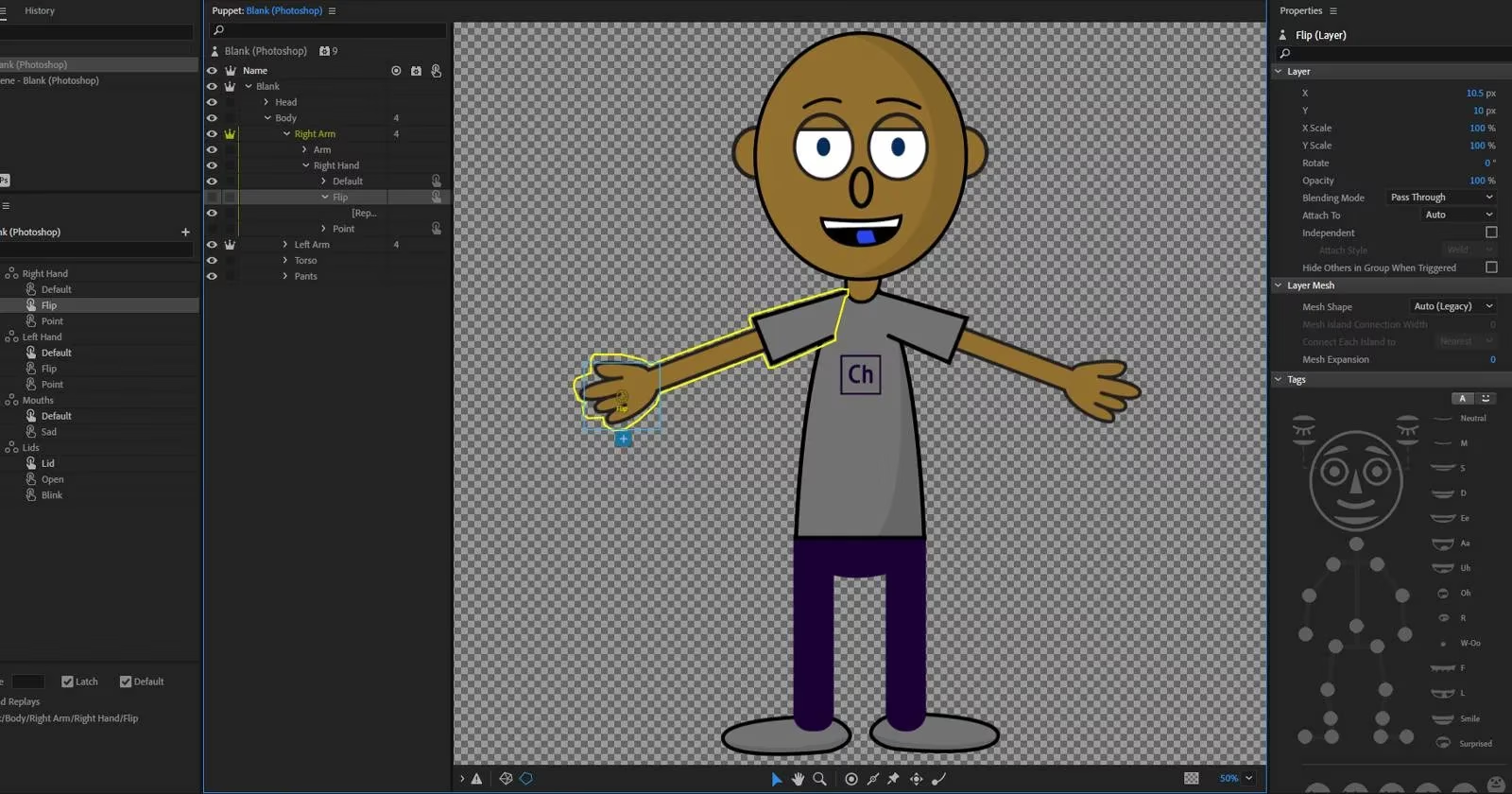
My journey began with a simple truth: starting from absolute zero can be intimidating. Could I really organize all the layers and naming conventions correctly on my first try? Probably not. That's why I was thrilled to find Adobe's secret weapon for beginners—the free Blank Puppet Template. This template is a lifesaver! It comes with all the required layer structures and naming conventions already set up. All I had to do was layer my own artwork on top. I downloaded it from Adobe's website, extracted the files, and felt a surge of creative possibility.
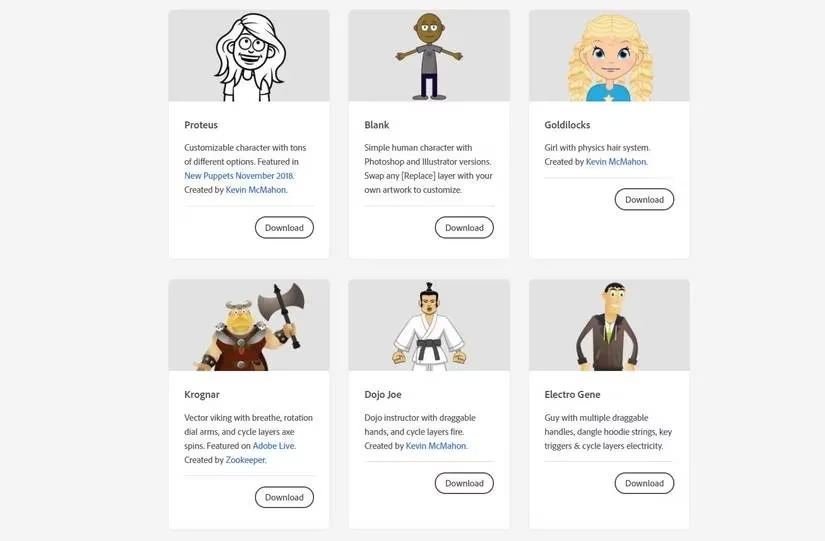
With the template ready, I fired up Adobe Character Animator for the very first time. The interface was clean and inviting. I clicked New Project, gave it a name, and saved it to my preferred folder. The next step was crucial: importing my blank character. I navigated to File > Import and selected the puppet file. Suddenly, there it was in my project panel! To see it in action, I selected it from the list on the left and clicked the Add to New Scene icon. Just like that, my puppet was standing in a virtual scene, ready for its makeover.
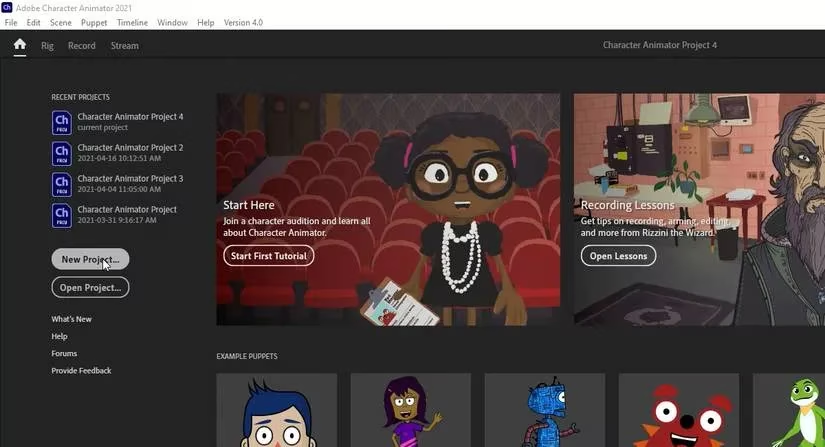
Before diving into customization, I spent some time playing with the template's pre-built features. I tested the draggers (points you can click and drag) and, with my webcam on, watched in amazement as the puppet mirrored my facial expressions. A quick tip: always double-check your camera and microphone settings first! Seeing that blank face mimic my smile was the moment I was truly hooked. The template wasn't just a skeleton; it was a fully functional puppet waiting for its unique skin.
Now for the fun part—making this generic template my own. I selected my puppet and chose Edit > Edit Original. This seamlessly opened the file in Adobe Photoshop, where the real transformation began. The template's layer structure was beautifully organized. Want to give your character a silly new nose? Here’s how I did it:
-
In the Layers panel, I navigated to
+Blank > Head > Nose. -
I selected the Nose folder and clicked the Create a new layer icon.
-
I turned off the visibility of the layer named
[Replace]. -
On my new layer, I drew a brand new nose using the Ellipse Tool (with no fill and a black stroke for a cartoony look).

But why stop at the nose? I wanted a character with a vibrant purple tongue! Editing existing features was just as straightforward. I went to +Blank > Head > Mouth and found layers for different mouth positions (like Neutral, Ah, FV, etc.). I turned off the Neutral mouth's visibility, selected the Tongue layer for a different mouth shape, and used the Paint Bucket Tool to flood it with a glorious purple hue. The key step? File > Save. Without saving in Photoshop, Character Animator won't see the changes.
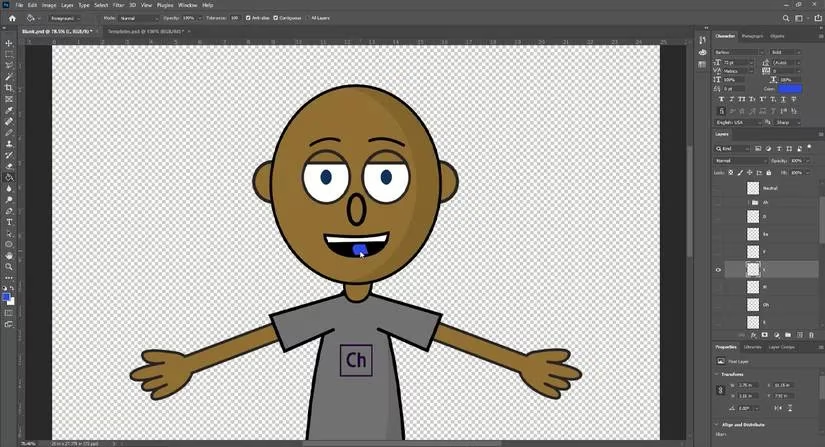
I switched back to Character Animator, and like magic, my puppet had updated instantly with its new nose and purple tongue! The possibilities felt endless. Funny teeth? New outfits? An absurdly large hairdo? I could do it all while the template handled the complex animation rigging.
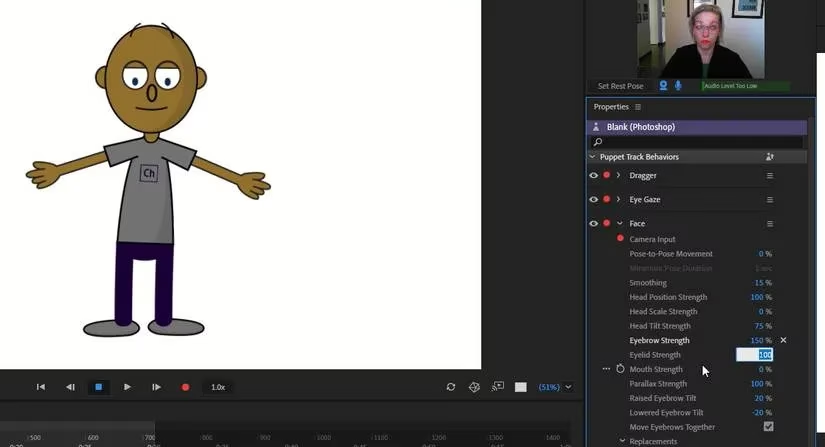
Of course, once you have the look, you need to fine-tune the movement. My character's eyebrow wiggles felt a bit... subtle. I wanted more drama! In Character Animator, with my puppet selected and in Record mode, I looked at the Properties panel on the right. I expanded the Face settings and found Eyebrow Strength. The default was 75%. I cranked it up to 150%, faced my webcam, and raised my eyebrows. The result was hilariously exaggerated—the puppet's eyebrows practically leaped off its face! This single adjustment taught me how to give my character a more distinct, cartoonish personality.
The real magic of Character Animator, however, lies in Triggers and Draggers. These are the tools that let you perform beyond just facial capture.
-
Triggers are keyboard shortcuts that make your puppet perform a specific action (like waving or jumping).
-
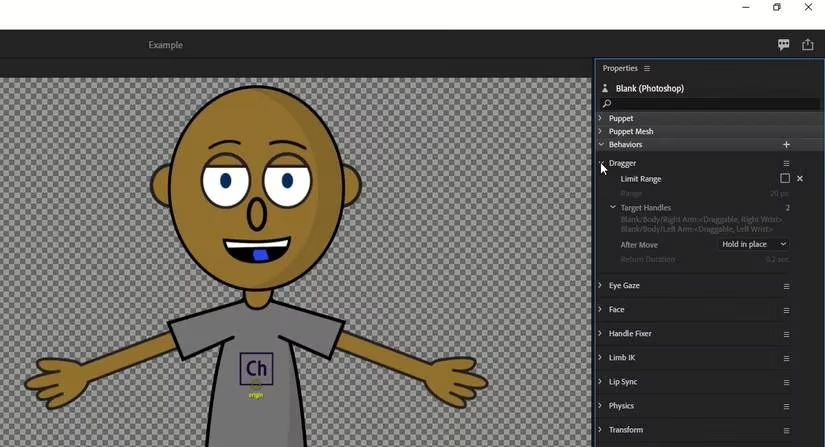
Draggers are handles you can click and drag with your mouse to manually pose a specific part, like an arm or the head.
The blank template comes with several of these pre-configured. To explore them, I selected my puppet and looked at the Properties panel for the Draggers list. I could see draggers for the head, arms, and more, each with settings I could adjust, like limiting their range of motion.
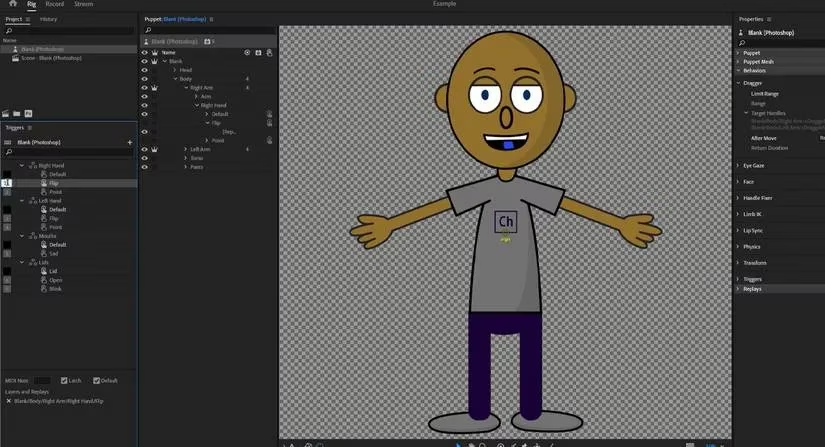
For Triggers, I switched to the Triggers panel on the far left. The template had seven built-in triggers, like 1 - Right Arm Up and 2 - Left Arm Up. The number indicated the key to press. Want to change it? Just double-click the number and type a new key. I could even see which body parts were involved in each trigger by expanding the menu. This level of control meant I could choreograph my puppet's movements with precision, blending live performance with planned actions.
Looking back, my first foray into Adobe Character Animator was a revelation. It demystified character animation. I didn't need to be a master rigger or a frame-by-frame animation wizard. By leveraging the intelligent Blank Puppet Template, I could focus on what I loved most: design and personality. I added goofy features, tweaked movements to be more expressive, and learned to control my creation with both my face and my keyboard. The door to a world of animated storytelling was now wide open. If you have artwork sitting idle, I urge you to give it a voice and a life. Download that template, open Photoshop, and start your own animation journey today. What kind of character will you bring to life? 🎭