Master Selenium web crawling to effortlessly automate JavaScript-heavy websites and control Google Chrome programmatically. Discover essential setup steps and powerful techniques for efficient automation.
Alright folks, buckle up because I'm about to take you on a wild ride through my adventures with Selenium! Picture this: it's 2026, and I'm tired of manually doing repetitive tasks on websites. I mean, who has time for that when there's coffee to drink and memes to browse? That's when I discovered the magic of web crawling with Selenium - it's like having a digital butler for your browser!
Now, I know what you're thinking - "But wait, doesn't JavaScript mess things up?" You're absolutely right! Traditional crawlers just can't handle those fancy JavaScript-heavy sites. That's where Selenium comes in - it's the real MVP that lets you control Google Chrome programmatically. Talk about living in the future!
Setting Up My Digital Butler 🛠️
First things first - you gotta get your tools ready. Here's my setup checklist:
-
Download the Web Driver - This is Selenium's secret sauce that talks to Chrome
-
Java Dependencies - Maven makes this a piece of cake
-
Coffee - Essential for any programming session
Getting the Web Driver is as easy as pie. Just head to Selenium's site (well, you know where it is), grab the latest version for your OS, and extract it. I keep mine at C:\WebDrivers\chromedriver.exe because, you know, organization is key!
For the Java setup, here's what my POM.xml looks like:
    org.seleniumhq.selenium

    selenium-java

    4.15.0
Pro tip: Always use the latest version - we're living in 2026, not 2018!
My First Selenium Dance 💃
Let me walk you through my first successful Selenium program. It was like teaching a robot to use Chrome:
WebDriver driver = new ChromeDriver();

driver.get("http://www.google.com");

WebElement element = driver.findElement(By.name("q"));

element.sendKeys("terminator\n");
And just like that, Chrome opened up and started searching for Terminator movies! The WebDriverWait function is my favorite - it's like telling Selenium "Hey buddy, chill for a bit until the page loads":
new WebDriverWait(driver, 10)

  .until(d -> d.getTitle().toLowerCase().startsWith("terminator"));
When I'm done, a simple driver.quit() closes everything nicely. It's like saying "Goodnight, sweet Chrome" after a hard day's work.
Chrome Inspector: My New Best Friend 🔍
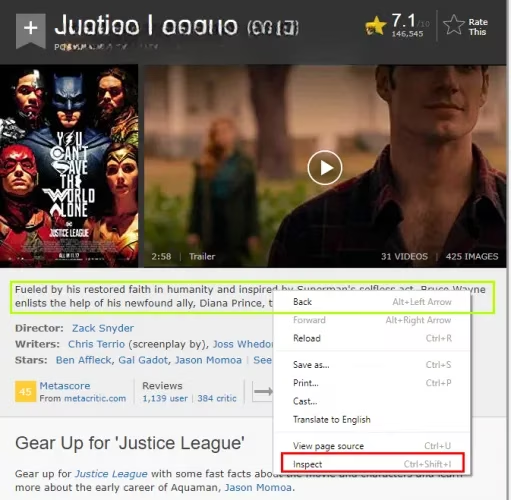
Okay, confession time: I used to struggle finding elements on web pages. Then I discovered Chrome Inspector, and my life changed forever! Here's my workflow:
-
Right-click on any element
-
Click "Inspect"
-
BAM! All the HTML secrets are revealed
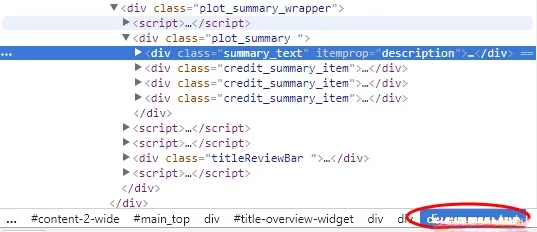
Look at that beautiful HTML structure! The summary text is in a div with class summary_text. With this knowledge, I can target it using either CSS:
WebElement summaryEl = driver.findElement(By.cssSelector("div.summary_text"));
Or XPath (for when I'm feeling fancy):
WebElement summaryEl = driver.findElement(By.xpath("//div[@class='summary_text']"));
The Ultimate Challenge: Automating Gmail 📧
Now for the pièce de résistance - automating Gmail! This is where Selenium really shows its worth. Gmail is JavaScript-heavy, making it the perfect test subject.
Here's my battle plan:
Phase 1: Login Sequence
WebDriver driver = new ChromeDriver();

driver.get("https://gmail.com");

new WebDriverWait(driver, 10)

  .until(d -> d.getTitle().toLowerCase().startsWith("gmail"));
Phase 2: Email Entry
{

  driver.findElement(By.cssSelector("#identifierId")).sendKeys(email);

  driver.findElement(By.cssSelector(".RveJvd")).click();

}
Phase 3: Password and Navigation
{

  driver

    .findElement(By.xpath("//div[@id='password']//input[@type='password']"))

    .sendKeys(password);

  driver.findElement(By.cssSelector(".RveJvd")).click();

}
Once I'm in, I can fetch all my emails like a boss:
List rows = driver

  .findElements(By.xpath("//div[@class='Cp']//table/tbody/tr"));
And extract all the juicy details:
| Data Type | How to Get It |
|---|---|
| Sender | tr.findElements(By.xpath(".//div[@class='yW']/*")) |
| Subject | tr.findElement(By.xpath(".//div[@class='y6']")).getText() |
| Date/Time | tr.findElement(By.xpath("./td[8]/*")) |
Why Selenium is My Go-To Tool in 2026 🚀
Let me break down why Selenium is still killing it in 2026:
✅ Handles modern JavaScript - No more crying over React/Angular/Vue sites
✅ Real browser interaction - It's like having a robot do your browsing
✅ Powerful element selection - CSS and XPath make targeting elements a breeze
✅ Great for testing - Perfect for QA automation
✅ Active community - Still going strong after all these years
Common Pitfalls and How I Avoid Them 🕳️
-
Timing issues - Always use
WebDriverWaitinstead ofThread.sleep() -
Element not found - Double-check your selectors with Chrome Inspector
-
Outdated selectors - Websites change, so keep your selectors updated
-
Too many requests - Be polite and add delays between actions
My Favorite Use Cases 🎯
Here's what I've automated with Selenium:
-
📊 Data scraping from dynamic websites
-
🤖 Automated testing of web applications
-
📧 Email management (like our Gmail example)
-
🔄 Social media automation (within platform limits, of course!)
-
🛒 Price monitoring on e-commerce sites
The Future Looks Bright ✨
As we move further into 2026, Selenium keeps getting better. The latest versions have improved:
-
Better performance with headless browsers
-
Enhanced mobile device emulation
-
More reliable element location strategies
-
Improved documentation and community support
Final Thoughts 💭
Selenium has been a game-changer for me. It's transformed tedious manual tasks into automated processes that run while I'm sleeping (or binge-watching shows). The combination of Selenium with Chrome Inspector is like having superpowers - you can interact with any website programmatically!
Remember, with great power comes great responsibility. Always respect website terms of service and robots.txt files. Don't be that person who crashes a website with too many requests!
So, what are you waiting for? Go forth and automate! Trust me, once you start using Selenium, you'll wonder how you ever managed without it. It's been a wild ride from my first "Hello World" of browser automation to building complex crawlers, and I'm excited to see what the future holds!
Happy coding, and may your selectors always be accurate! 🎉