Apple Shortcuts app empowers seamless Instagram video downloads with the InstaSave shortcut, transforming your digital content experience.
Have you ever scrolled through your Instagram feed, watched an incredible video from a creator, and wished you could save it for later? Or maybe you saw a hilarious clip on Twitter that you wanted to share offline with a friend? As a dedicated digital content enthusiast in 2026, I used to face this frustration daily. Facebook, Instagram, and Twitter are fantastic for discovery, but their built-in video experiences are often fleeting. Trying to find a video you saw yesterday can feel like searching for a needle in a digital haystack. I knew there had to be a better way than dealing with sketchy, ad-riddled third-party apps. That's when I discovered the true power of Apple's Shortcuts app, and it completely changed my game.
For the uninitiated, Shortcuts is Apple's incredibly powerful automation tool. Think of it as a way to create your own mini-apps or workflows. You can string together a series of actions—like fetching data, processing images, or saving files—and trigger them all with a single tap. It turns complex, multi-step routines into one-click wonders. The best part? It's built right into iOS and has only gotten more robust by 2026. You don't need to be a programmer; you just need the right shortcuts. And today, I'm going to share with you my favorite shortcuts for liberating videos from the major social platforms.
🎬 Conquering Instagram: The InstaSave Shortcut
My journey began with Instagram. The process is elegantly simple once you have the shortcut set up. First, you need to add the InstaSave shortcut to your library. I found a reliable version, downloaded it, and with a couple of taps, it was integrated into my system.

Here’s my typical workflow:
-
Find the Video: I open the Instagram app and navigate to the video post I want to save.
-
Tap the Share Menu: I tap the three-dot menu (
…) on the post and select "Share to..." -
Choose Shortcuts: From the share sheet, I scroll and select Shortcuts. (If you don't see it, tap "More" and enable it).
-
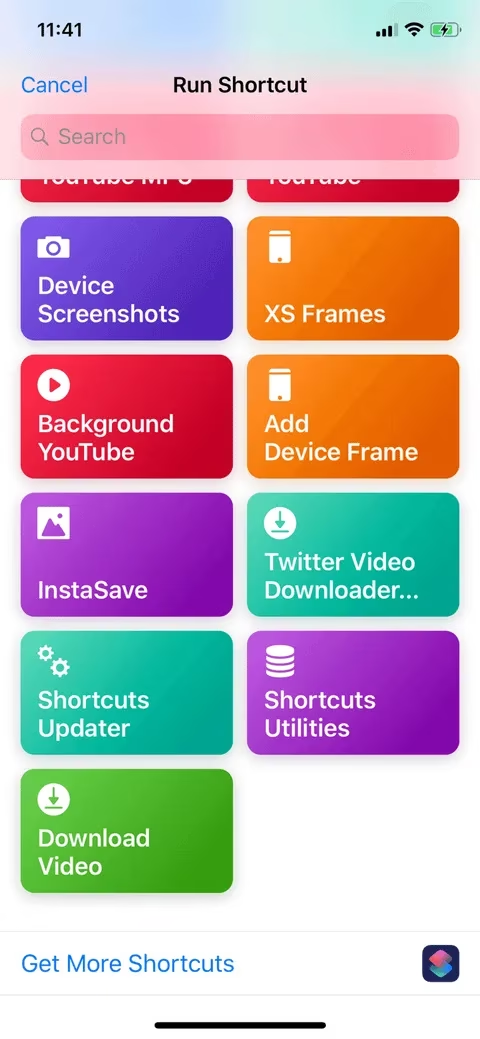
Run InstaSave: A list of my shortcuts appears. I simply tap InstaSave.
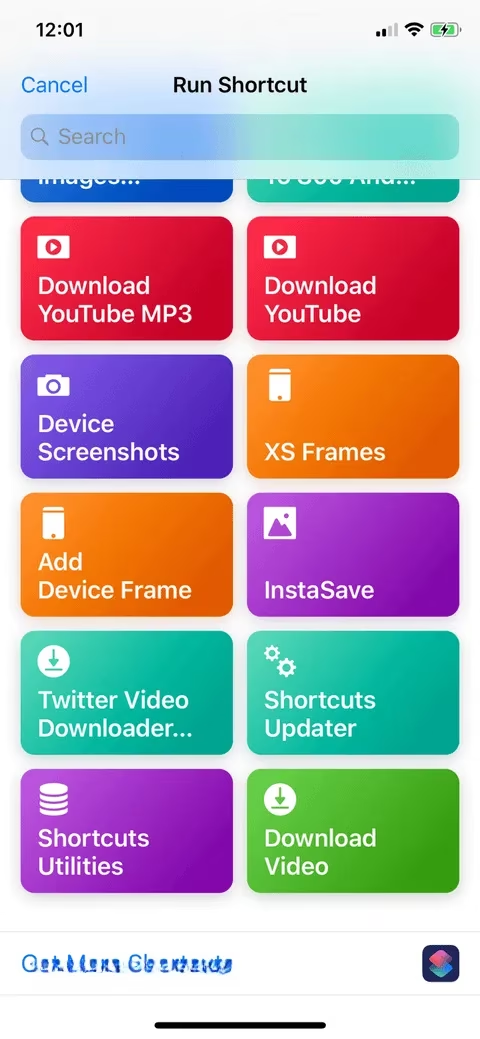
Like magic, the shortcut runs in the background. A progress wheel spins for a few seconds, and then... it's done! I switch to my Photos app, and there it is, waiting for me in the most recent album. No watermarks, no ads, just the clean video. Isn't it amazing how a tool meant for automation can become the ultimate downloader?
But InstaSave has another killer feature for power users: downloading Stories in bulk. Imagine you're following a travel blogger or an artist whose 24-hour Stories are a masterpiece. Here’s how I archive them:
-
Go to the user's public profile.
-
Tap the menu button and select "Copy Profile URL."
-
Open the Shortcuts app, tap the InstaSave shortcut directly, and choose the "Stories" option from the pop-up.
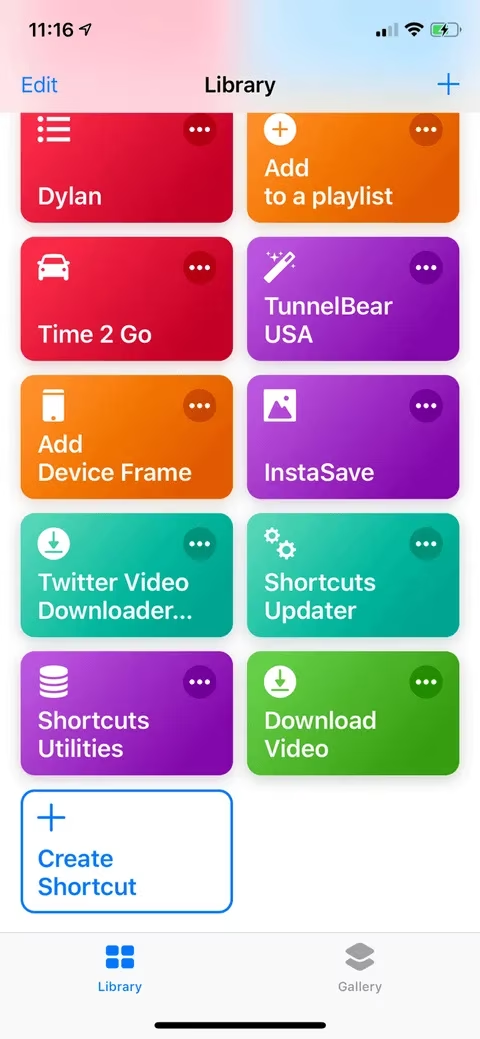
The shortcut fetches all available Stories (both photos and videos) from the past day and saves them directly to my Camera Roll. It's a game-changer for content curation.
🐦 Mastering Twitter with the Video Downloader Shortcut
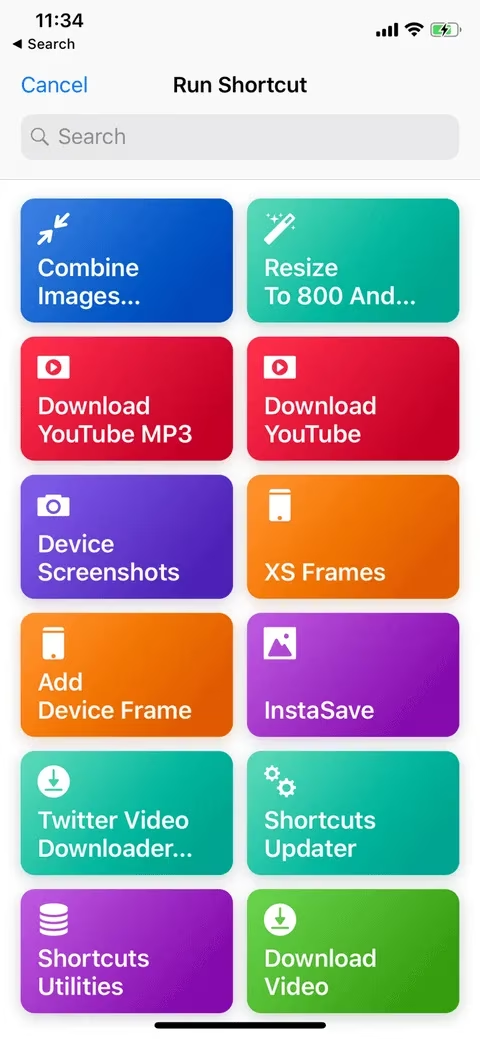
Twitter moves fast, and great videos can get buried in minutes. To catch them, I use the Twitter Video Downloader shortcut. The setup is identical to InstaSave. Once installed, the process is just as seamless.
-
In the Twitter app (or even on the website in Safari), I find the tweet with the video.
-
I tap the share icon and choose "Share Tweet via..."
-
From the share sheet, I select Shortcuts and then Twitter Video Downloader.
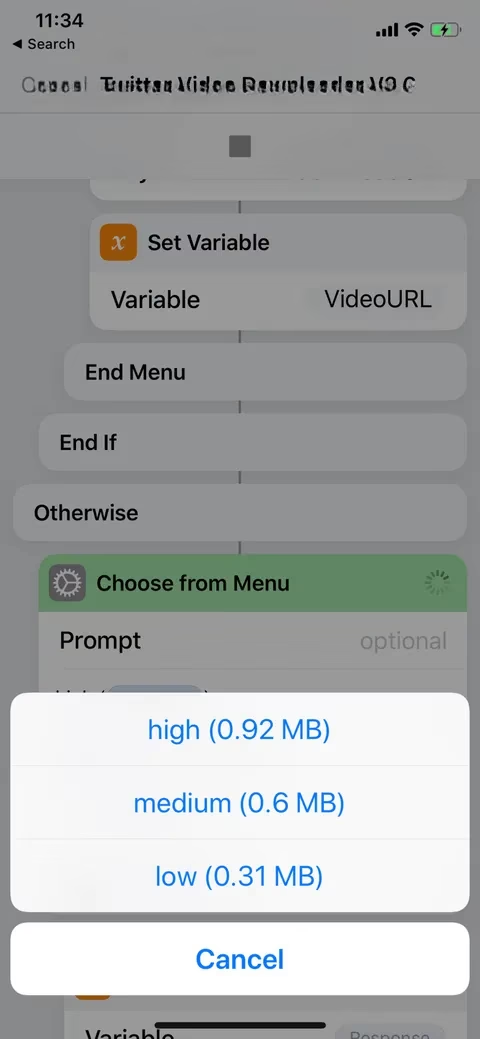
A fantastic feature of this shortcut is that it lets you choose the video quality. A pop-up appears asking if I want High, Medium, or Low quality. I usually go for High to preserve detail. After a moment, a confirmation appears, and the video is safely stored in my Photos library.
📘 Tackling Facebook Videos via Safari
Facebook posed a unique challenge because its native app is notoriously locked down. It doesn't easily let you share video links outside its walled garden. My solution? Use the Download Video shortcut through the Safari browser.
-
I open Facebook.com in Safari on my iPhone and log in.
-
I navigate to the video I want to save.
-
Tapping the share button in Safari's toolbar brings up the share sheet. I select Shortcuts and then choose Download Video.
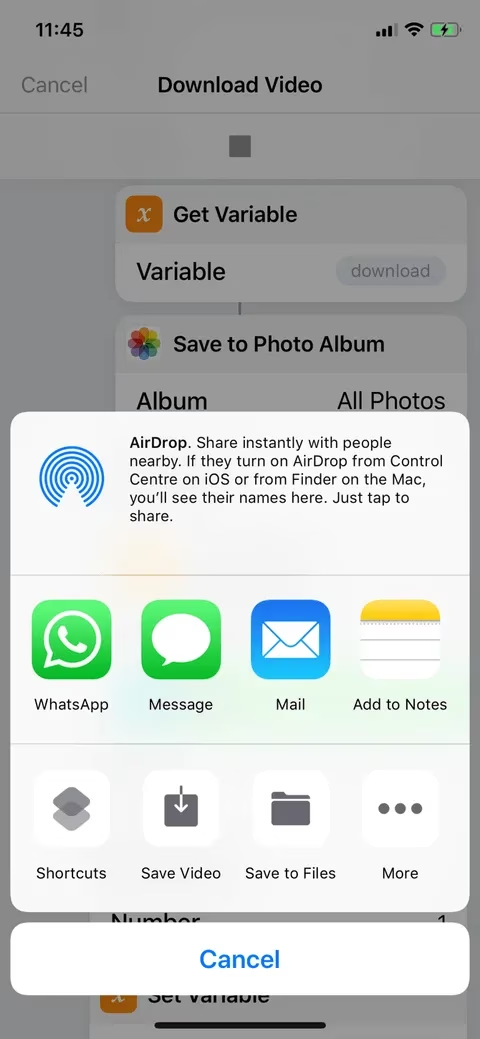
Just like with Twitter, I get to select my preferred quality. Once the download is complete, the shortcut conveniently opens another share sheet with a "Save Video" option, which pipes it directly into my Photos app.
💡 Why This Method is My Go-To in 2026
Let's break down why using Shortcuts is superior to any other method I've tried:
| Feature | Shortcuts Method | Third-Party Apps |
|---|---|---|
| Cost | Completely Free | Often have ads, subscriptions, or one-time fees |
| Privacy | Runs locally on device; no data sent to unknown servers | Questionable privacy policies; may harvest data |
| Integration | Deeply integrated with iOS share sheet and Photos | Requires switching between apps, extra steps |
| Ads & Pop-ups | Zero | Typically loaded with intrusive ads |
| Versatility | One app can handle Instagram, Twitter, Facebook, & more | Usually platform-specific |
Beyond just downloading videos, exploring Shortcuts opened up a world of automation for me. I’ve created shortcuts that:
-
🔄 Combine two photos into a perfect side-by-side collage and convert them to JPEG.
-
⏰ Set my morning alarm sequence based on my calendar.
-
📱 Send pre-written messages to my family group when I'm leaving work.
The philosophy is powerful: why do manually what you can automate with a tap? These downloadable shortcuts are like having a Swiss Army knife for your digital life, crafted by the community and refined over the years.
So, if you're tired of losing great content in the endless scroll or distrustful of shady downloader apps, I urge you to try this method. Download the Shortcuts app if you haven't already, add these powerful shortcuts, and take control of your content. In 2026, where our digital footprints are more valuable than ever, having a private, efficient, and integrated tool like this isn't just convenient—it's essential. What will you automate first?