Unlock the transformative power of batch rename files on macOS using Finder and Automator, turning digital chaos into structured order with swift, magical efficiency.
Imagine standing before a digital avalanche of files, each bearing a name as cryptic as a forgotten language, a silent testament to organizational neglect. The prospect of manually renaming them feels like counting grains of sand on a beach—an exercise in pure tedium. Yet, within the sleek architecture of macOS, powerful incantations lie dormant, waiting to transform this chaos into a symphony of order. The Finder and Automator, two pillars of the system, offer pathways to batch rename files, turning a daunting chore into a swift, almost magical, operation. This is not merely file management; it is the art of digital alchemy, where raw data is transmuted into structured meaning.
The Finder's Hidden Symphony 🎻
The Finder, often perceived as a simple navigator, conceals a potent conductor's baton within its Rename tool. It allows you to orchestrate changes across a selected ensemble of files with precision. The process is as intuitive as a painter choosing a new palette:
-
Gather Your Chorus: In Finder, navigate to the folder containing your digital chorus. Select all the files you wish to rename.
-
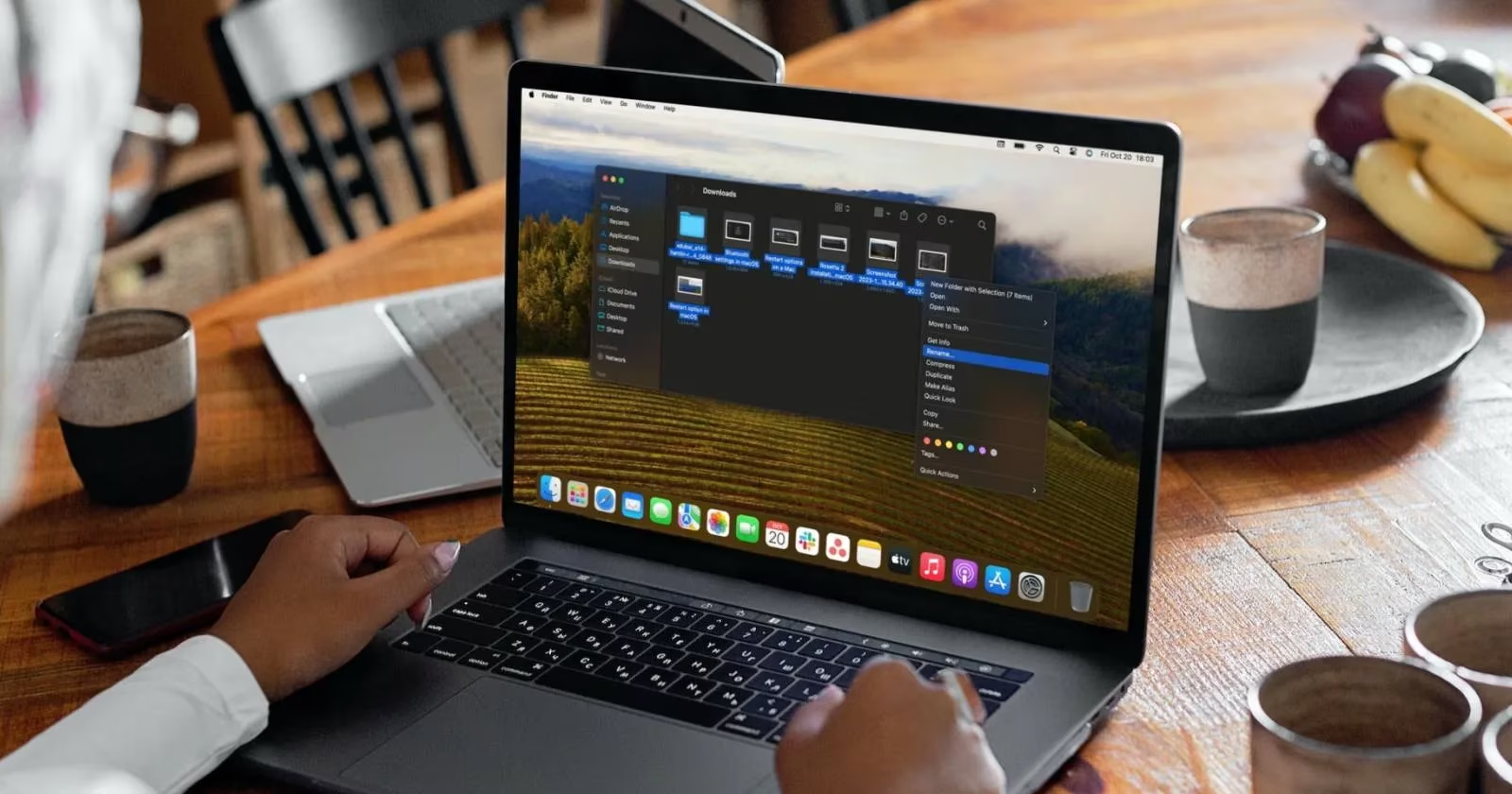
Summon the Maestro: Control-click on any selected file and choose Rename from the contextual menu.
-
Choose Your Composition: A dropdown menu presents your compositional choices:
-
Add Text: Like adding a new prefix or suffix to a family of names.
-
Replace Text: Swapping out old text for new, as if correcting a misspelling in a manuscript.
-
Format: Completely restructuring names, adding indices, counters, or dates—a complete rebranding.
-
-
Execute the Harmony: For instance, to add text, select Add Text, type your desired addition, choose its position (before or after the name), and click Rename. The change ripples through the selection instantly.
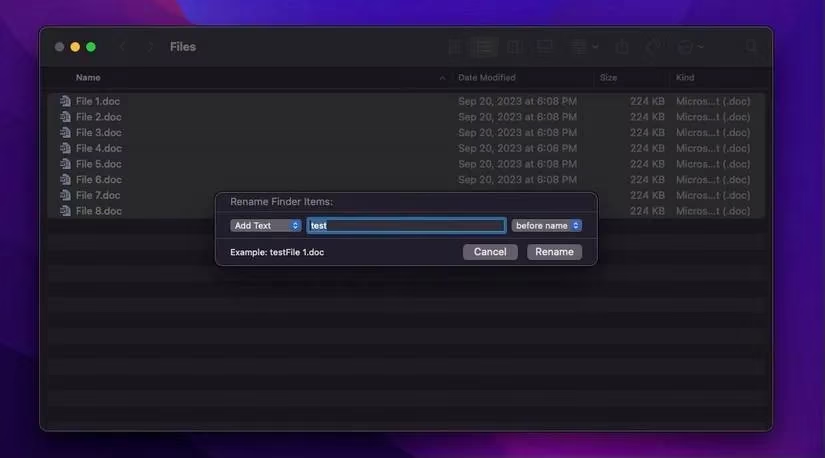
This tool is a silent guardian against monotony. It is as efficient as a master calligrapher applying a final, uniform flourish to a stack of scrolls. While we demonstrated adding text, the Replace Text and Format options offer deeper control. The Format option, in particular, can rename files sequentially (e.g., Document (1), Document (2)), an operation as satisfying as watching a line of dominoes fall into perfect order.
Automator: Crafting Your Own Digital Spellbook 🔮
For those who seek more power and reusability, the built-in Automator app is the answer. It is the loom upon which you can weave custom workflows—persistent spells for your Mac. Creating a batch renaming workflow here is like forging a unique key that can unlock order again and again.
Forging the Application
-
Open the Workshop: Launch Automator (use Spotlight Search:
Cmd + Space, type Automator). -
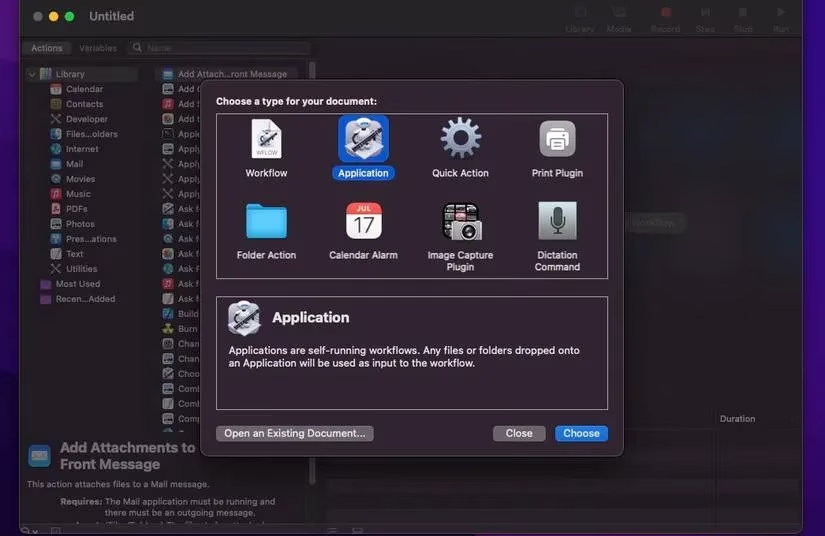
Choose Your Canvas: Select New Document and then Application as the document type. Click Choose.
-
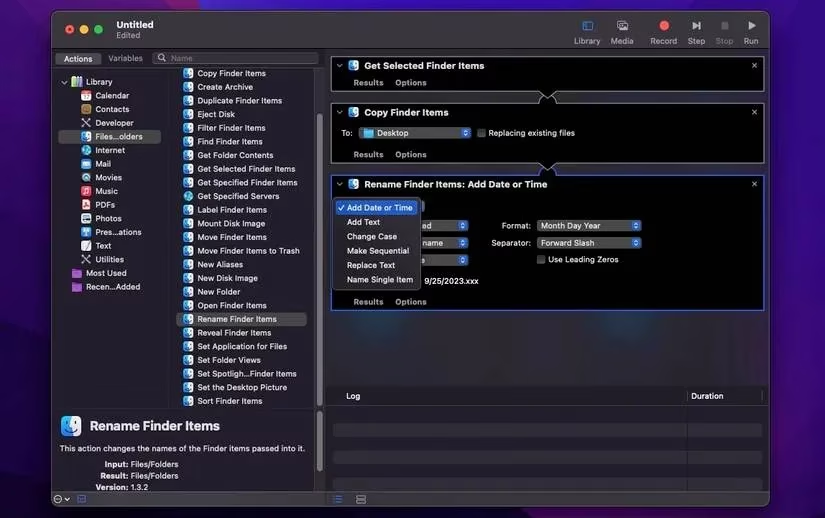
The Safety Net: A dialog may ask if you want to add a Copy Finder Items action. Always click Add. This creates a backup of your original files before renaming, a prudent step like taking a snapshot before rearranging a complex puzzle. If the prompt doesn't appear, manually find and double-click this action in the library.
-
Direct the Copies: By default, copies go to the Desktop. To organize them, create a new folder first. In the Copy Finder Items action box, select Other from the To dropdown and navigate to your new folder.
-
Add the Renaming Heart: In the actions library, find and double-click Rename Finder Items to add it to the workflow.
-
Configure the Magic: In the Rename Finder Items action box, select your method from the dropdown. Options include:
-
Make Sequential: Adds numbers (e.g.,
Photo 1.jpg). -
Add Date or Time: Stamps files with temporal metadata.
-
Replace Text: Finds and replaces text patterns.
Configure the specific settings (like starting number, date format, or text to find/replace). A live Example at the bottom previews the result.
-
Preserving and Wielding Your Creation
Once configured, you must save your spellbook as a standalone app.
-
Go to File > Save.
-
Navigate to a location like the Applications folder.
-
Give it a clear name (e.g.,
Batch Renamer 2026). -
Crucially, ensure File Format is set to Application.
-
Click Save.
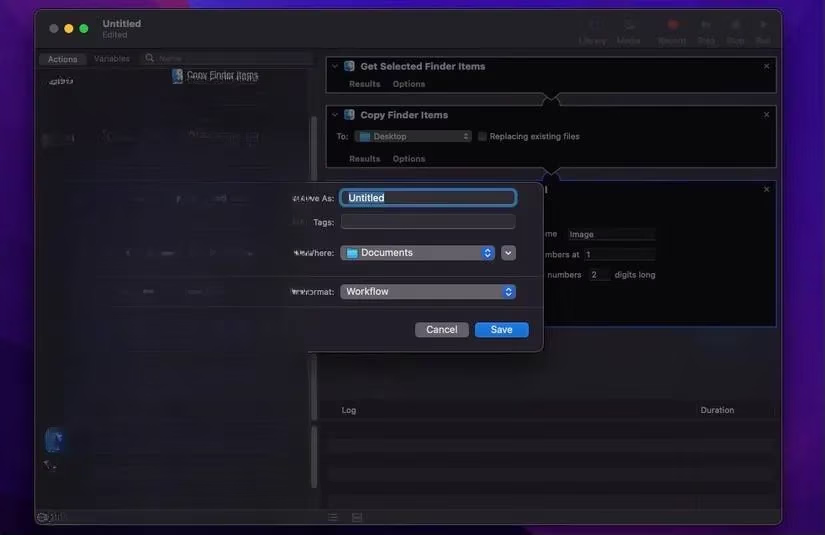
For ultimate convenience, drag this new app icon to your Dock. It now sits there, a personal digital amulet ready for use.
Casting the Spell
The moment of magic is beautifully simple, a testament to the power you've harnessed:
-
In Finder, select the files you wish to rename.
-
Drag the entire selection and drop it onto your new Automator app icon in the Dock.
-
If prompted, grant the necessary permissions (access to Finder, folders).
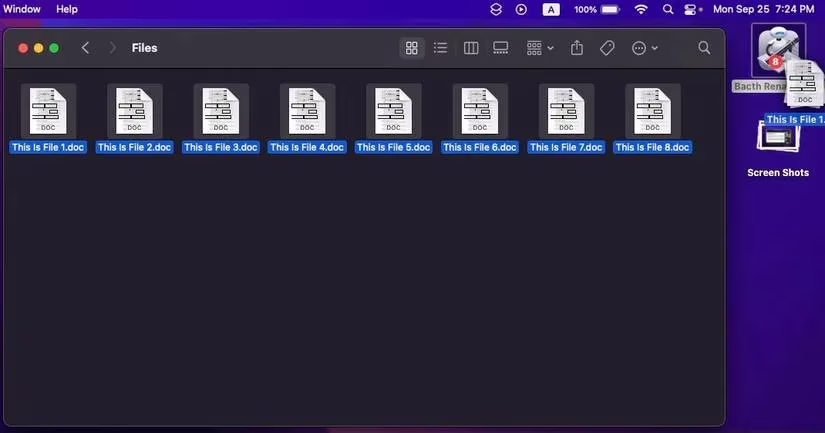
The app whirs to life, executing your predefined workflow. The renamed files will appear in the backup folder you specified, their original counterparts untouched—a seamless, safe transformation. While setting this up requires more initial steps than the Finder method, its beauty is in its permanence and reusability. It becomes a personal tool, as reliable and specialized as a master cartographer's favorite compass, perfect for recurring tasks like organizing thousands of photos from a 2026 vacation or curating a video library.
Conclusion: From Drudgery to Mastery 🏆
Facing a mountain of disorganized files need not be a Sisyphian task in the modern macOS environment. The Finder provides a swift, integrated scalpel for immediate edits, while Automator offers the forge to create a reusable hammer for larger, recurring projects. Together, they empower the user to move from passive digital janitor to active digital architect. The process of batch renaming thus transcends mere utility; it becomes a quiet, satisfying act of imposing narrative and order upon the silent, sprawling data of our digital lives, transforming noise into a harmonious library with the tools already resting in your hands.