Learn how to install wget on Mac in 2026 with our ultimate guide. Unlock powerful command-line downloads and elevate your macOS experience today!
Macs are absolutely phenomenal machines, boasting sleek interfaces and a rock-solid Unix foundation that makes you feel like you can conquer the digital world. It's all sunshine and rainbows until you hit a wall—a simple task that seems impossible because a crucial tool is missing. Enter wget, the command-line downloading powerhouse that, shockingly, doesn't come pre-installed on your shiny Mac. But fear not! In 2026, getting wget on your Mac is easier and more essential than ever. This guide will turn you from a bewildered user into a terminal-wielding download maestro. Let's dive in!
Why Wget is an Absolute Game-Changer in 2026 🚀
wget isn't just a tool; it's a command-line legend. This incredibly sophisticated utility lets you download entire websites, including all their media, stylesheets, and linked pages, to whatever depth you desire. It's the Swiss Army knife for web content preservation, automation, and bulk downloading. Think of it as DownThemAll on steroids, but with way more power and flexibility for scripting and serious backup tasks. In an era where data is king, not having wget is like trying to fight a dragon with a spoon.
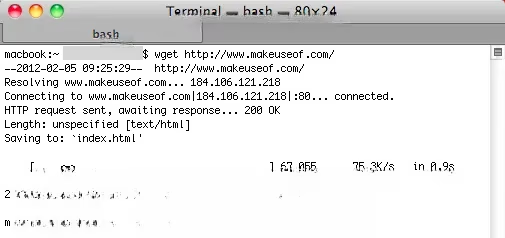
Method 1: The "Quick and Dirty" Binary Install (If You're Feeling Lucky!)
For those who want to get things done yesterday, there's a cheat code. A kind soul might still have pre-compiled binaries floating around. The process is supposedly simple:
-
Download the magical
wgetbinary zip file. -
Unzip it (a piece of cake!).
-
Copy the
wgetfile to/usr/local/bin.
But here's the kicker in 2026: This method is as reliable as a chocolate teapot. With modern macOS security (System Integrity Protection - SIP) and architecture changes (Apple Silicon vs. Intel), these old binaries often throw a fit. If you get a "permission denied" or "cannot be opened" error, don't panic. It's time to roll up your sleeves and do it the proper way.
Method 2: The Proper 2026 Build-From-Source Method (The Real Deal!)
This is where you become a true Mac power user. Building from source guarantees you get the latest, most secure, and compatible version of wget for your system. Buckle up!
Step 1: Arm Yourself with a Compiler ⚙️
Your Mac needs to speak the language of wget (C/C++). The easiest way is to install Xcode Command Line Tools. Open Terminal and type:
xcode-select --install
Click "Install" when prompted. This is non-negotiable. No compiler, no wget. It's that simple.
Step 2: Grab the Latest Wget Source Code
Head to the official GNU wget page (just search for it!) and download the newest stable source tarball. As of 2026, you're looking for something like wget-1.21.4.tar.gz. Use curl right in the terminal to be extra cool:
cd ~/Downloads

curl -O https://ftp.gnu.org/gnu/wget/wget-1.21.4.tar.gz
Step 3: The Magical Terminal Incantations ✨
Now for the fun part! Navigate and unleash the build commands:
tar -xzf wget-1.21.4.tar.gz  # Extract the archive

cd wget-1.21.4               # Enter the source directory

./configure                   # Configure for YOUR Mac

make                          # Compile the code (this is the cool part)

sudo make install             # Install it system-wide (you'll need your password)

Boom! If all goes well, you'll see a beautiful stream of text and wget will be installed. Verify your victory by typing wget --version in Terminal.
Mind-Blowing Things You Can Do with Wget in 2026 🤯
Now that you're armed with wget, let's talk about why you just leveled up your Mac game.
| Use Case | Wget Command Example | Why It's Awesome |
|---|---|---|
| Website Mirror/Backup | wget -mk -w 2 https://example.com |
Creates a perfect, browsable offline copy. Lifesaver for small biz sites! |
| Bulk Media Download | wget -r -l1 -H -t1 -nd -N -np -A.mp3,.jpg -erobots=off [URL] |
Grabs all MP3s/JPGs from a page. Use responsibly, folks! |
| Resume Broken Download | wget -c https://big.file.zip |
The -c flag is a godsend for huge files on shaky connections. |
| Automated Daily Backup | Add a wget -m command to a cron job or Launch Agent. |
Your backup script just got a major upgrade. "Set it and forget it!" |
Imagine your local community theater's website is about to vanish. One command:
wget -m -p -k -E https://local-theater.org
You've just become a digital hero, preserving their history. That's the power of wget.
A Word of Caution: With Great Power...
wget is incredibly powerful, which means you must use it ethically and legally.
-
Respect
robots.txt: Use the-e robots=offflag sparingly and only on sites you own or have permission to scrape. -
Don't Hammer Servers: The
-w(wait) flag adds delays between requests. Don't be that guy who takes down a server with a reckless script. -
Copyright is a Thing: Just because you can download all the images from a site doesn't always mean you should.
Conclusion: You Are Now a Download Wizard 🧙♂️
Getting wget on your Mac in 2026 is a rite of passage. It transforms your Mac from a beautiful consumer device into a powerful data engineering workstation. Whether you're backing up your blog, archiving precious online memories, or automating tedious download tasks, wget is the silent, text-based superhero in your terminal. So go forth, open that Terminal, and start downloading the internet—responsibly, of course! The command line is now your oyster.