AppleScript and macOS automation empower users with seamless, powerful scripting to control apps and boost productivity effortlessly.
Yo squad! As a hardcore tech enthusiast who's been grinding on macOS for years, I gotta say AppleScript is still the OG automation king in 2025! 🚀 This legendary scripting language lets you control ANY app that supports its library - from batch-resizing photos in Photoshop to auto-locking sensitive files. Imagine having a digital butler that handles all your boring tasks while you focus on gaming or content creation. The best part? It's been baked into macOS since 1993 and just keeps getting better with each update!

🔍 Hidden Gems: Pre-installed Scripts
Did you know your Mac comes with ready-to-use automation tools? Head to Macintosh HD > Library > Scripts or enable the secret menu:
-
Open Script Editor (Spotlight it!)
-
Preferences > General > Show Script menu in menu bar
-
Boom! New script icon appears
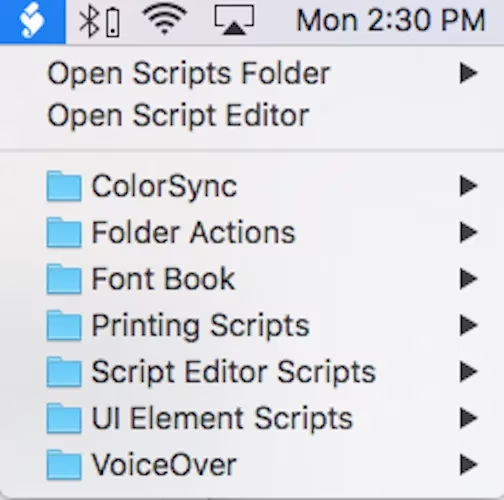
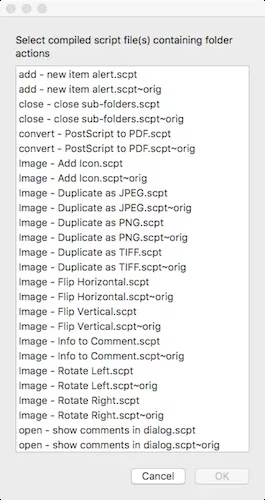
Run scripts directly from your menu bar like a pro! My personal fave? The Folder Actions that trigger when you add files to specific folders. Right-click any folder > Services > Folder Action Setup > Attach these bangers:
| Action Type | What It Does |
|---|---|
| Flip Images | Horizontal/Vertical flips |
| Convert Images | JPEG/PNG duplication |
| New Item Alert | Pings when files arrive |
✨ Human-Readable Magic
Unlike other programming languages, AppleScript speaks like plain English! Check this Folder Action syntax:
on adding folder items to this_folder after receiving added_items

   try

      tell application "Finder"

         -- Get folder name

         set the folder_name to name of this_folder

      end tell
The golden rule? Tell statements are your command wand:
-
tell+ Application + Action -
Example:
tell Finder to empty trash
Pro tip: Those --comment lines are CRUCIAL for remembering what your script does when you revisit it months later!
🚀 Your First Script in 3 Steps
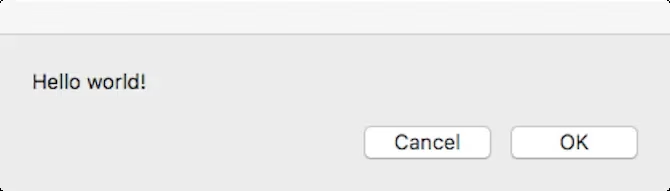
Let's create the legendary "Hello World":
-
Create: Script Editor > File > New
-
Write: Type
tell application "System Events" to display dialog "Hello world!" -
Compile: Hit the hammer icon (fixes syntax errors)
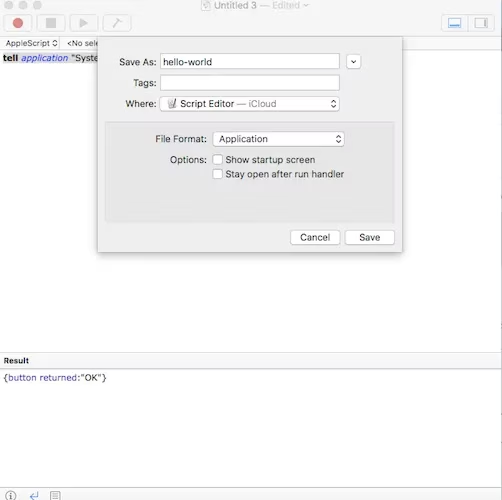
🔥 Bonus Level: Save as clickable app!
-
File > Save > Choose "Application" format
-
Now double-click to run anywhere!
💡 Unlock App Superpowers
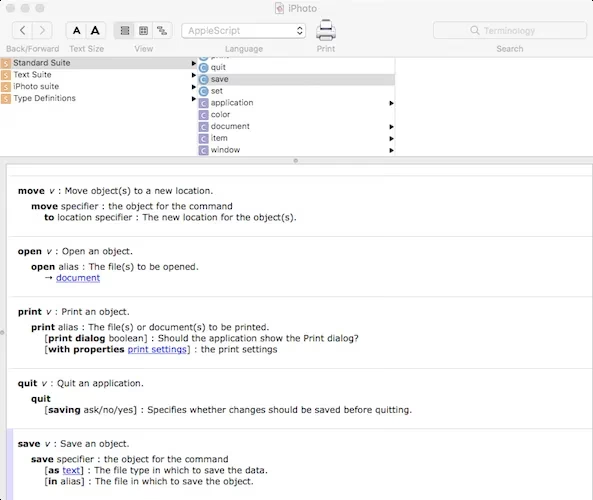
Every app has secret AppleScript commands! Reveal them with:
-
Script Editor > File > Open Dictionary
-
Select any app to see available actions
🆚 AppleScript vs Automator
When to choose which?
| Tool | Best For | Difficulty |
|---|---|---|
| AppleScript | Complex workflows 💻 | Medium-Hard |
| Automator | Simple drag-and-drop tasks 🧩 | Easy |
While Automator's great for beginners, AppleScript gives you god-mode control in 2025. Want to automatically:
-
Rename 1000 files based on creation date? ✅
-
Convert video formats overnight? ✅
-
Scrape web data into spreadsheets? ✅
That's AppleScript territory! The learning curve pays off when you create custom automations no one else has.
🎮 Final Boss Tips
-
Combine with Terminal using
do shell scriptfor MAXIMUM POWER -
Use variables and loops for repetitive tasks
-
Always test with dummy files first!
So what are you waiting for? Open Script Editor and start automating! Your future self will thank you when you're grinding levels instead of renaming folders 😉 What crazy automation will YOU build first? Let me know in the comments! 👇