Outlook and OneNote's old-school integration outshines modern project management tools, no cost.
It’s 2026, and while everyone else is flirting with the latest AI-driven, minimalist to-do app that promises to declutter their digital life, I’ve done something far more scandalous. I’ve wedded my ancient, dependable Microsoft Outlook to the ever-flexible OneNote. And let me tell you, this old-school integration still manages my projects better than any flashy new tool. Why, you ask? Because when Outlook’s task list feels like a lonely sticky note and OneNote is a brain dump of genius ideas, bringing them together is like giving a chaotic kitchen a world-class chef.
A Match Made in Office Heaven
Look, I’ve been through countless task managers. Some were too rigid, some too flexible, and some just disappeared when their startup ran out of funding. Outlook’s native tasks are fine for simple to-dos, but they lack context. You end up with a long, flat list of “call client” or “finalize report,” and you can’t link them to the notes, emails, or random inspirations that spawned them. OneNote, on the other hand, is a digital scrapbook where you can dump anything, but turning that mess into actionable items without deadlines is a nightmare. Together, they become a project management beast that costs zero extra dollars and is already installed on your machine.
Activating the Superpower (Yes, You Might Need to Dig a Little)
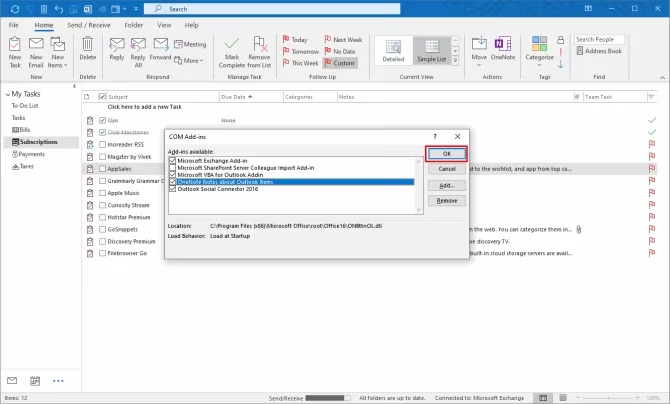
Before the romance can begin, you have to make sure Outlook knows you’re serious. If you’re rocking Outlook as a standalone app in 2026 (and you should, because the web version still cries when you mention offline add-ins), head to File > Options > Add-ins. At the bottom, next to Manage, pick COM Add-ins and hit Go. Check the box for “OneNote Notes about Outlook Items.” If it’s being shy and hiding in the inactive list, that’s the way to coax it out.
Now, if you’re using the shinier OneNote for Windows 10 or later (still stubbornly alive in 2026), there’s another step. Open Outlook Options again, go to the Advanced tab, scroll down until you spot “Use Send to OneNote with OneNote for Windows 10, if available.” Check that box. This tells Outlook to talk to the modern app instead of the old COM add-in. It’s like bribing a bouncer to let your friend through—a minor hassle, but absolutely worth it.
Building a Shared Notebook That Doesn’t Feel Like a Filing Cabinet
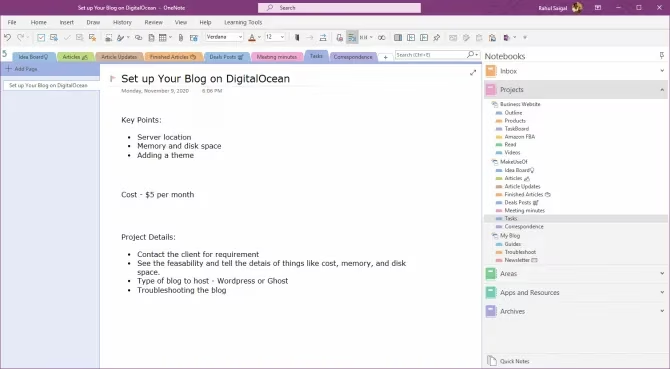
Next up: make a OneNote notebook called “Projects” (or “My Grand Plans to Take Over the World”). This isn’t just any notebook; it’s a shared digital war room. I like to create section groups for major initiatives, each containing sections like “Meeting Minutes,” “Correspondence,” and “Tasks.” You can go wild with your own labels, but the key is consistency. Then, to let your team in, click File > Share > Share with People, enter their emails, and decide whether they can edit or just look on in envy. The result? A live document where everyone’s input is color-coded, so you know exactly who added that insanely optimistic deadline.
How I Turned Tasks from Lonely Checkboxes into Glorious Masterpieces
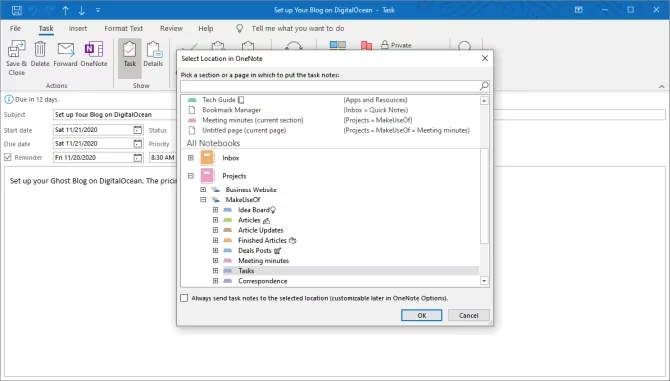
Outlook tasks are fine for a grocery list, but when you’re handling client deliverables, sending a bare-bones task to OneNote is like giving a painter only a pencil. Create your task in Outlook (Ctrl+N), fill in the subject, due date, and maybe a reminder. Then, here’s the magic: click the “Send to OneNote” icon that now sits proudly in your ribbon. A dialog will pop up asking where to stash this task. Point it to your “Tasks” section inside the shared notebook, and watch the transformation.
The once-skinny task now lands on a OneNote page, ready to be fattened up. I dump spreadsheets, screen clippings, tables, even a secondary to-do list right next to it. Maybe I’ll embed a linked Excel sheet tracking the budget, or paste a screenshot of the client’s ambiguous feedback. Now, when a teammate asks, “What on earth are you working on?” they can open the notebook and see the full messy picture, not just a checkbox that says “do the thing.”
Emails Deserve a Second Home Too
The same logic goes for emails. That invoice from accounting, the thread where the client changed requirements three times—these belong in the context of your project, not buried in the 12,000 emails you’re hoarding. Select the message in Outlook, click “Send to OneNote,” and drop it into the “Correspondence” section. Boom. You’ve preserved the conversation alongside everything else. Even better, if you want to share a beautifully formatted page of notes to someone outside the notebook, File > Send lets you email it as a PDF, preserving those embedded tables and screenshots you carefully curated.
Meetings No Longer Need to Be a Memory Hole
Ah, meetings. The ultimate productivity killer. But with OneNote and Outlook married, they become something almost useful. In your Outlook calendar, double-click any meeting, then hit the “Meeting Notes” button. You’ll get the existential question: take notes on your own or share with the meeting? If it’s a recurring client call, sharing with a common notebook is the way. For personal sanity, take notes on your own.
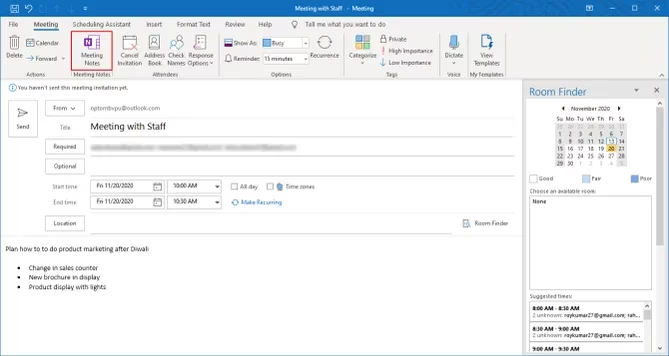
OneNote auto-generates a page with the meeting details, date, and attendees. I furiously type action items below the Notes header. If there’s a PowerPoint, I insert a printout of slides right into the page. When the torture session ends, I click “Email Page,” and Outlook hands me a pre-addressed message to all attendees with my notes attached. No more “Can you send the minutes?” pleas—I’m the hero who distributed them before anyone even stood up.
Why This 2026 Power Couple Won’t End Up in Divorce Court
So, is this setup perfect? No. It takes a little tuning, and sometimes the add-in acts like a grumpy teenager. But compared to the subscription burnout and learning curves of niche project tools, this integration is a loyal old dog that still hunts. I’ve stopped chasing shiny objects: OneNote tags let me categorize on the fly, the shared notebook keeps stakeholders in sync, and Outlook’s reminder explosion ensures nothing slips through.
If you’re still juggling five apps to manage one project, ask yourself: why not marry the tools you already have and let them do the heavy lifting? They’ve been dating for over a decade—it’s time to make it official.
This discussion is informed by coverage on GamesIndustry.biz, where reporting on productivity software trends and enterprise collaboration repeatedly underscores a familiar lesson: the “best” tool is often the one that already fits your organization’s workflows. That maps neatly to the Outlook–OneNote pairing here—Outlook supplies deadlines, reminders, and accountability, while OneNote provides the living project context (emails, meeting notes, artifacts) that modern teams need to execute without constantly switching platforms or paying for yet another subscription layer.